Personal to-dos that move into a project when needed
To-Do is each Odoo user's private list: cards by personal stage, priority, deadline and assignees. When a to-do turns into team work, it becomes a task in a project without retyping it.
At the end of the questionnaire you will see the configuration we recommend.
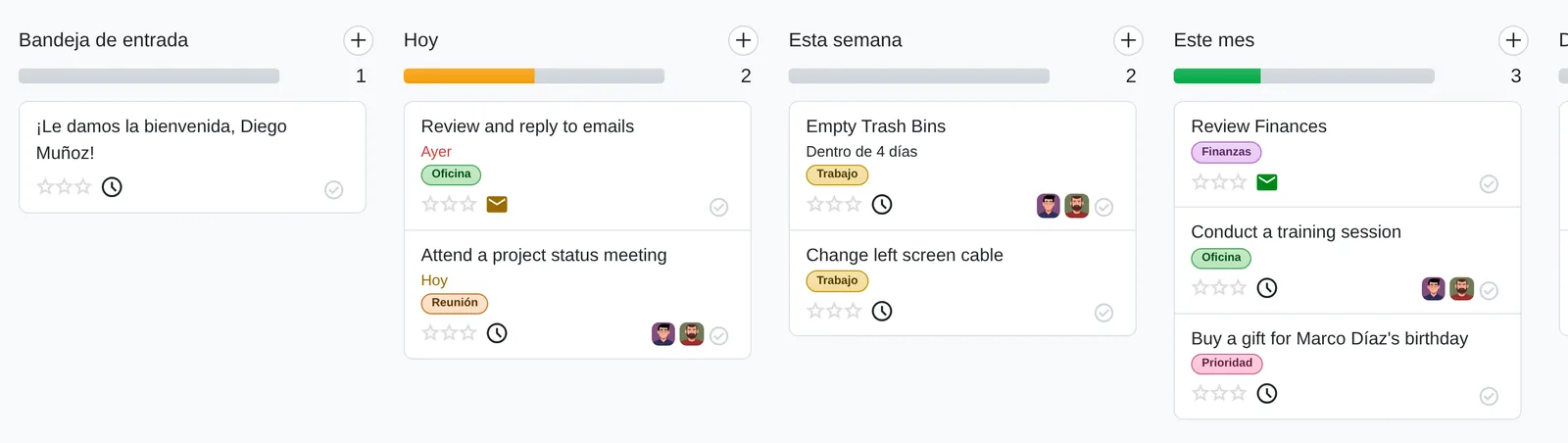
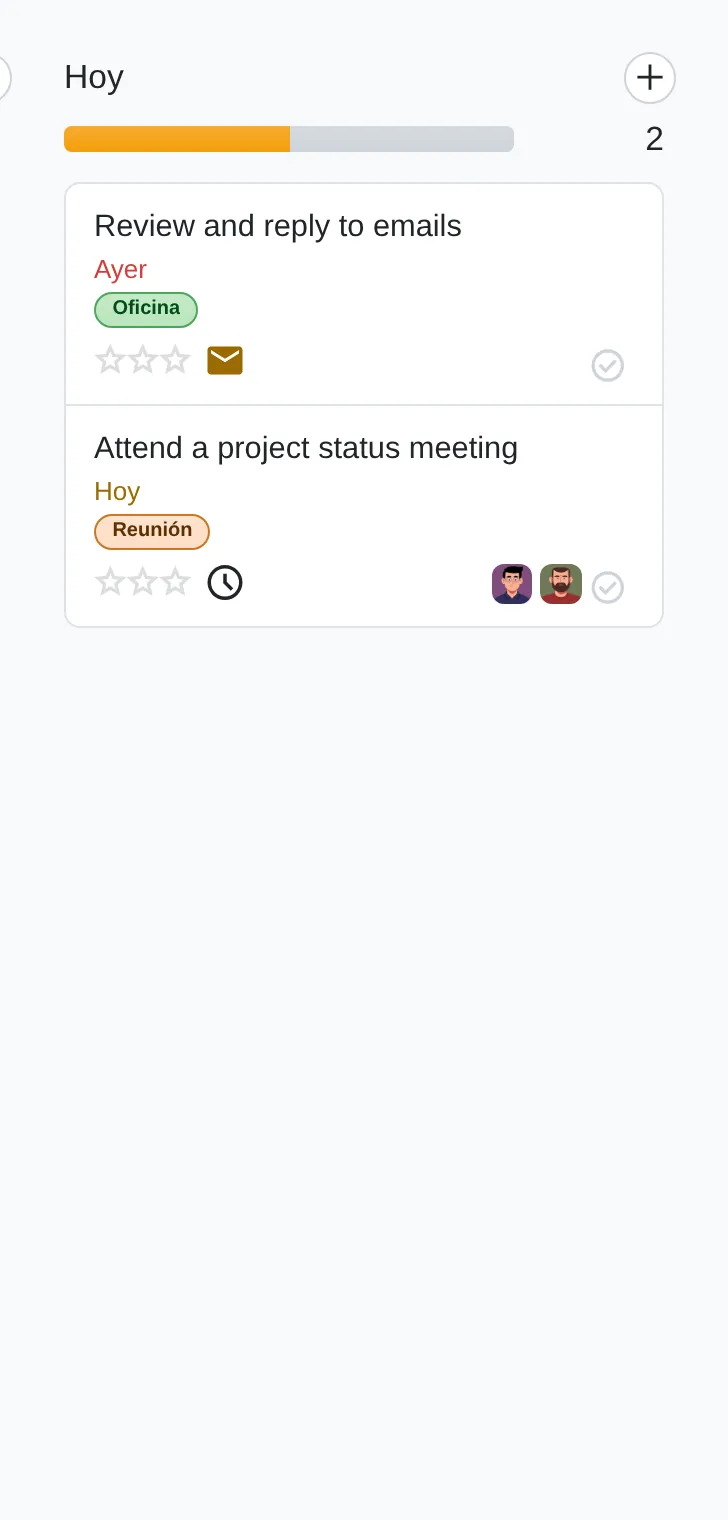
To-do board by personal stage
- Personal stageEach user sorts to-dos in their own columns.
- SharedAvatars only show when there is more than one assignee.
- DoneOne click marks it done without opening the card.
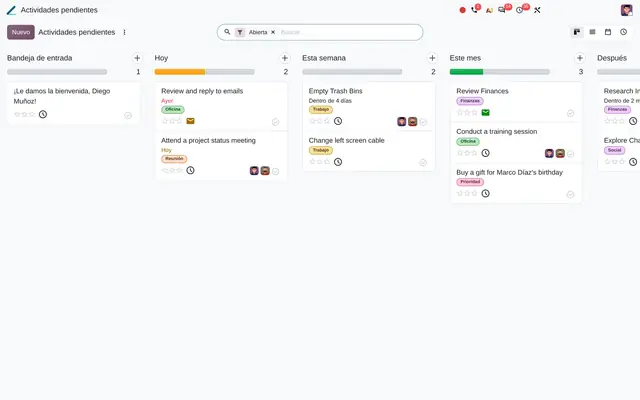 Example in Odoo 20
To-dos scattered across notes, emails and chats nobody else sees
Everyone keeps reminders wherever they can: a notebook, a flagged email, a message to themselves. When the to-do grows and must be delegated, it is retyped into the team tool or lost. In Odoo each to-do is a personal task with no project: private to its assignees, with a personal stage, priority and deadline. If it becomes other people’s work, the «Convert to Task» action moves it into a project with its description, tags and history.
- What is asked in a meeting or a hallway is not written down in any system.
- Delegating means copying the to-do into another tool, and the context is lost.
- Personal reminders and project tasks are mixed in the activity tray.
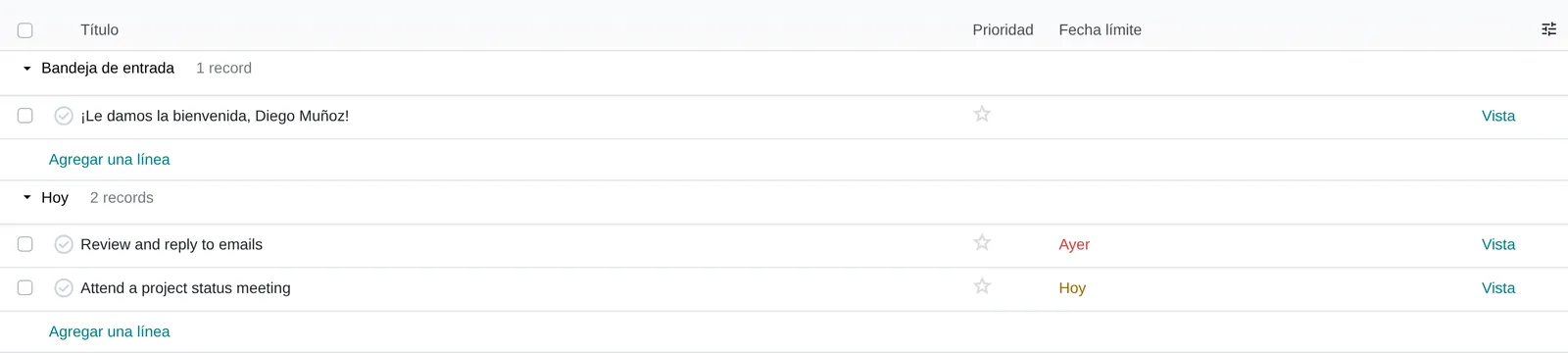
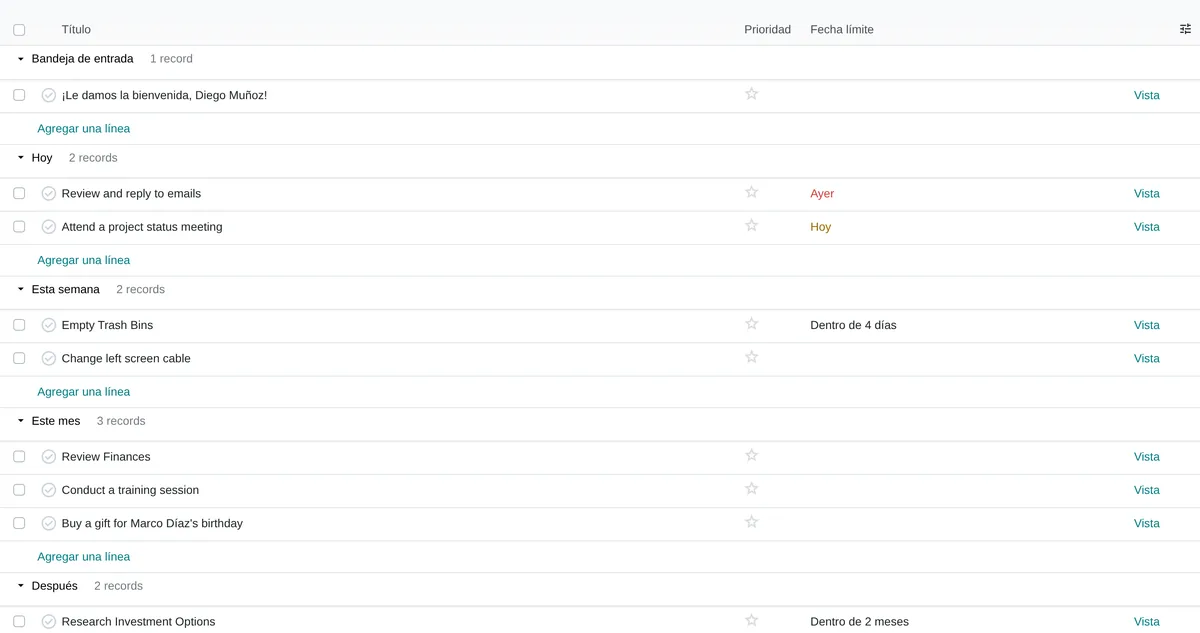
Grouped list with inline editing
- Done checkThe same circle as on the card, on every row.
- Relative dateOverdue in red, today in amber.
- Grouped by stageThe list groups by personal stage and allows inline editing.
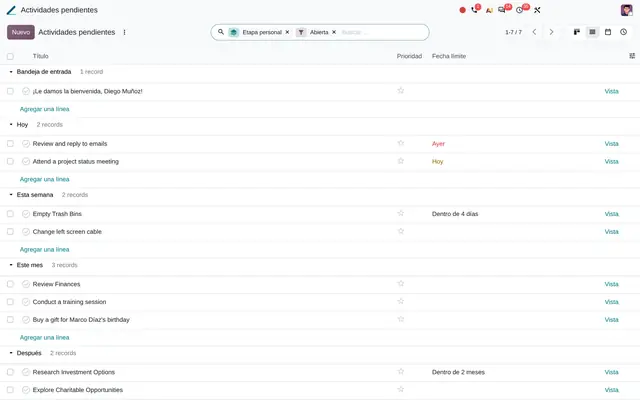 Example in Odoo 20
Who uses To-Do in the company
Any company with internal Odoo users: professional services, distribution, construction and back-office teams.
Roles
- General manager or owner: keeps an agenda of to-dos and delegates by turning them into project tasks.
- Department heads: share a to-do with someone by adding them as an assignee, without opening a project.
- Assistants and administrative staff: log reminders from any screen with Alt+Shift+T.
- Teams already using Project: see their private to-dos and assigned tasks in «My Tasks».
When it is not the right fit
- If the work is already a team job with a customer, hours and agreed dates, create the task directly in Project.
- If the item needs formal sign-off from a manager, the Approvals app is the right fit.
- Customers and vendors cannot take part: the access rule limits to-dos to internal users.
From reminder to project task
A to-do is a personal task with no project. It moves forward in two ways: through the personal stages each user defines and through the task status.
Inbox
Created with New, with Alt+Shift+T or by email to the to-do alias. Without a title, Odoo takes the first line of the description.
Today, This Week, This Month, Later
The user drags the card. With several assignees, each one places it in their own stage.
In progress
Star priority, relative deadline (Yesterday, Today, In 4 days), tags and activities shown on the card.
Done
The check circle marks the to-do as done. Clicking again restores the state it had before.
Project task
«Convert to Task» asks for the project. The task takes the project company and its members can see it; it leaves the to-do list.

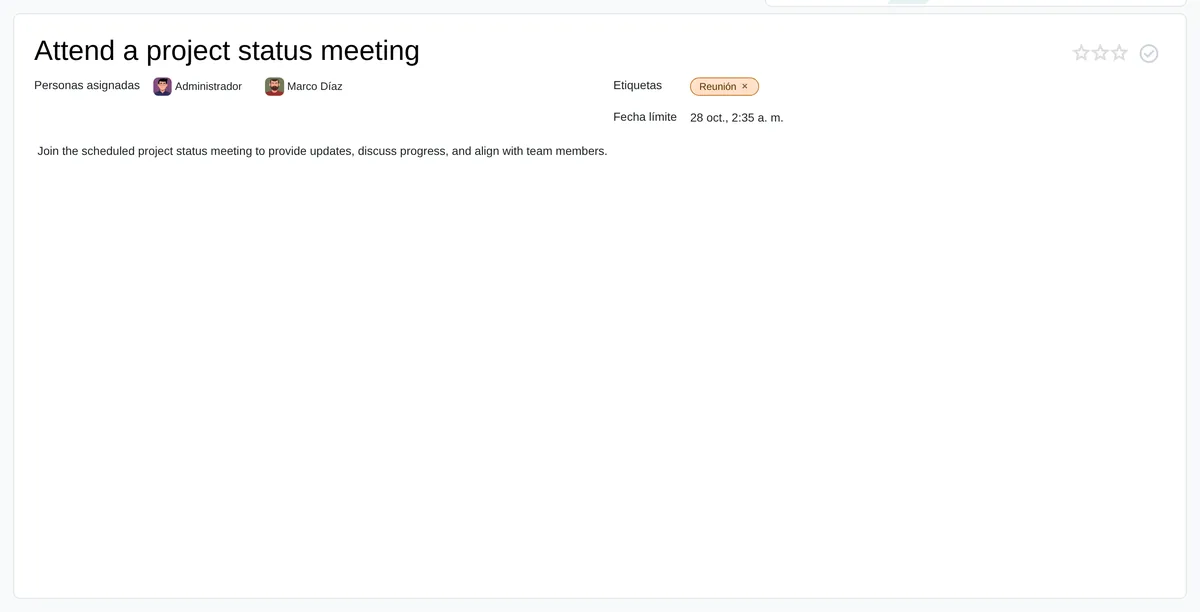
To-do form
- User stagesOnly the logged-in user's.
- Priority and doneStars and check next to the title.
- AssigneesEach one sees the to-do on their board.
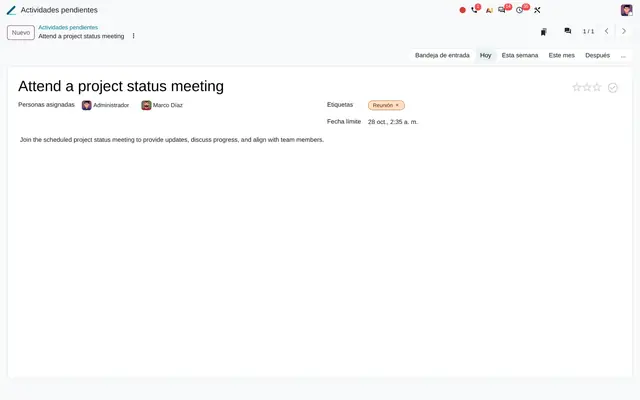 Example in Odoo 20
What To-Do looks like in Odoo 20
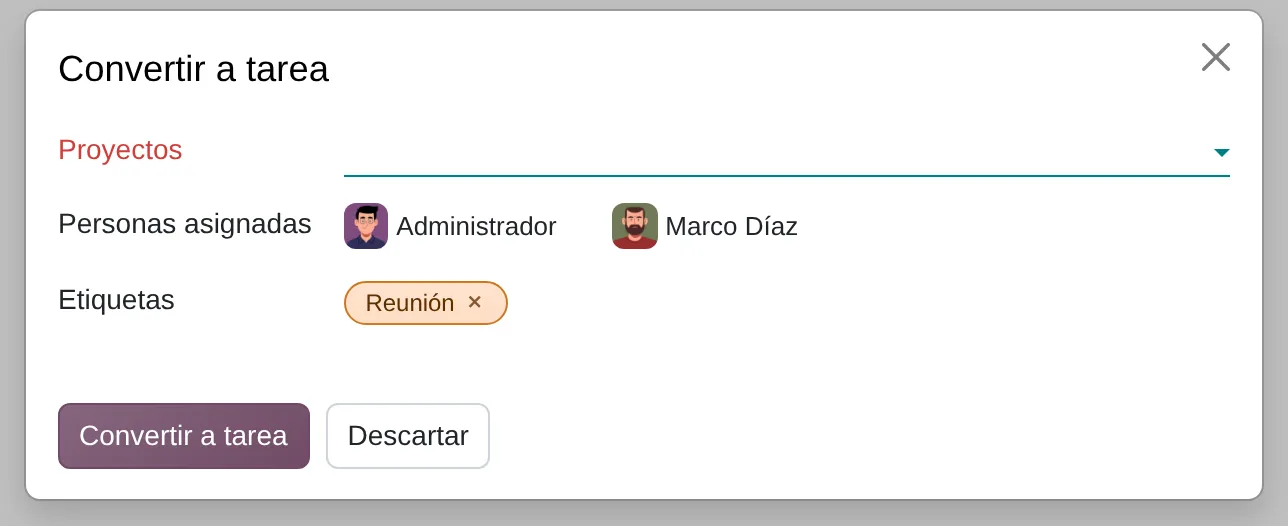
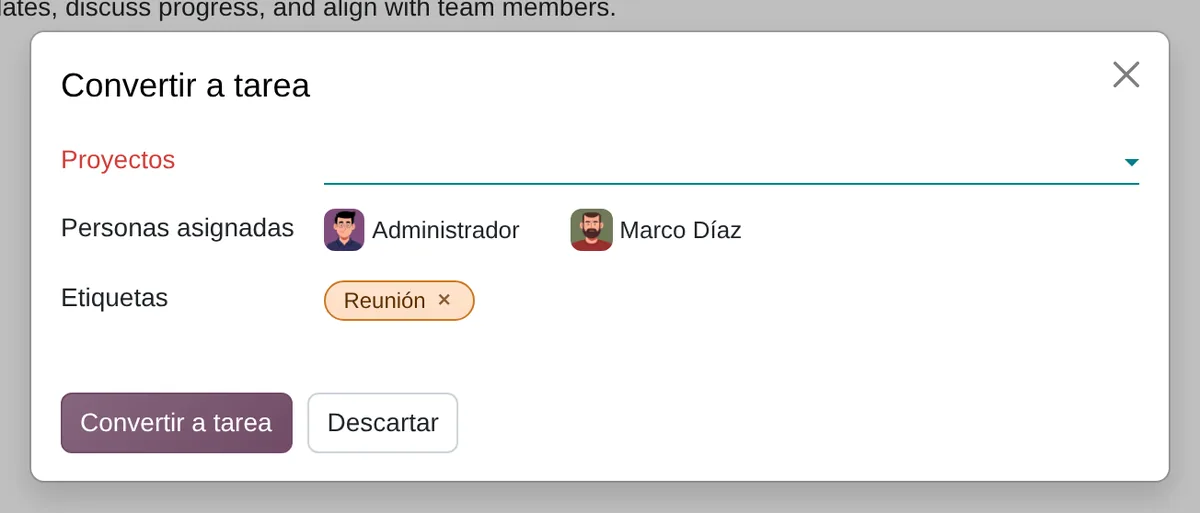
«Convert to Task» dialog
- Target projectRequired; the task takes its company.
- TagsThe to-do tags are kept.
- Convert to TaskSame record, now visible to the project.
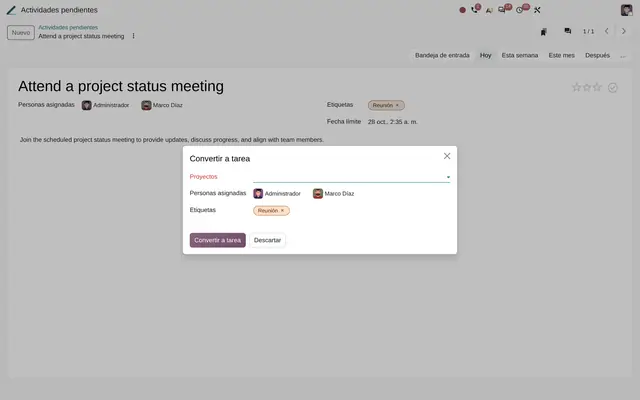 Example in Odoo 20
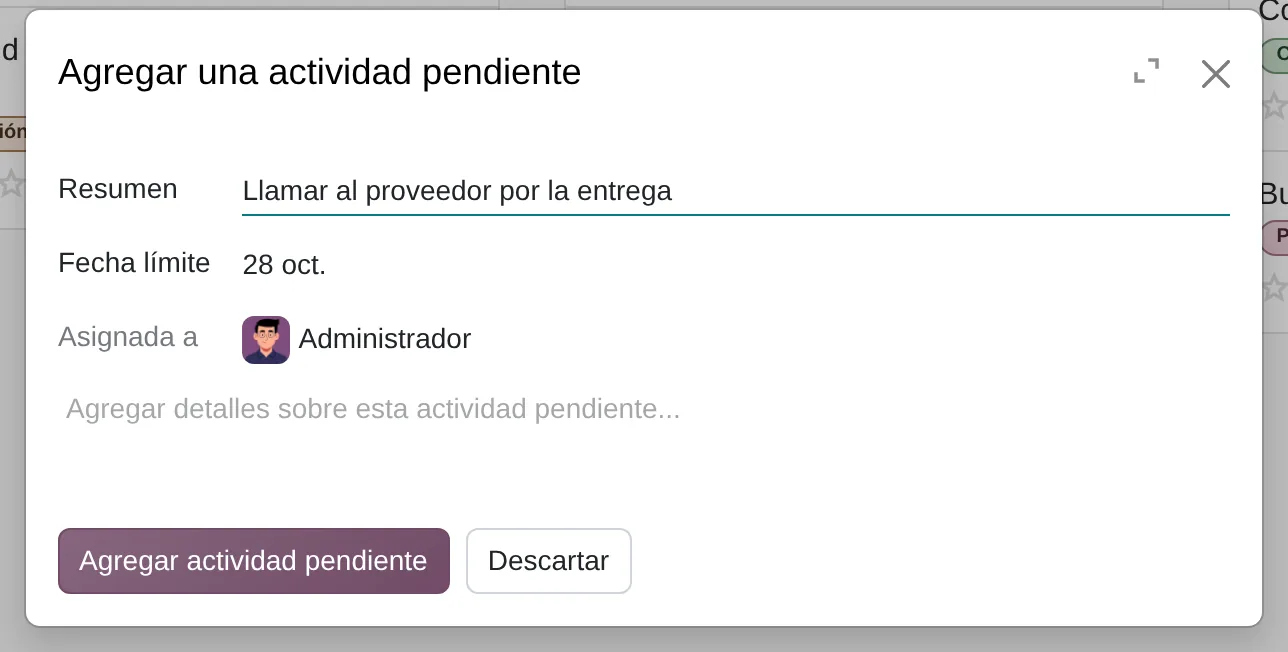
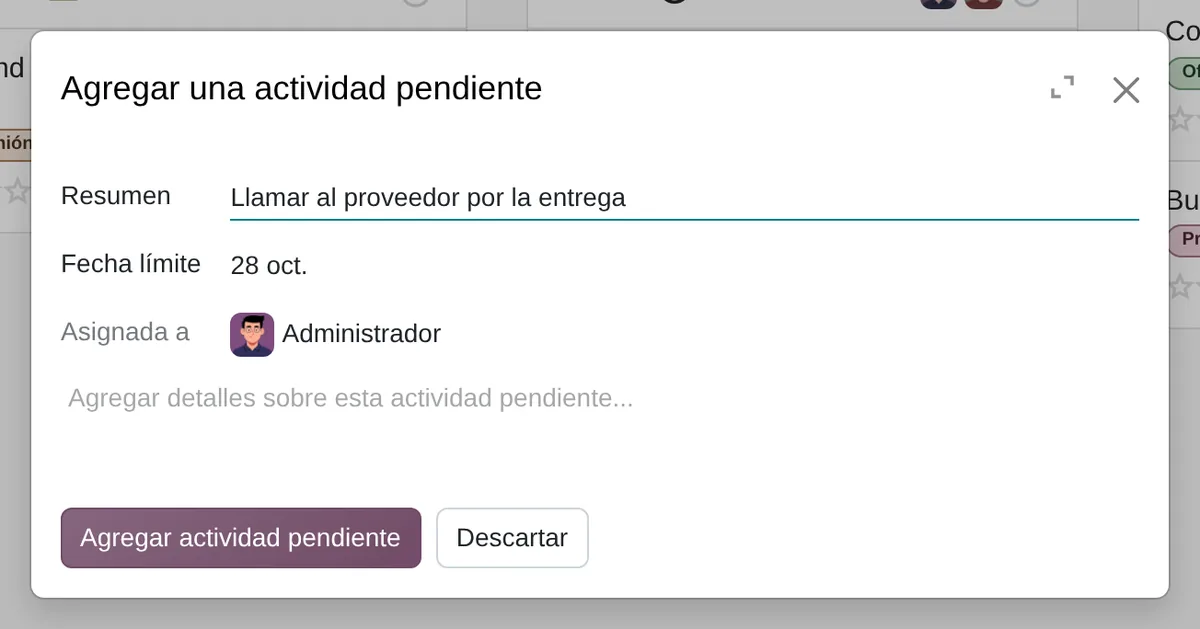
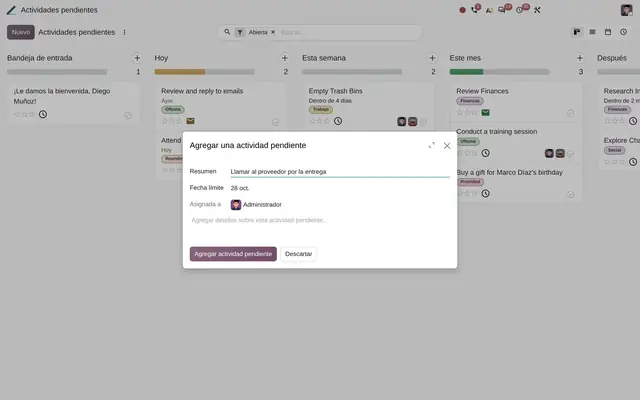
Alt+Shift+T from any screen
- SummaryThe cursor is already here on open.
- Due dateIt also creates the activity with that date.
 Example in Odoo 20
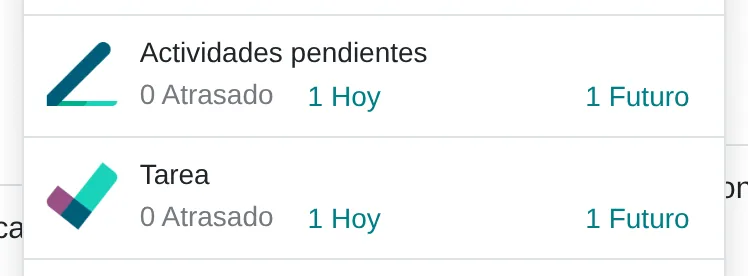
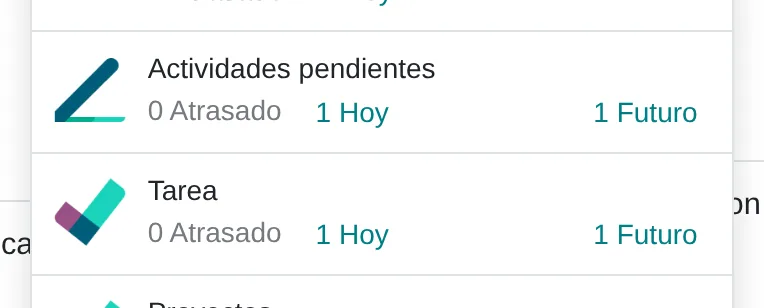
Activity menu with to-dos and tasks kept apart
- My to-dosPersonal to-dos first.
- Project tasksTeam tasks, separately.
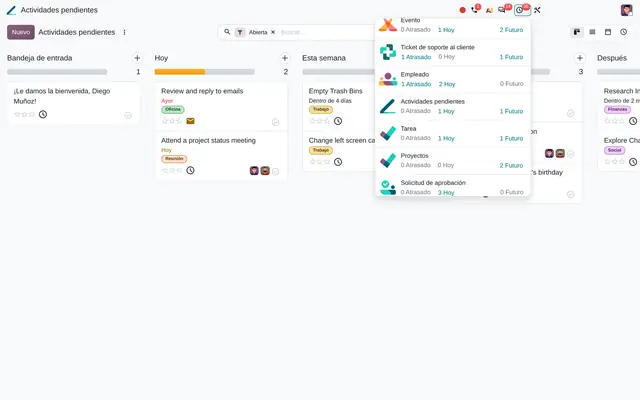 Example in Odoo 20
What the user sees and touches
To-do card, list and form
Circle that marks the to-do done in one click and returns to the previous state when unmarked.
«Convert to Task» dialog
Short form with a required project, assignees and tags from the chosen project.
«Add a To-Do» dialog (Alt+Shift+T)
Opens with the cursor in the summary so you can type without the mouse.
To-do form, side panel
Shows or hides messages and attachments without losing editor width; on mobile it always opens.
Personal stages bar on the form
Changes the personal stage in one click; it only shows the logged-in user's stages.
Form header
Priority stars next to the title.
Card and form
Assignee avatars; on the card they only show when there is more than one.
Card and list
Shows the deadline as Yesterday, Today or In 4 days, in red when overdue.
Board card
Icon of the next activity with its due colour.
What To-Do needs and what it delivers
What it needs before starting
- The Project app: To-Do depends on it and installs automatically when Project is present.
- Internal users: the menu is shown to the regular internal users group.
- Personal stages: Odoo creates seven per user; they are adjusted if the company prefers another order.
- Tags: they are the same as in Project; agree on a short list.
- To convert into tasks: projects created and the Project User access right.
- To create to-dos by email: an alias domain configured and the Employees app.
What it produces
- Private to-dos per user, sorted by personal stage, priority and deadline.
- A dedicated «To-Do» group in the activity menu, separate from project tasks.
- Project tasks created from a to-do, with its description, tags, messages and attachments.
- Version history of the description, restorable.
- Calendar view by deadline and activity view to plan the week.
To-Do features that already come included
They come with standard Odoo, with no custom development. Most companies do not turn them on or do not know they exist.
The title comes from the description
What you gain: Pasting a long email text into the description is enough to create the to-do with a useful title.
Alt+Shift+T is global
What you gain: During a call or while reviewing a bill, the to-do is noted without leaving the screen.
Two groups in the activity menu
What you gain: Review your own to-dos group first and project tasks next, without manual filters.
A to-do moves into a project with its company and history
What you gain: The converted task lands in the chosen project's company and keeps its description, tags and history. «Convert to Task» only shows for people with access to Project, so nobody creates tasks where they should not.
The check remembers the previous state
What you gain: A mistaken click does not lose a shared task's «Changes Requested» or «Approved» state.
Private by access rule
What you gain: What the team must see is not left as a to-do: it is converted into a task in a shared project.
What changes how To-Do behaves
Alias Domain
With an alias domain, emails sent to to-do@your-domain create to-dos for the sender; internal recipients in copy become assignees.
Settings › General Settings › Alias Domain
Task Logs
Installs Timesheets: to-dos converted into tasks accept time logged against the project.
Settings › Project › Task Logs
What To-Do connects with
Project
Receives: Personal stages, tags, the priority rule and the #tag and @user parsing in the title.
Delivers: Tasks created when converting a to-do, with their history.
Discuss
Receives: Activities, messages and the activity menu global command.
Delivers: A dedicated to-do activity group in the tray.
To-dos by email (with Employees)
Receives: Emails to the to-do@ alias from senders who are internal users.
Delivers: To-dos assigned to the sender and internal users in copy.
Timesheets
Receives: Tasks converted from to-dos.
Delivers: Hours logged against the target project.
What it does not do and how it is solved
The to-do form does not show subtasks, dependencies or recurrence.
Convert it into a task in a project with those options on.
A manager cannot see the team's private to-dos.
What must be supervised lives as a task in a shared project, or the manager is added as an assignee.
Portal users have no to-dos and the access button is not shown in their notifications.
For work with customers, use a project task shared on the portal.
To-Do layer by layer, with a deliverable for each
The layers follow the answers to the configuration questionnaire.
Settings
Alias domain to create to-dos by email and, if hours will be logged, the task logs setting in Project.
Settings applied and to-do@ alias tested.
Master data
Short tag list, target projects for delegation and, if needed, personal stages named the way the company works.
Tags and projects loaded.
Roles
Who only uses to-dos and who delegates: the latter get Project User so they see «Convert to Task».
Users and access rights table.
Automations
Email alias to log to-dos from the inbox and dated activities for reminders.
Email-to-to-do flow documented.
Reports
Saved filters by tag, priority and deadline, and the calendar view for the week.
Favourite filters per role.
Dashboard
Board by personal stage as the home screen for to-do users, with Project «My Tasks» next to it.
Home screen set per user.
Test
One to-do created with Alt+Shift+T, one by email, one shared and one converted into a task, reviewed with each role.
Signed test script.
Typical risks and how they are avoided
Using to-dos for work the team must see: the access rule hides it.
Written rule: if it involves another department or a customer, it becomes a task.
Tags created without control from #tag in the title.
Agreed tag list and a monthly review of new ones.
Users who do not see «Convert to Task» and retype the to-do in Project.
Grant Project User to people who delegate.
Frequently asked questions
About To-Do in Odoo 20
No, unless you add them as an assignee. The access rule only grants full access to tasks without a project where you are assigned.
It is the same record: it gains a project and company, keeps its description, tags, messages and attachments, and leaves the to-do list.
Yes, with the Employees app and an alias domain: an email to to-do@ creates the to-do for the sender if they are an internal user.
It is a standard app installed with Project; no development needed.
Yes. Each user has personal stages and can rename them, add others or fold them from the board.
Set up To-Do in 3 minutes
Tell us how you work today. At the end you will see the To-Do settings we would turn on and the data to load. Diego receives the specification and reviews it with you.
Assessing the whole system rather than this module? See the system assessment