Purchasing with approval by amount and tracked receipts
Odoo Purchase takes a request for quotation through to the approved order, the warehouse receipt and the vendor bill, with the status of each step in view.
At the end of the questionnaire you will see the configuration we recommend.
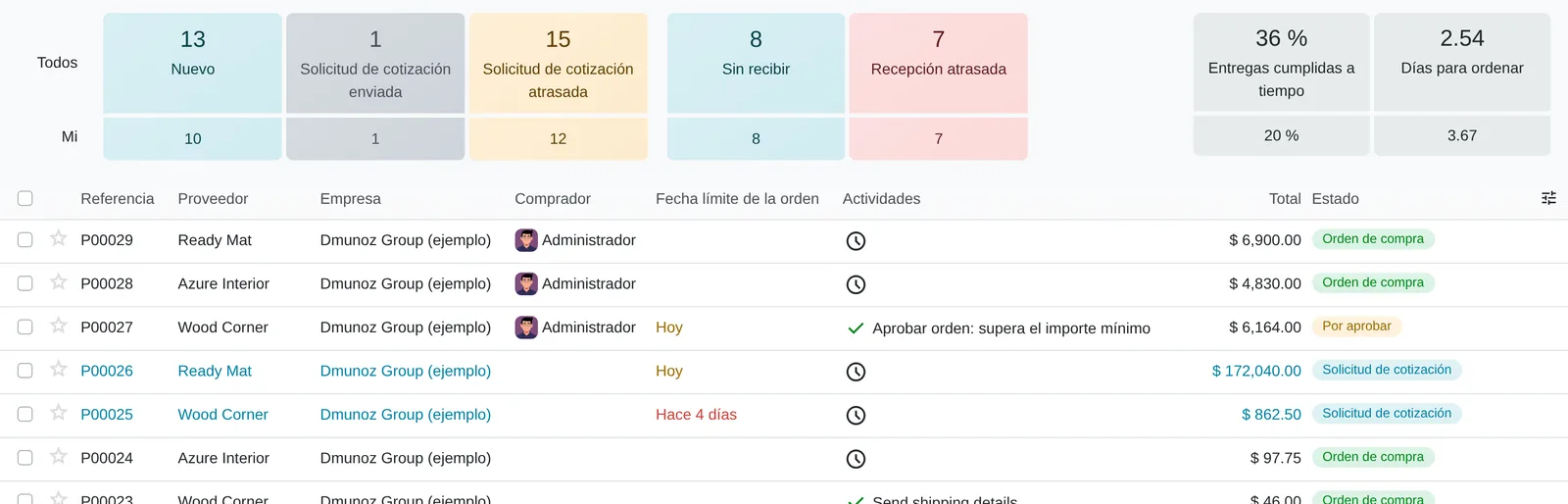

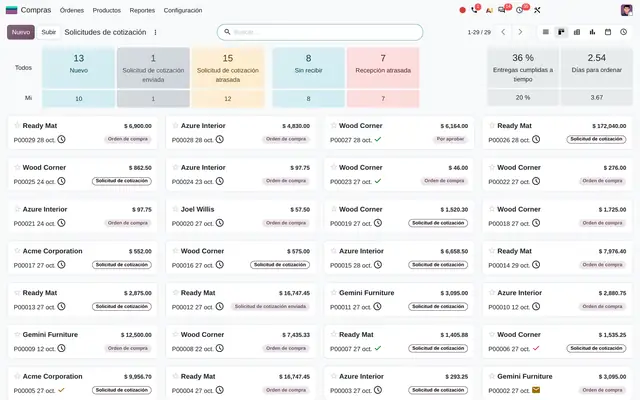
Purchase panel above the list
- New requestsEach card filters the list in one click.
- Late receiptConfirmed orders past their expected date.
- On-time deliveriesPercentage computed from vendor receipts.
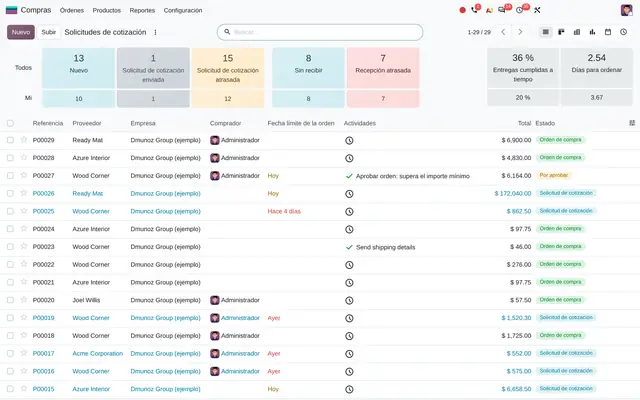 Example in Odoo 20
Orders nobody approved and bills that do not match what arrived
Purchasing often lives in emails, PDF quotes and a spreadsheet of open items. Management sees the spend when the bill arrives, and the warehouse receives goods without knowing what was ordered or at what price. In Purchase everything revolves around one document, the purchase order, which changes status with a named owner and keeps its history.
- The request for quotation and the purchase order are the same record: it changes status and is never retyped.
- Above the minimum amount set by the company, the order stays «To Approve» until a Purchase administrator confirms it.
- The panel above the list counts late requests and overdue receipts, for everyone and for each buyer.
Purchase panel above the list
- New requestsEach card filters the list in one click.
- Late receiptConfirmed orders past their expected date.
- On-time deliveriesPercentage computed from vendor receipts.
Example in Odoo 20Who uses Purchase in the company
Distribution, construction, manufacturing and services with recurring purchases of materials or supplies.
Roles
- Purchasing or logistics manager: issues requests, compares vendors and follows deliveries.
- Finance manager: approves orders above the set amount and controls committed spend.
- Warehouse: receives against the order and records partial quantities.
- Accounting: records the vendor bill from the order and checks ordered, received and billed quantities.
When it is not the right fit
- If you buy a few times a month from the same vendors and nobody approves, recording the vendor bill in Invoicing is enough.
- If purchases come from replenishment rules or a production plan, Purchase is still installed, but the design starts in Inventory or Manufacturing.
- Public procurement through Peru's SEACE platform follows its own procedure; Purchase records the resulting order, not the tender.
One document that changes status
The order moves through these statuses and each change is logged in its history with user and date.
Request for quotation
The buyer picks the vendor and products. The price comes from the vendor pricelist or, if there is none, from the last confirmed order.
RFQ sent
It goes out by email with the RFQ PDF. The vendor can confirm dates from the portal.
To approve
It only appears if the company requires approval and the total exceeds the minimum amount. A Purchase administrator confirms it.
Purchase order
With Inventory it creates the receipt and enables the vendor bill. If locking is on, it is locked when confirmed.
Received and billed
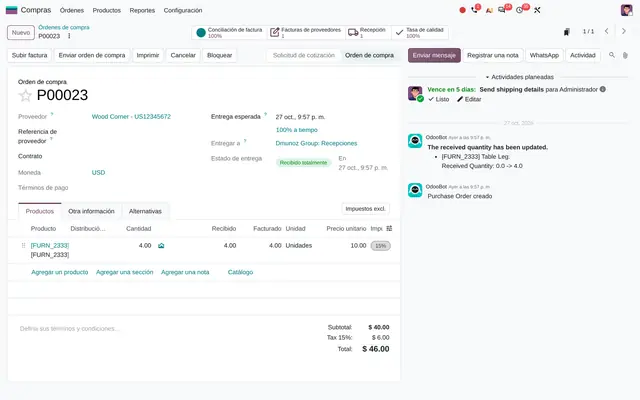
The receipt status moves from pending to partial and full; the pie chart shows the share already billed.
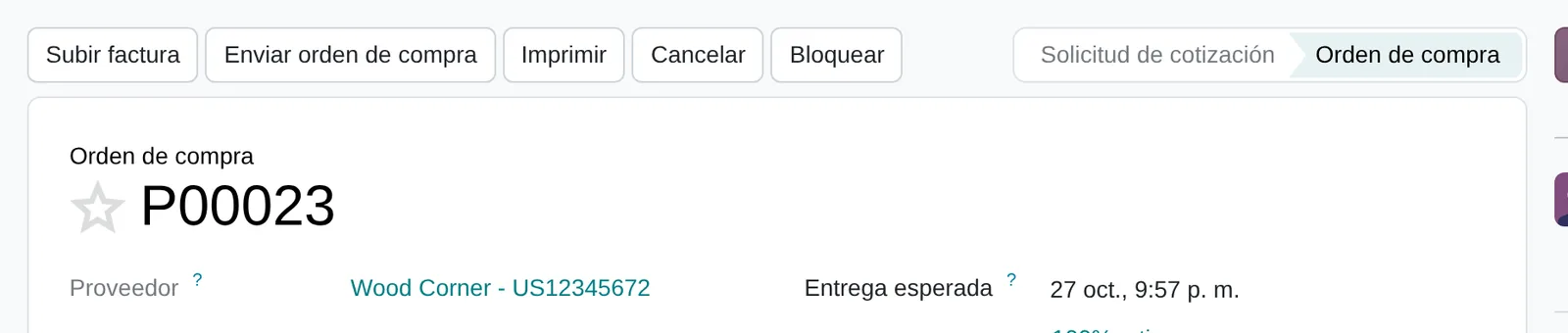

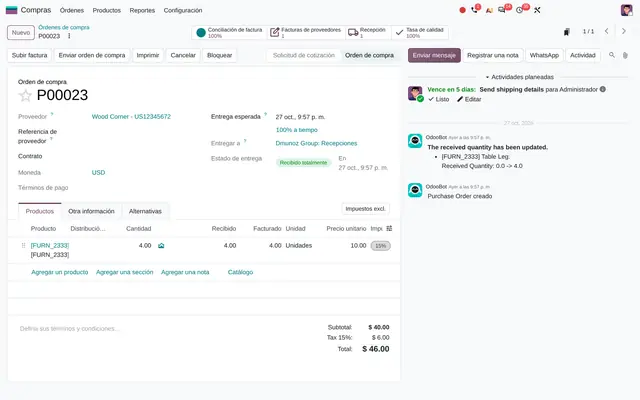
The confirmed order with its receipt and billing
- Order statusRequest, sent, to approve or purchase order.
- ReceiptOpens the receipt created in Inventory.
- BilledShare of the order already billed by the vendor.
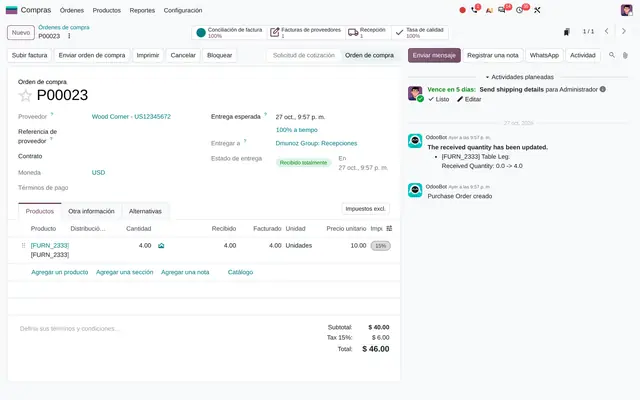 Example in Odoo 20
What Purchase looks like in Odoo 20
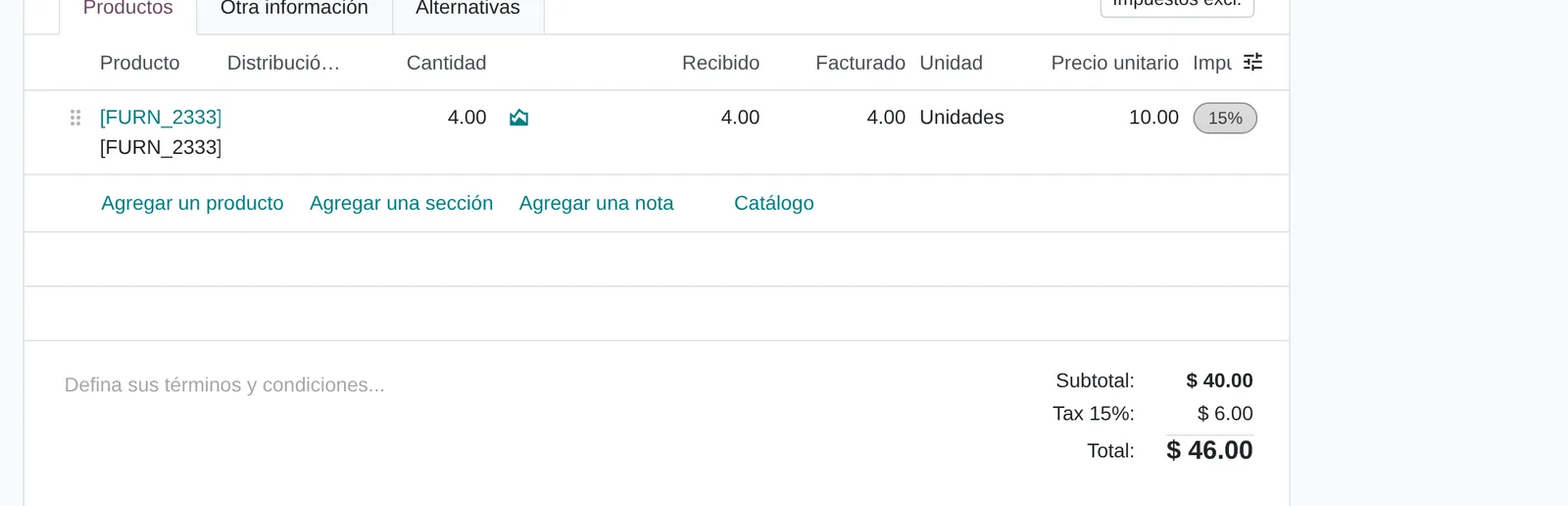
Lines with analytics and taxes
- Analytic distributionSplits the line between projects or cost centres.
- TaxesThey come from the product and the vendor's fiscal position.
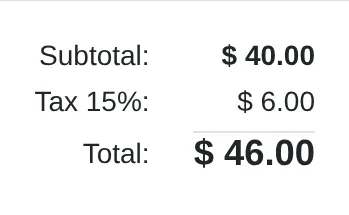
- Totals by taxSubtotal, taxes by group and total.
 Example in Odoo 20
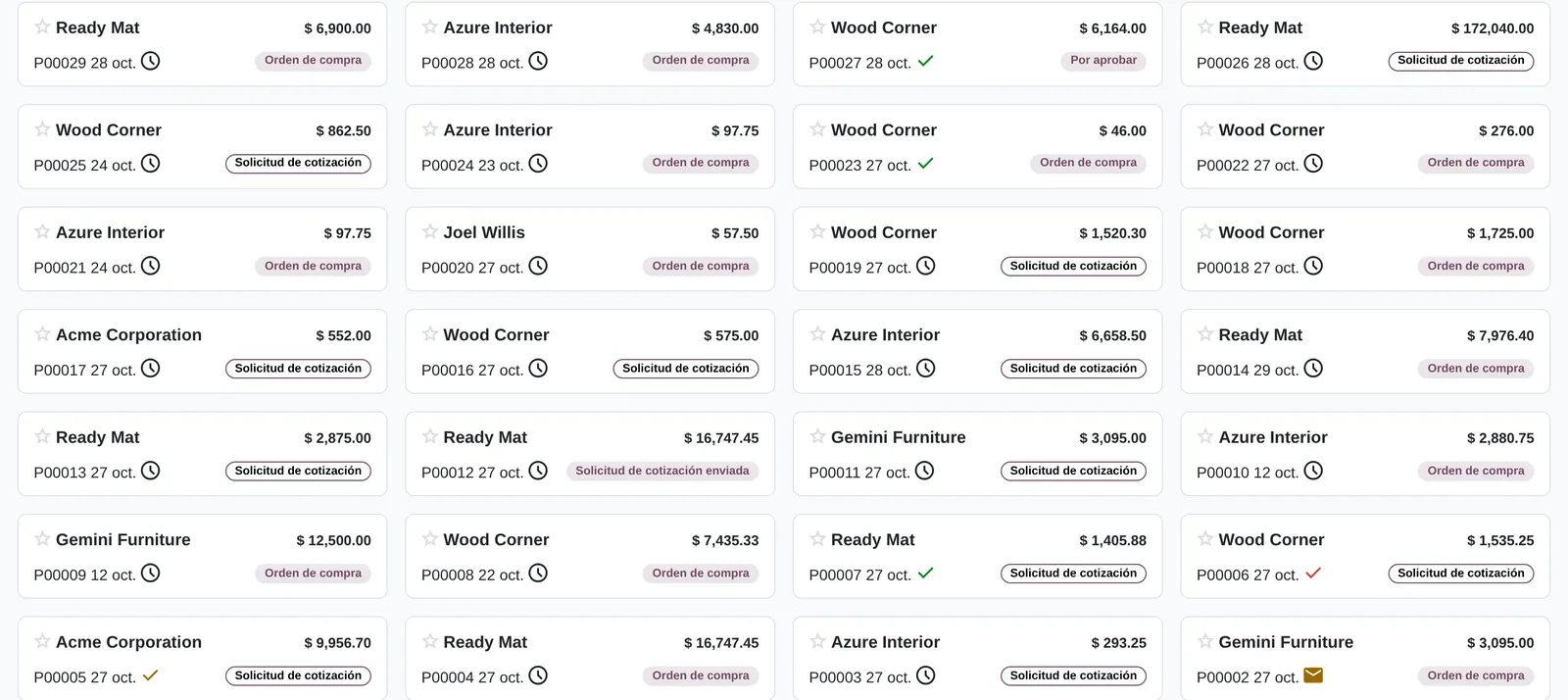
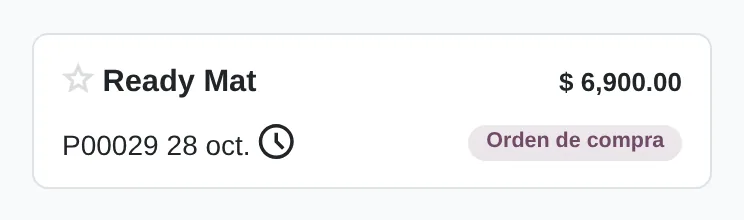
Order cards on the phone
- PriorityThe star moves the order to the top.
- StatusLabel of the request or order status.
 Example in Odoo 20
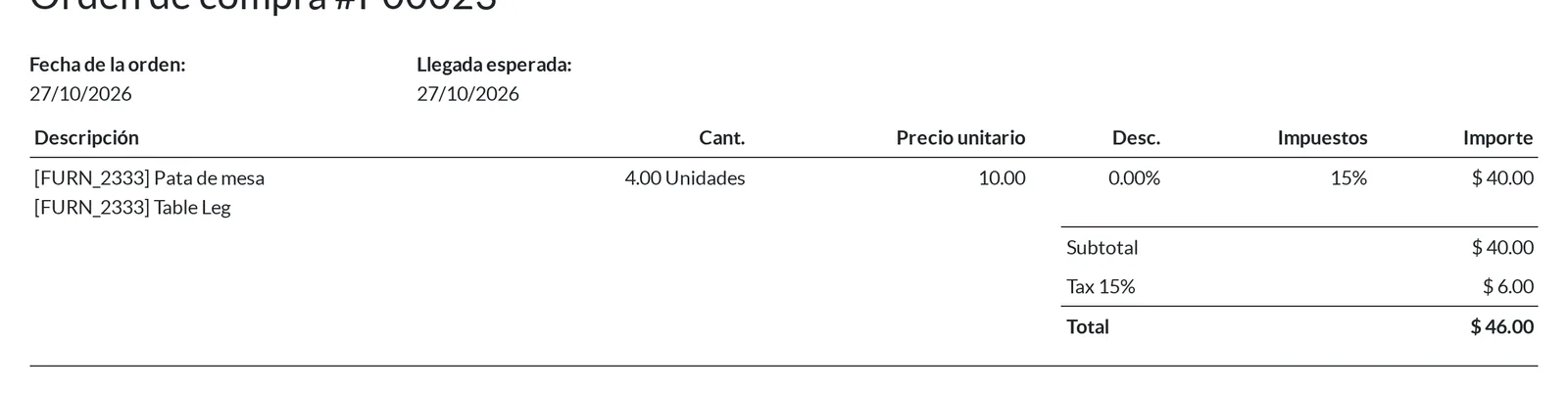
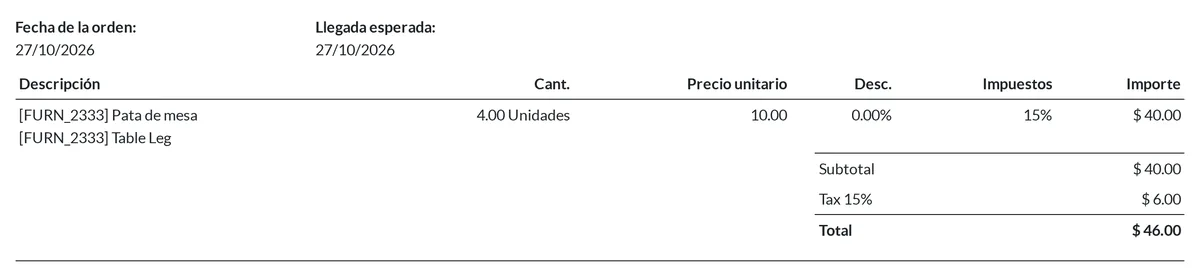
Purchase order PDF
- Buyer and datesWho buys, the order date and the expected arrival.
- LinesProduct, expected date, quantity, price and taxes.
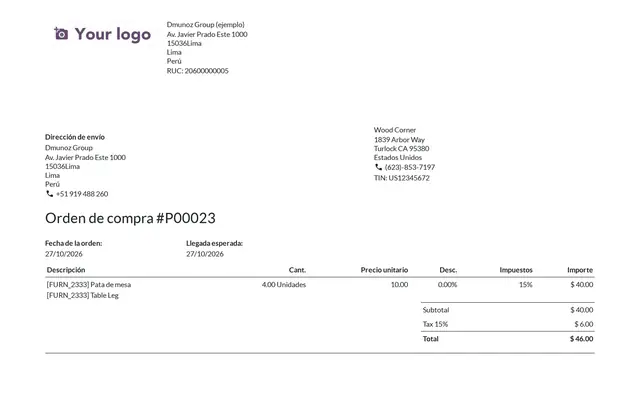 Example in Odoo 20
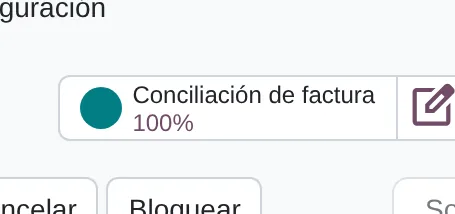
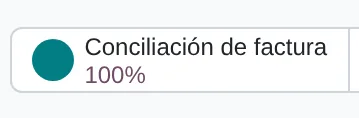
How much of the order is already billed
- Billed shareBilled versus ordered or received.
 Example in Odoo 20
What the user sees and touches
Requests and orders list, above the table
Counters by status that filter the list in one click, for everyone and for the user.
Purchase order, billing button
Shows in a pie chart how much of the order has been billed.
Purchase order, Receipt status
Coloured label: pending, partial or full.
Bottom of the purchase order
Subtotal, taxes by group and total, recomputed as lines are edited.
Analytic distribution column on the lines
Splits each line between projects or cost centres by percentage.
Upload button on the list and form
Uploads the vendor bill PDF and links it to the orders.
Star on list, cards and form
Marks the order as a priority and moves it up the list.
What Purchase needs and what it delivers
What it needs before starting
- Vendors with tax ID (RUC), purchasing contact, currency and payment terms.
- Products with purchase unit and control policy: bill ordered or received quantities.
- Vendor pricelists if prices are agreed by minimum quantity or validity period.
- Users with their access level: Purchase User or Administrator, who is the one approving.
- Purchase taxes and accounts ready in Invoicing, including Peruvian VAT (IGV) on purchases.
- For migration: orders still open at go-live, not the whole history.
What it produces
- Two PDF documents: the request for quotation and the purchase order.
- Inventory receipts created from the confirmed order.
- Vendor bills linked to their order lines.
- Purchase analysis in pivot and graph views, by vendor, product and buyer.
- Panel indicators: on-time deliveries and days to order.
- Reminder email to the vendor before the receipt date.
Purchase features that already come included
They come with standard Odoo, with no custom development. Most companies do not turn them on or do not know they exist.
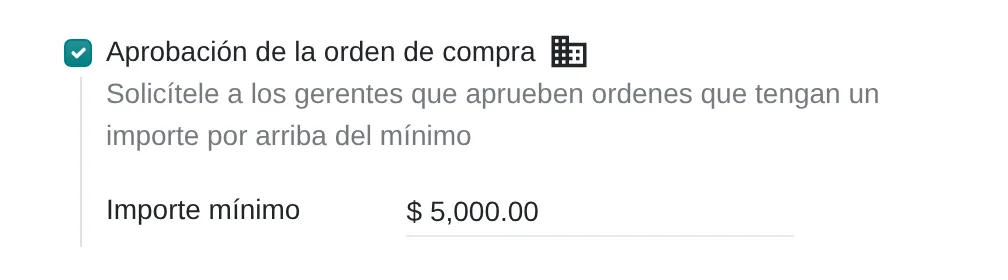
The approval threshold is converted to the order currency
What you gain: Set one threshold in soles and it works for purchases in dollars. If everything must be approved, buyers must not hold the administrator role.
The minimum amount defaults to 5000
What you gain: During implementation the amount is agreed with management and documented; with 0, every order requires approval.
Without a pricelist, the last purchase sets the price
What you gain: You can go live without loading pricelists and add them later only for vendors with prices agreed by quantity or period.
The reminder goes out N days before, per vendor
What you gain: Vendors who tend to be late get more days ahead on their record; reliable ones get none.
The billed percentage depends on the product policy
What you gain: With the «received quantities» policy on goods, a pie at 100% means accounting billed exactly what came into the warehouse.
A locked order cannot be cancelled
What you gain: Unlocking is logged with user and date, which works as an internal control without an extra workflow.
The star sorts the list
What you gain: The team agrees the star marks real urgencies, so the first screen of the day is the work queue.
What changes how Purchase behaves
Purchase Order Approval
Orders whose total exceeds the minimum amount go to «To Approve» instead of being confirmed.
Settings › Purchase › Orders › Purchase Order Approval
Lock Confirmed Orders
A confirmed order is locked: it has to be unlocked before it can be changed or cancelled.
Settings › Purchase › Orders › Lock Confirmed Orders
Warnings
Reveals the warnings tab on vendors and products: a message or a block when they are chosen on an order.
Settings › Purchase › Orders › Warnings
Receipt Reminder
Turns on the receipt reminder to vendors; the number of days ahead is set on each vendor.
Settings › Purchase › Orders › Receipt Reminder
Purchase Agreements
Installs purchase agreements: blanket orders with a fixed price for a period, and purchase templates.
Settings › Purchase › Orders › Purchase Agreements
Purchase Alternatives
Lets you create alternative orders to other vendors and compare them line by line before choosing.
Settings › Purchase › Orders › Purchase Alternatives
3-way matching
A vendor bill is flagged for payment only when billed quantities match what was ordered and received.
Settings › Purchase › Invoicing › 3-way matching
Variant Grid Entry
For products with variants, opens a grid of sizes or colours to enter quantities in one go.
Settings › Purchase › Products › Variant Grid Entry
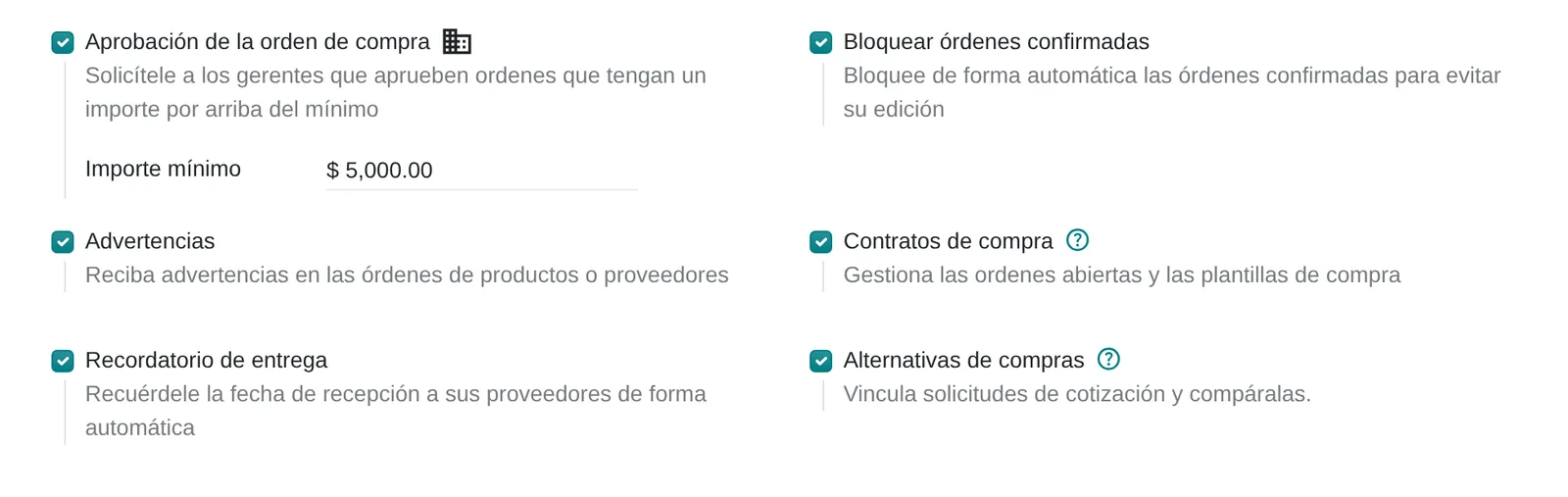
Order settings in Purchase
- Minimum amountAbove this total the order needs approval.
- LockingThe confirmed order can no longer be edited.
- ReminderEmail to the vendor before the receipt date.
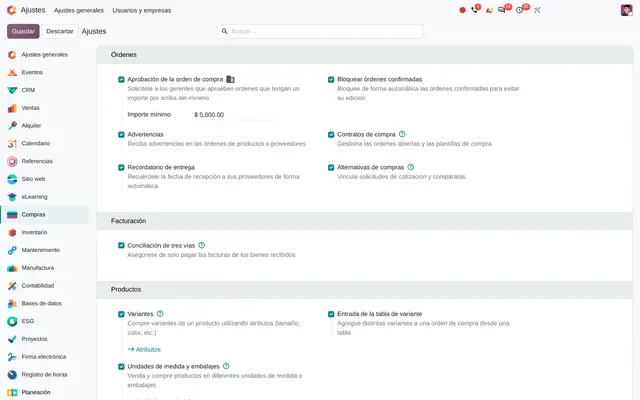 Example in Odoo 20
What Purchase connects with
Inventory
Receives: Quantities received on each line and the effective delivery date.
Delivers: The receipt with products, quantities and destination warehouse.
Invoicing
Receives: Billed quantities per line for the billing status.
Delivers: The draft vendor bill with the order lines.
Purchase agreements
Receives: Agreed price and quantities from the blanket order.
Delivers: Orders that draw down the agreement.
Approvals
Receives: Purchase requests approved by the requesting department.
Delivers: The request for quotation created from the request.
Sales
Receives: Sold services subcontracted to a vendor.
Delivers: The purchase order to the service vendor.
What it does not do and how it is solved
A single approval level by amount for the whole company.
Levels by department or tiered amounts are handled with the Approvals app and its purchase type, without development.
It does not block an order when the budget runs out.
Accounting budgets compare spend by analytic account; an automatic block on remaining budget needs development.
Quote comparison is line by line and has no technical scoring matrix.
The technical evaluation is documented in the history or in a spreadsheet attached to the alternative order.
Peruvian localisation
- The vendor bill is recorded with its SUNAT document type (invoice, receipt, fee receipt), provided by the Peruvian localisation.
- Purchase IGV (Peruvian VAT) and withholdings such as the SPOT detracción are set up as taxes and accounts in Invoicing and reach the order through the product and fiscal position.
- Purchases feed the PLE purchase register (SUNAT electronic books) once the vendor bill is posted in Accounting.
Purchase layer by layer, with a deliverable for each
The layers follow the answers to the configuration questionnaire.
Settings
Approval and its amount, order locking, warnings, reminders and 3-way matching, according to the questionnaire answers.
Signed settings matrix with the reason for each.
Master data
Vendors, products with control policy and purchase unit, agreed pricelists and categories.
Validated and imported load templates.
Roles
Who requests, who buys and who approves; the Purchase administrator role goes only to approvers.
Users and permissions table.
Automations
Vendor reminders, activities for the approver and late receipt alerts.
Active rules tested with real cases.
Reports
RFQ and order PDFs with your logo and terms; purchase analysis saved by vendor and buyer.
Approved layouts and saved filters.
Dashboard
The list's purchase panel and a management dashboard with committed spend and on-time deliveries.
Dashboard published for management.
Testing
Full chain with your data: request, approval, partial receipt, bill and payment.
Chain checklist approved before go-live.
Typical risks and how they are avoided
Every buyer is made administrator and approval never triggers.
Each user's groups are checked against the roles table before go-live.
Service products with the «received quantities» policy that are never received and block billing.
The control policy is defined per category when products are loaded.
Old orders migrated as open that inflate the late counters.
Only orders with quantities left to receive or bill are migrated, with an agreed cut-off.
Frequently asked questions
About Purchase in Odoo 20
Yes. The «To Approve» order opens in the Odoo mobile app or the browser, and the Approve Order button is in the header.
The order carries its currency; vendor prices can be in dollars and the approval threshold is converted at the order date rate.
The warehouse validates the received quantity and decides whether to keep a backorder or cancel it; the receipt status shows partial.
Yes. Without Inventory there are no receipts; the received quantity is entered on the line and billing follows the control policy.
Not to receive the order by email. Portal access is optional and lets the vendor see their orders and confirm dates.
Set up Purchase in 3 minutes
Tell us how you work today. At the end you will see the Purchase settings we would turn on and the data to load. Diego receives the specification and reviews it with you.
Assessing the whole system rather than this module? See the system assessment