Check-ins that reach payroll already reviewed
Odoo Attendances records every check-in and check-out from a kiosk, a phone or a biometric clock, compares it with the employee schedule and sets aside what needs review.
At the end of the questionnaire you will see the configuration we recommend.
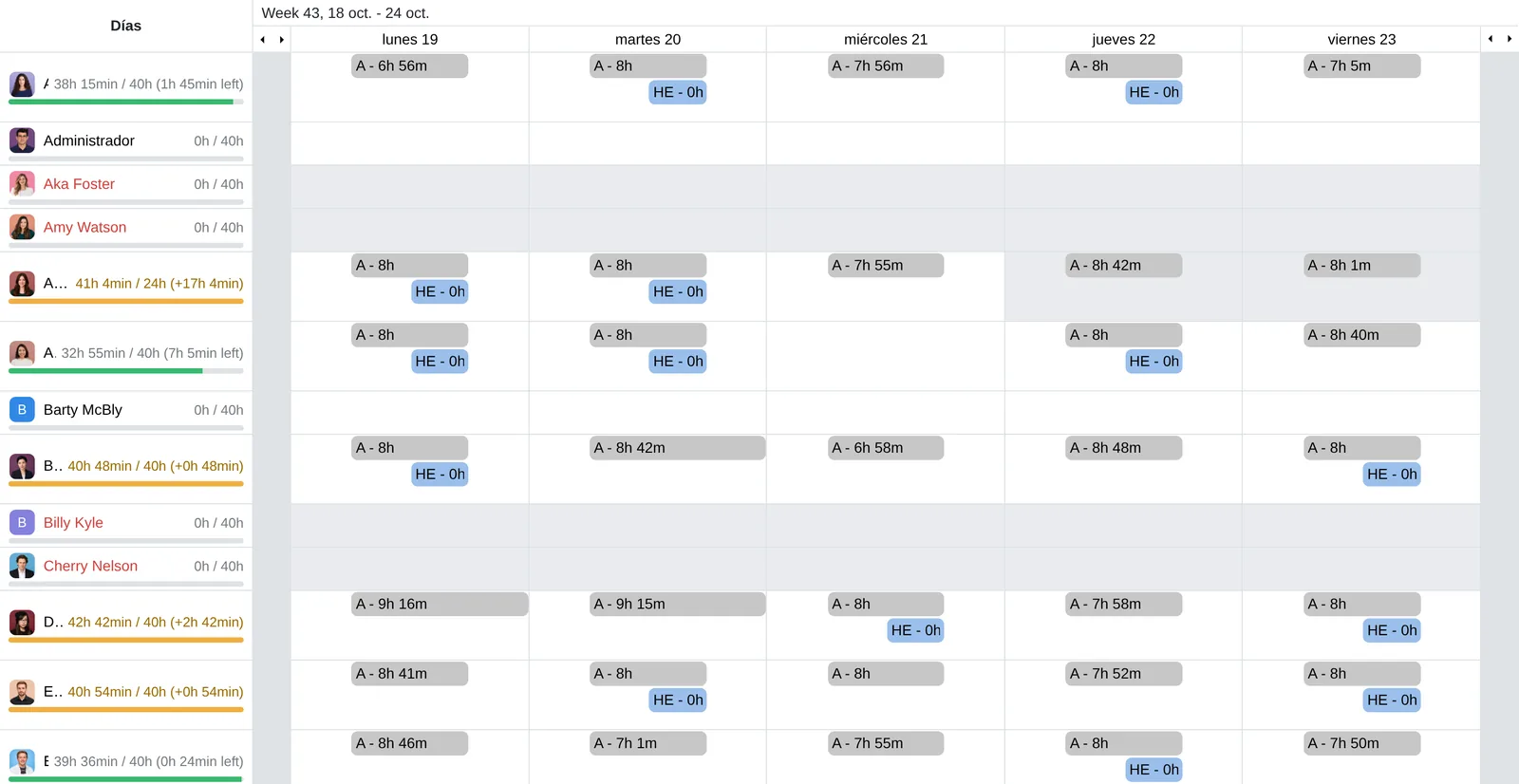
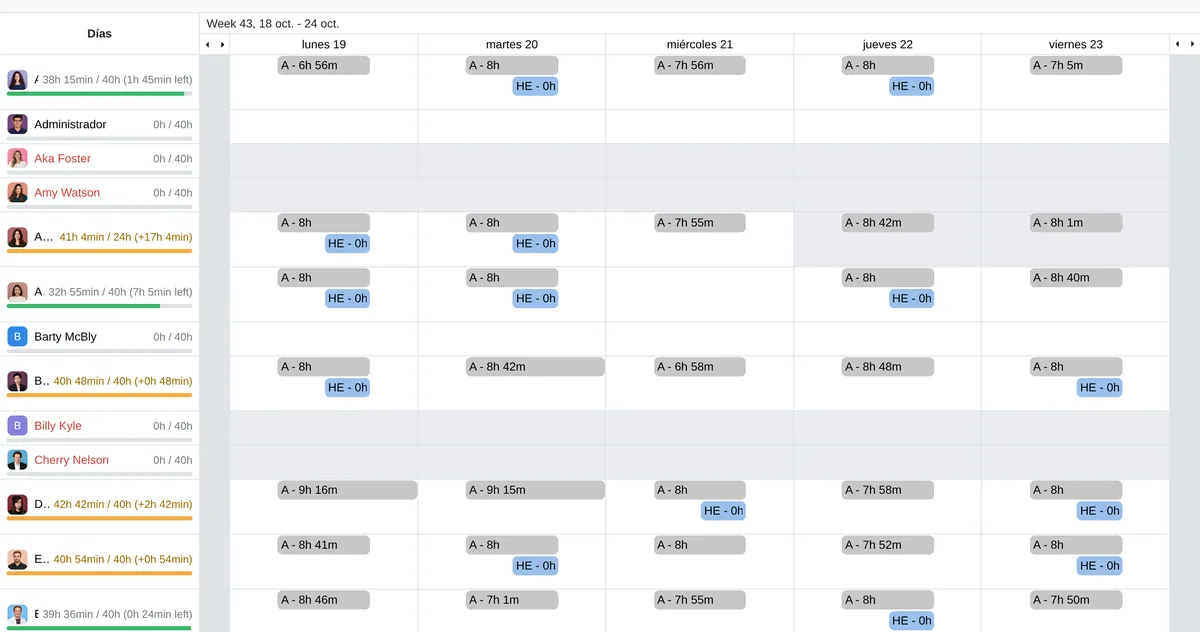
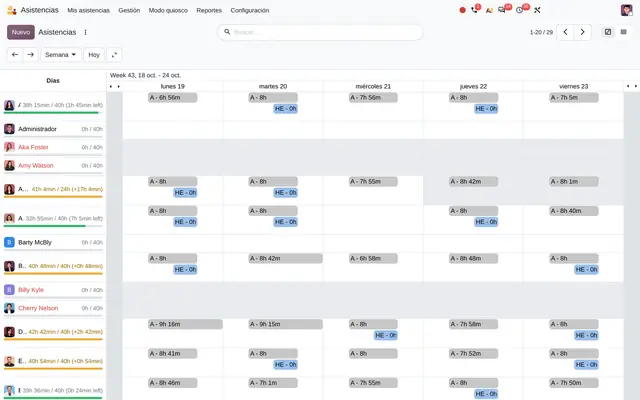
Week per employee with overtime
- Hours against scheduleWorked this week over expected; orange when exceeded.
- AttendanceEach bar is a check-in and check-out pair.
- OvertimeSeparate record created by the automatic rule.
 Example in Odoo 20
The clock records, but someone still builds payroll by hand
The biometric clock stores loose punches. At month end someone exports them, pairs check-ins with check-outs, chases whoever forgot to punch and computes lateness and overtime in a spreadsheet. In Attendances each check-in and check-out pair is a record with a status: if it fits the schedule it is validated automatically, otherwise it stays in Draft for the employee approver.
- A person cannot have two open attendances or two overlapping ones: Odoo blocks it on save.
- With tolerance-based validation, only the days that drift from the schedule beyond the allowance reach the approver.
- Automatic rules create overtime as separate records, linked to the attendance they came from.
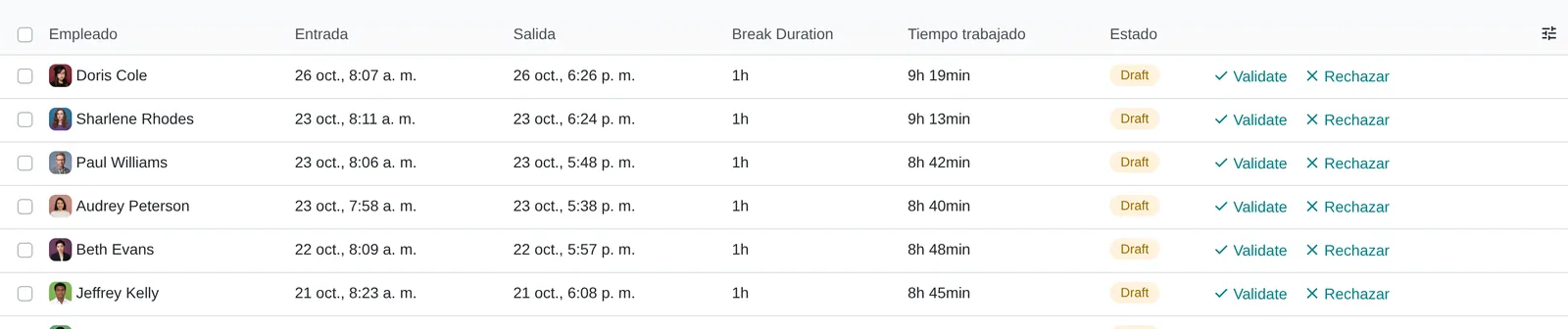
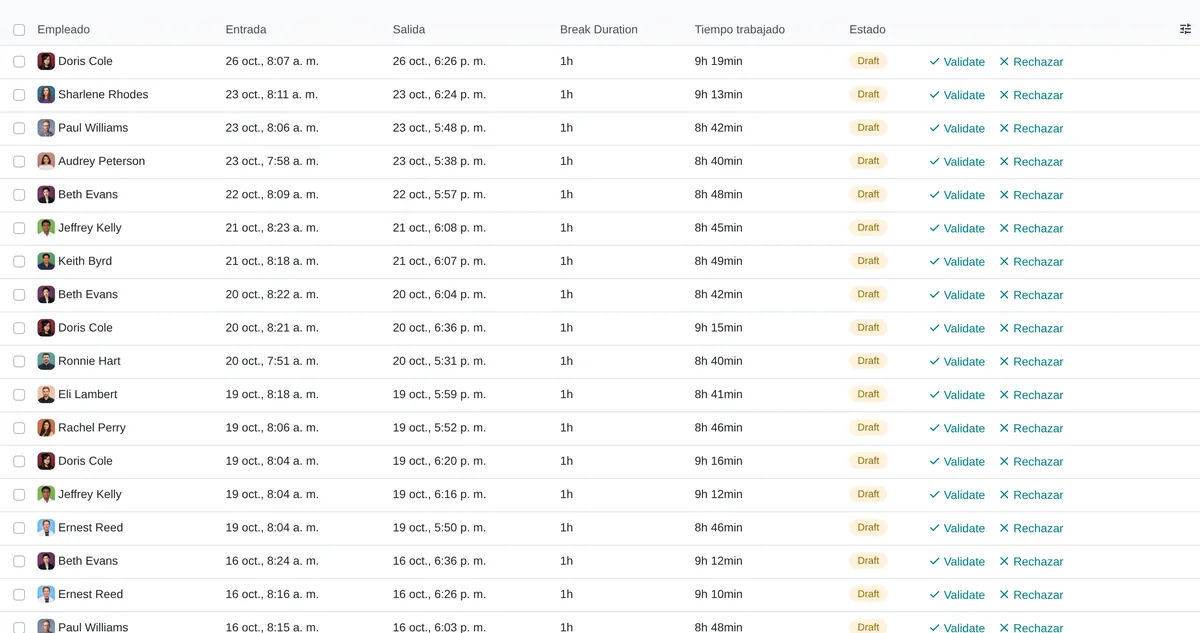
Days to validate
- Check-in and check-outIn the employee's local time.
- DraftOutside tolerance: waits for the approver.
- Validate or refuseFrom the same row, without opening the record.
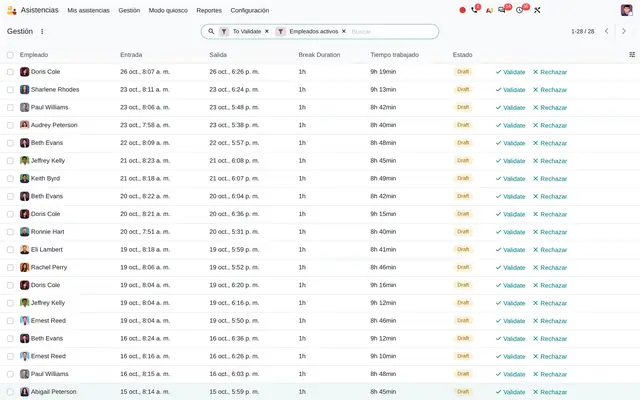 Example in Odoo 20
Who uses Attendances in the company
Multi-store retail, shift-based manufacturing, field services, clinics and offices with fixed-schedule staff.
Roles
- HR manager: sets schedules, tolerances and who approves whom.
- Department head or shift supervisor: reviews the Draft days of the team and validates or refuses them.
- Operational staff: check in at the entrance kiosk or from a phone, without a desktop user.
- Payroll analyst: receives validated worked hours and overtime to compute pay.
When it is not the right fit
- If the team works by project and what matters is hours charged to each client, start with Timesheets; Attendances is added if working time must also be controlled.
- If you need to build and publish rotating shifts, Planning handles that; Attendances records what happened, not what was planned.
- Staff on fully flexible schedules: automatic check-out and absence management do not apply to flexible schedules.
From check-in to payroll
Each attendance stores the check-in, the check-out, how it was punched and its status: Draft, Validated or Refused.
Check-in
It is created when the person punches at the kiosk, with the Odoo button on the computer or phone, or when the biometric clock sends the punch. Odoo keeps where the punch came from.
Check-out
It closes the record and computes worked time minus the declared break. If nobody checks out, automatic check-out closes it by schedule or at a fixed time.
Draft
With manual validation, every attendance starts in Draft. With tolerance validation, only those that drift from the schedule beyond the tolerance.
Validated or refused
The employee's approver validates or refuses from the Management list. Only validated attendances feed the automatic time rules.
Overtime
Automatic rules compare worked time with the schedule and create overtime records with their time type, which Payroll reads as work entries.
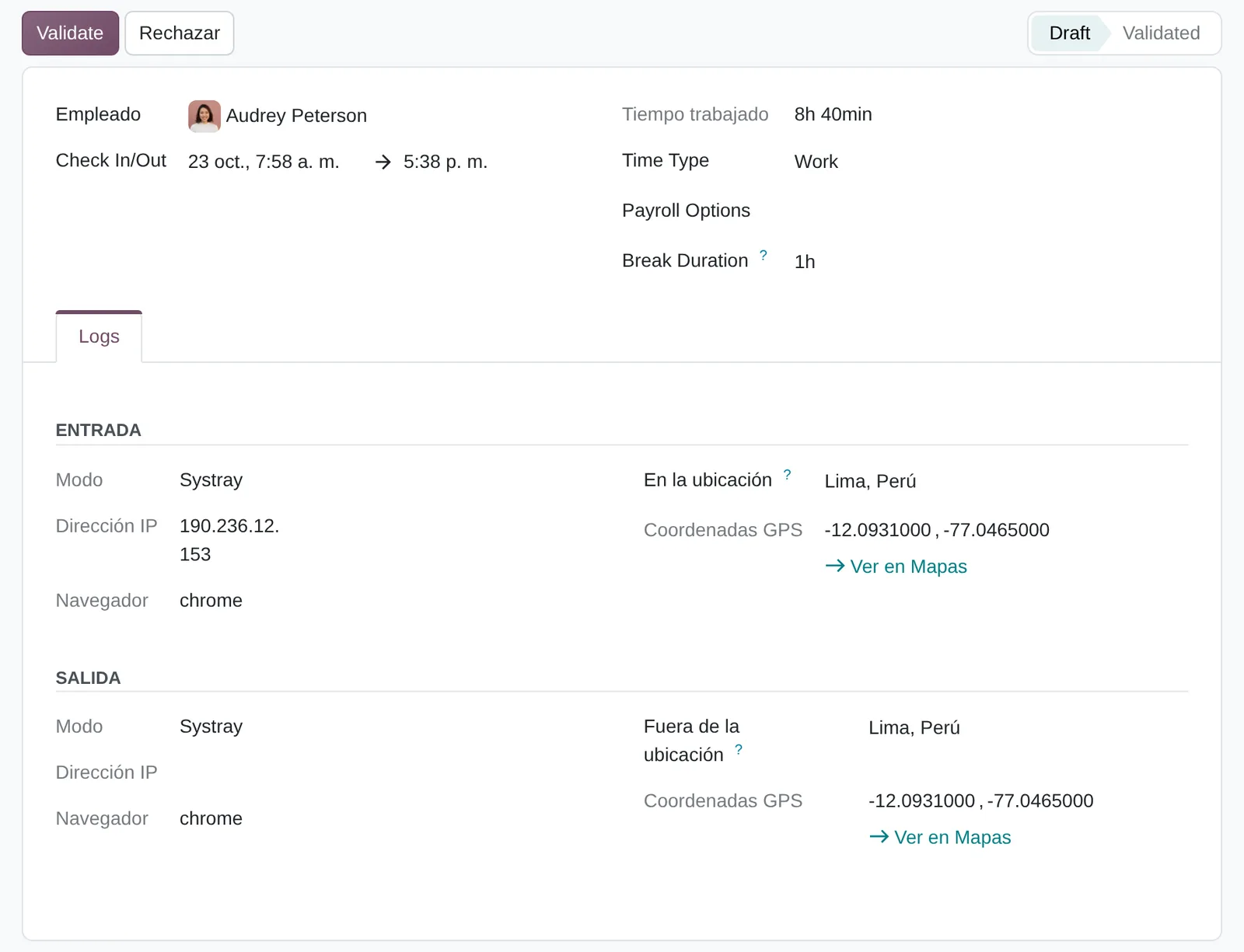
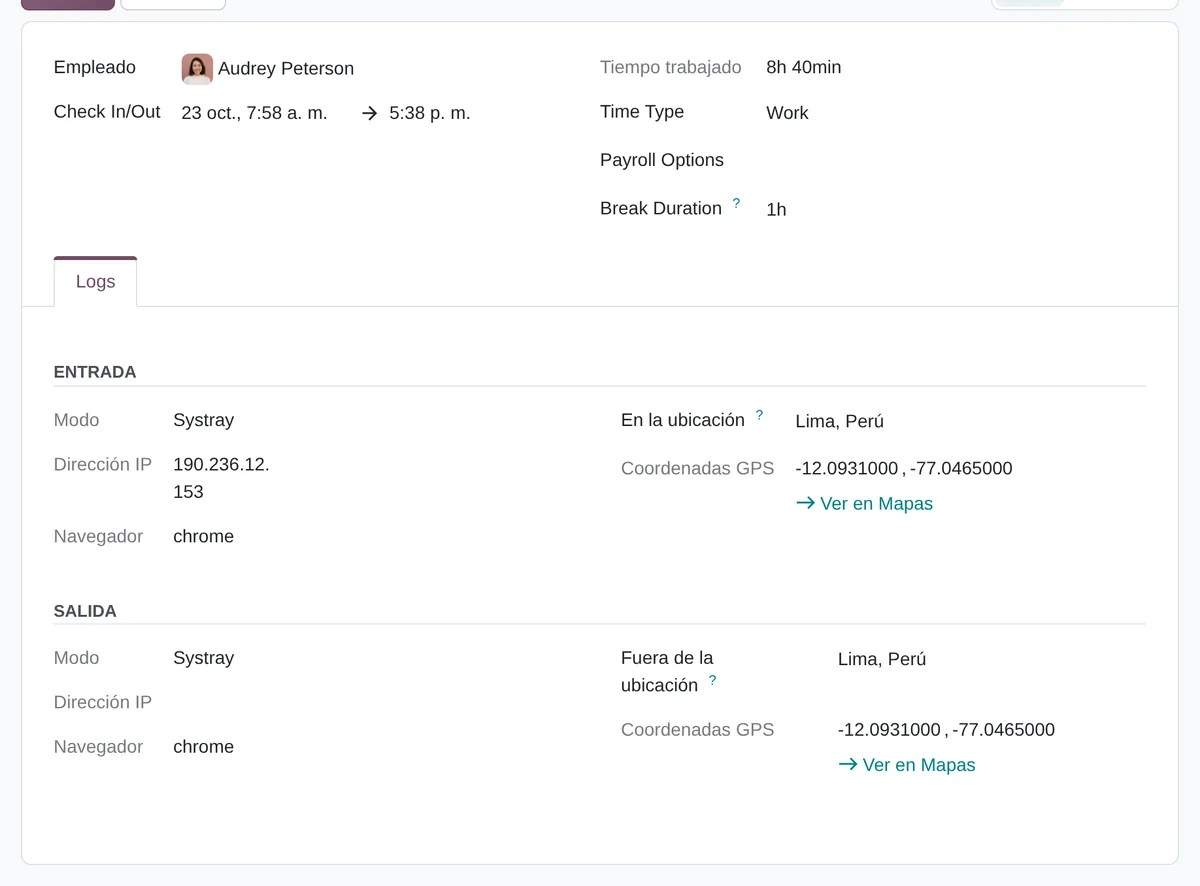
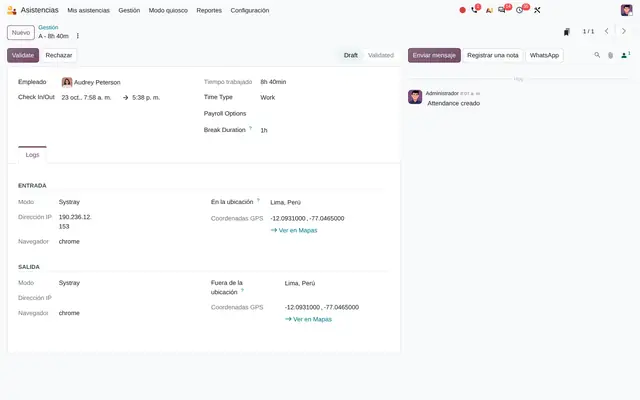
An attendance with its location
- StatusDraft, Validated or Refused.
- Check-in and check-outOne range; Odoo blocks overlaps with other days.
- How and from wherePunch mode, IP, browser and GPS location.
 Example in Odoo 20
What Attendances looks like in Odoo 20
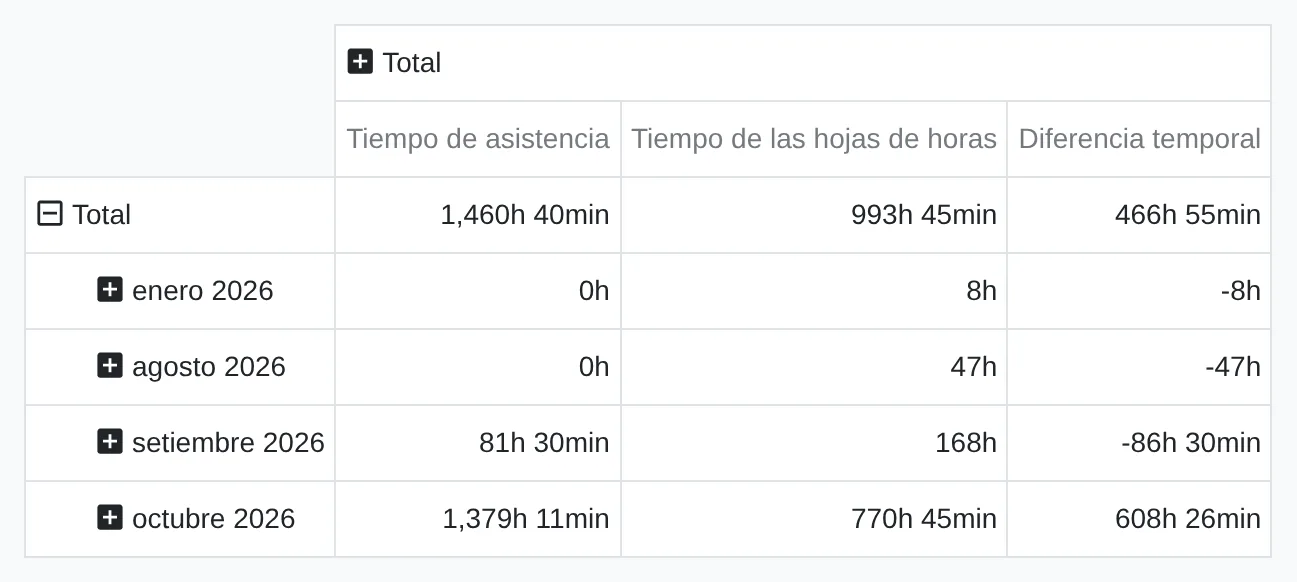
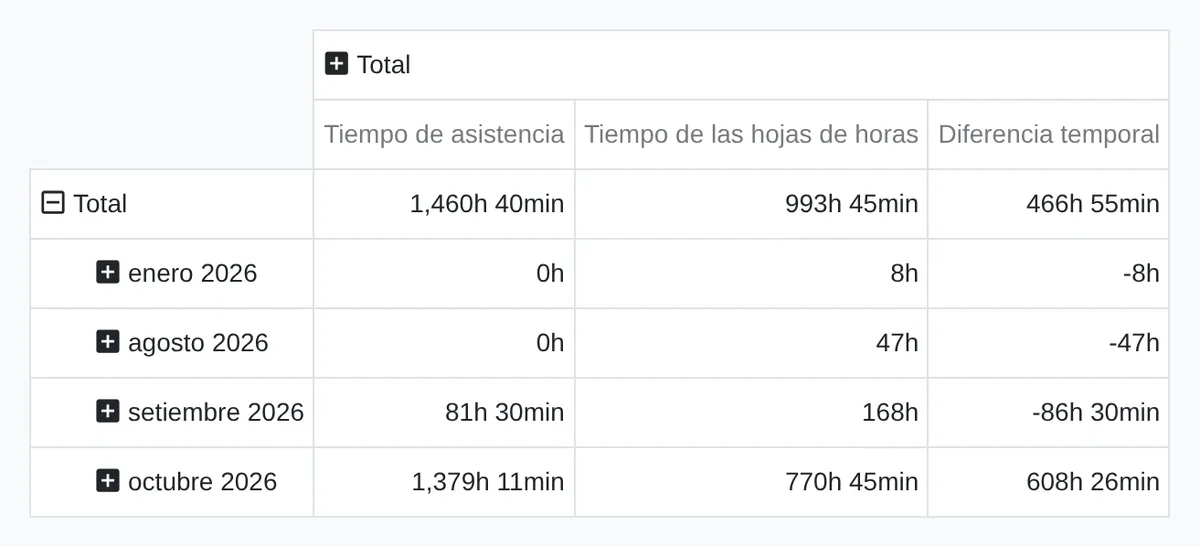
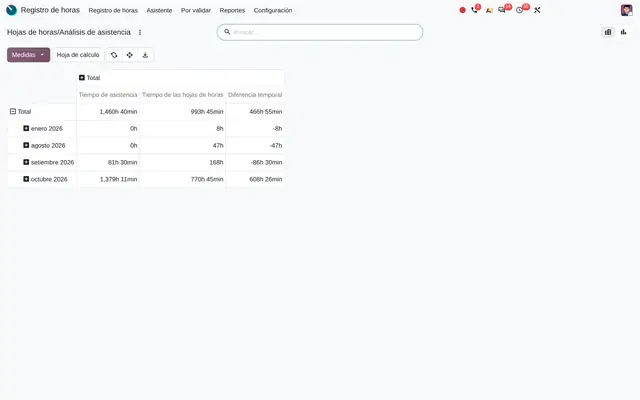
Attendance versus timesheets
- AttendanceHours recorded in the period.
- TimesheetsHours logged on projects and tasks.
- DifferenceTime present but not logged on any work.
 Example in Odoo 20
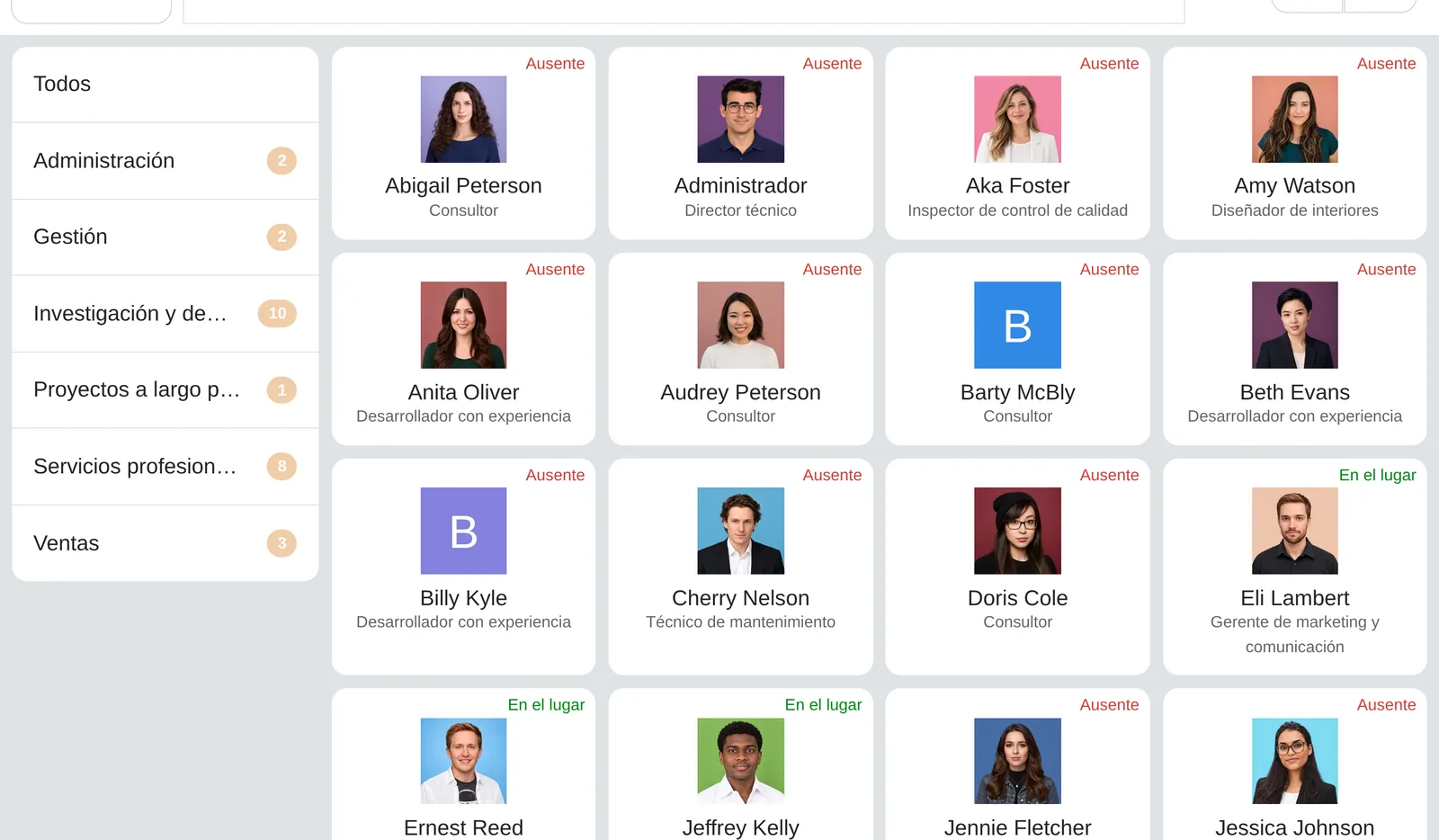
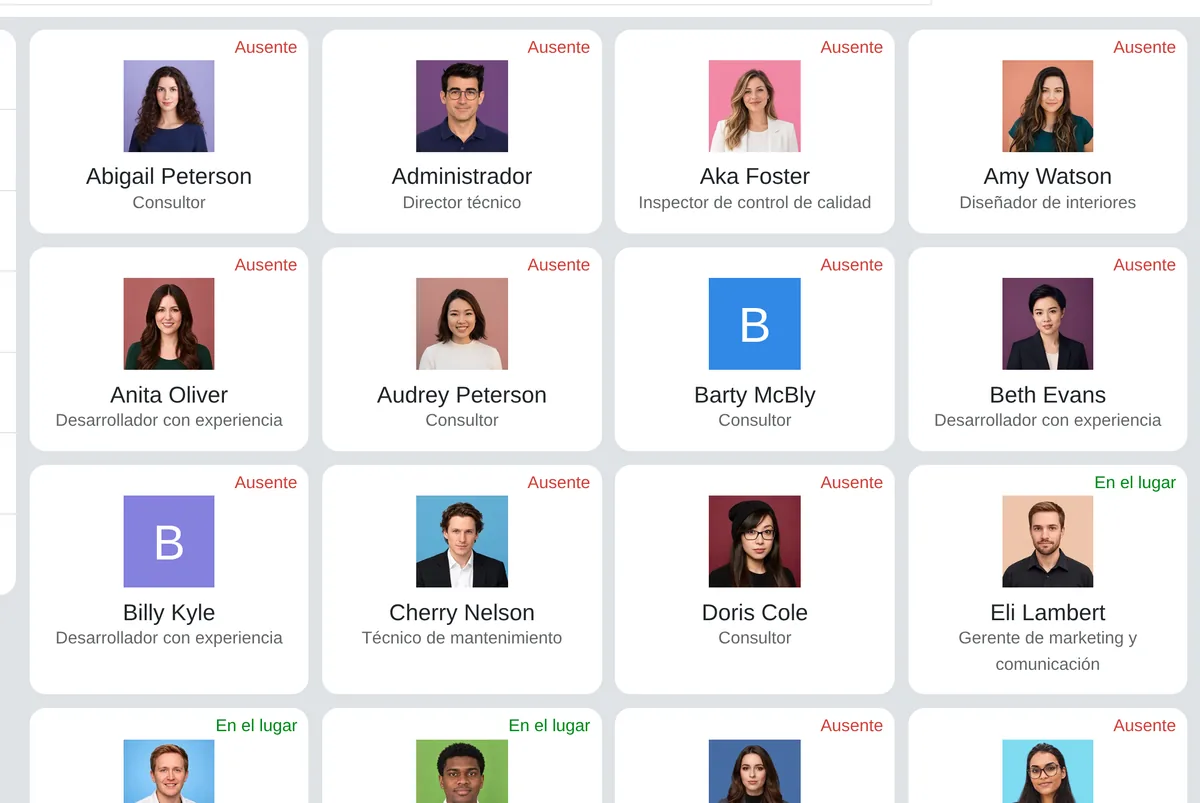
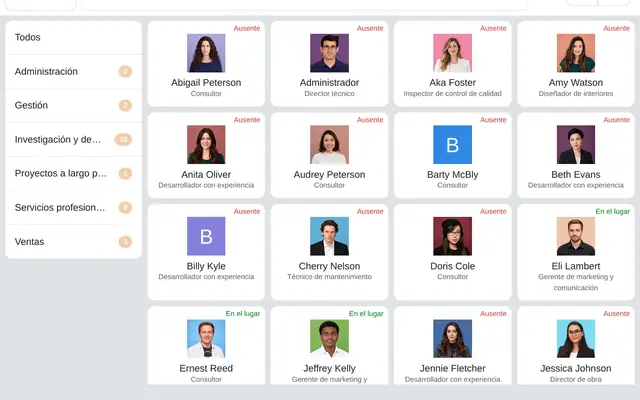
Entrance kiosk
- By departmentEmployees filter their department.
- Picks their nameWith PIN on, Odoo asks for it before recording.
- Present or absentEach person's current status.
 Example in Odoo 20
What the user sees and touches
Management list, Status column
Coloured label for Draft, Validated or Refused.
Worked Hours and Break columns
Time reads as hours and minutes, for example 8:30.
Attendance form, Check In/Out
Check-in and check-out are picked together in one calendar.
Attendance form header
Shows the status and allows validating or refusing from the record.
Next to the employee name
Employee photo next to the name for quick recognition.
Employee form, Attendance Approver
Picks the user who will see and fix that employee's check-ins.
Attendance kiosk
Reads the badge with the camera or a USB reader and records the check-in or check-out.
My Attendances
The employee's own calendar with their days and public holidays marked.
Settings, fixed automatic check-out time
Picks the cut-off time from a list of hours and minutes.
Kiosk settings, kiosk address
Copies the private kiosk address to open it on the entrance tablet.
What Attendances needs and what it delivers
What it needs before starting
- Employees with their working schedule and time zone: the schedule defines the hours expected each day.
- Badge code for each employee if punching with a card or biometric clock, and a PIN if people pick their name.
- Each employee's attendance approver: the person who sees and corrects their check-ins.
- Time types (work, remote work, overtime) and automatic rules if overtime is computed.
- A tablet or PC at the entrance for the kiosk, or biometric clocks with Internet access to send punches to Odoo.
- For migration: only closed check-in and check-out pairs, sorted by employee and without overlaps, from the cut-off date.
What it produces
- Attendance record per person and day with check-in, check-out, break, punch mode and, if enabled, location, IP and photo.
- Weekly or monthly view per employee with hours worked against hours expected.
- Overtime records created by the automatic rules, with their time type.
- Attendance analysis in pivot and graph views by employee, department and month.
- With Timesheets: the attendance versus timesheet analysis, with the difference in hours and in cost.
- With Payroll: validated worked hours and overtime as payroll work entries.
Attendances features that already come included
They come with standard Odoo, with no custom development. Most companies do not turn them on or do not know they exist.
Only validated days count as overtime
What you gain: Anything left in Draft never reaches payroll as overtime. Month-end starts by clearing the pending items in this list.
A late correction flags overtime already calculated
What you gain: If someone corrects a punch after the calculation, Odoo flags the overtime with a warning. Before closing the period those warnings are reviewed, so no overtime is paid on old data.
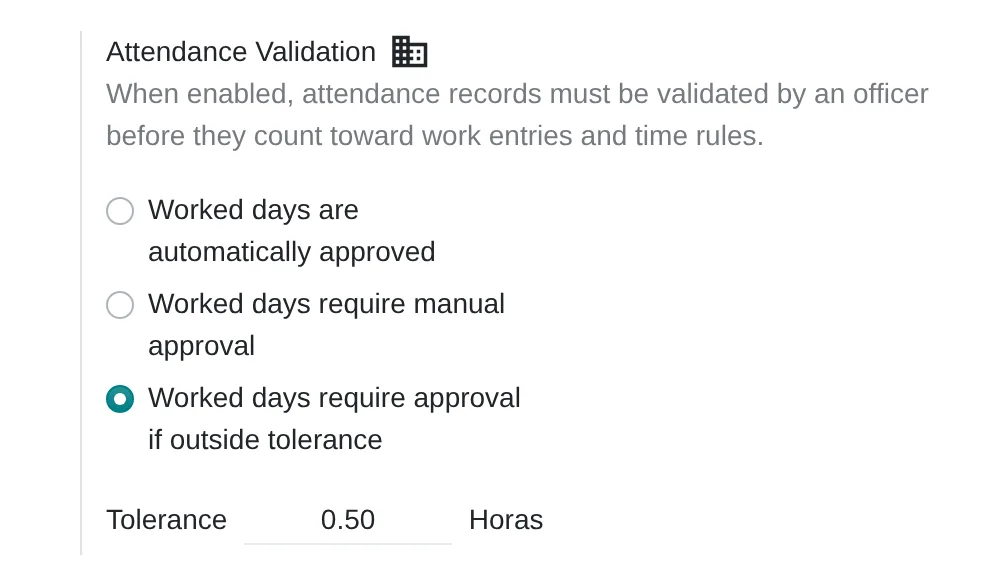
Tolerance measures the full day, lunch included
What you gain: If staff punch in and out only once, the lunch hour counts as presence and every day lands in review. It is avoided by also punching out and back for lunch, or with a tolerance that covers that time.
Automatic check-out counts what was already worked that day
What you gain: Someone who worked two shifts does not end up with an inflated day. Automatic check-outs are labelled on the record, so a saved filter shows who often forgets to punch out.
The analysis shows time on site that nobody logged against any work
What you gain: With Timesheets, Odoo crosses punched hours with hours logged on projects and computes the gap in hours and in cost. It shows how much paid time never gets billed.
The entrance tablet needs no user or password
What you gain: The kiosk opens from a private company address. If that address leaks, a new one is generated from Settings and the old one stops working at once.
What changes how Attendances behaves
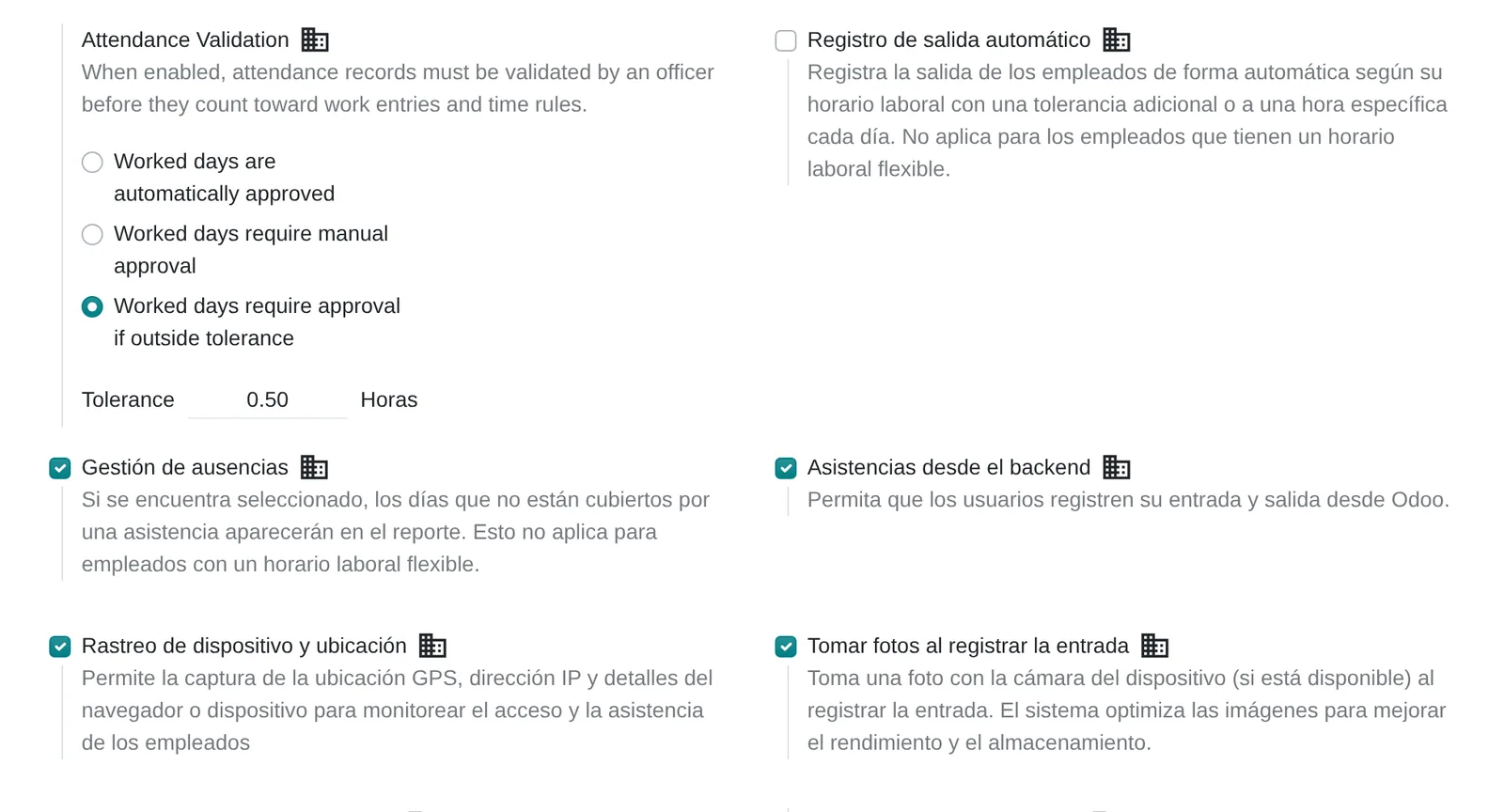
Attendance Validation
Chooses whether worked days are approved automatically, all manually, or only those outside the tolerance in hours against the schedule.
Settings › Attendances › Attendance Rules & Enforcement › Attendance Validation
Automatic Check-Out
Closes open attendances by schedule plus a tolerance, or at a fixed time of day. The check-out is stored with the «automatic check-out» mode.
Settings › Attendances › Attendance Rules & Enforcement › Automatic Check-Out
Single Check-In
The employee only checks in; automatic check-out sets the check-out. It requires automatic check-out to be on.
Settings › Attendances › Automatic Check-Out › Single Check-In
Absence Management
Each night it checks who did not check in the day before while scheduled and makes the absence visible to the time rules.
Settings › Attendances › Attendance Rules & Enforcement › Absence Management
Check in from Odoo
Shows the check-in and check-out button in the Odoo top bar and mobile app for users.
Settings › Attendances › Attendance Rules & Enforcement › Check in from Odoo
Device & Location Tracking
Stores the GPS location, IP address and browser on each check-in, with a map link.
Settings › Attendances › Attendance Rules & Enforcement › Device & Location Tracking
Take Pictures on Check-In
Takes a photo with the device camera at check-in and stores it in the attendance history.
Settings › Attendances › Attendance Rules & Enforcement › Take Pictures on Check-In
Break Management on Checkout
On check-out, the employee declares the break and it is deducted from worked time.
Settings › Attendances › Attendance Rules & Enforcement › Break Management on Checkout
Kiosk Mode
Defines how employees identify themselves at the kiosk: badge or RFID, picking by name, or both.
Settings › Attendances › Kiosk Settings › Kiosk Mode
Employee PIN Identification
When the name is picked at the kiosk, it asks for the PIN set on the employee form.
Settings › Attendances › Kiosk Settings › Employee PIN Identification
Attendance rules and control
- ValidationAutomatic, manual or only outside tolerance.
- Automatic check-outCloses what nobody closed.
- Location and IPStored with each punch.
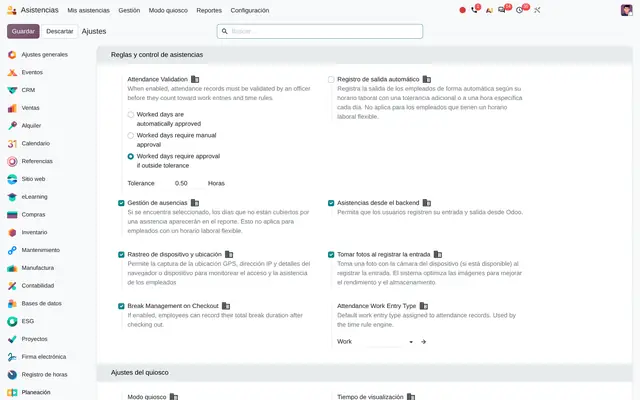 Example in Odoo 20
What Attendances connects with
Employees
Receives: Employee, working schedule, time zone, badge, PIN and attendance approver.
Delivers: Presence status on the employee form and directory: present or absent.
Weekly attendance view
Receives: Attendances and each employee schedule.
Delivers: The week or month view of each employee, with a worked versus expected hours bar and a warning for employees without a current contract.
Timesheets
Receives: Hours logged on projects and tasks per day and employee.
Delivers: The attendance versus timesheet analysis, with the gap in hours and in cost based on each employee hourly cost.
Biometric clocks
Receives: Clock punch events with employee code, local date and time and device number.
Delivers: Attendances in biometric mode and an inbox of processed or failed events.
eSSL clocks
Receives: Punches the clock sends to Odoo on its own, through a private company address.
Delivers: Punches in the clock inbox, with one reference per device, employee and time so a resend does not duplicate.
Mantra clocks
Receives: Punches the clock sends to Odoo on its own, with the device operation number.
Delivers: Punches in the same inbox as eSSL clocks.
ZKTeco BioTime
Receives: Punches from ZKTeco devices through the maker's BioTime software.
Delivers: Attendances in Odoo without exporting files from the clock.
Payroll
Receives: Validated attendances and overtime with their time type.
Delivers: Work entries for the payroll of employees paid by attendance.
Time Off
Receives: Approved time off and leave days.
Delivers: Overtime that can be turned into compensatory days off.
What it does not do and how it is solved
It does not build shifts or tell staff which shift they have.
Shifts are published with Planning, and the Planning and Attendances module compares planned with recorded time.
Tolerance validation uses a single margin in hours for the whole company.
Different rules by department are handled with group-specific schedules and automatic time rules, without development.
Direct connection with biometric clocks exists for eSSL, Mantra and ZKTeco BioTime.
Other brands are integrated by importing their punches or with a custom connection; assessed case by case.
Peruvian localisation
- Peruvian Supreme Decree 004-2006-TR requires employers to keep an attendance register with entry and exit times; each Odoo attendance stores both with date, punch mode and, if enabled, location.
- Overtime comes out as separate records with their time type; valuation under Peruvian working-hours and overtime rules is done in payroll.
- Each employee's time zone (America/Lima) defines which day an early-morning punch belongs to.
Attendances layer by layer, with a deliverable for each
The layers follow the answers to the configuration questionnaire.
Settings
Punch method, validation and tolerance, automatic check-out, breaks, absences, location and photo, according to the questionnaire answers.
Signed settings matrix with the reason for each.
Master data
Working schedules including lunch, badges and PINs per employee, time types and overtime rules.
Validated and imported schedule and employee templates.
Roles
Who only records their own time, which supervisor approves which team and who administers the configuration.
Approver per employee table and group permissions.
Automations
Automatic check-out, absence detection, overtime rules and connection of the biometric clocks.
Automatic tasks running and tested with real punches.
Reports
Attendance analysis by department and month, and attendance versus timesheets if time is logged per project.
Saved filters and views for HR and payroll.
Dashboard
Weekly view by department with worked versus expected hours, and a list of items to validate per supervisor.
Views published for each supervisor.
Testing
One week with real punches: kiosk, phone and clock, forgotten check-outs, a correction and the close into payroll.
Chain checklist approved before go-live.
Typical risks and how they are avoided
Schedules loaded without lunch or with the wrong time zone: every day falls outside the tolerance or lands on the previous day.
A real week per schedule is tested before turning on tolerance validation.
Supervisors not set as approvers: Draft check-ins are seen by nobody and never reach payroll.
The approver table is loaded with the employees and checked against the org chart.
Biometric clock codes different from the Odoo badge: events go to Error as employee not found.
The clock user list is exported and loaded as each employee badge before connecting.
Frequently asked questions
About Attendances in Odoo 20
eSSL and Mantra clocks send punches to Odoo on their own, and ZKTeco clocks connect through their BioTime software. With other brands, punches are imported or a connection is assessed.
Yes, with the attendance button in the Odoo app. With tracking on, each punch stores GPS location and IP.
With automatic check-out, Odoo closes it by schedule plus tolerance or at the fixed time set, and records it in the history.
It depends on the permission assigned: one only shows their own records and another lets them correct them. Usually they can only view.
With Payroll installed, validated attendances and overtime become work entries for employees paid by attendance.
Set up Attendances in 3 minutes
Tell us how you work today. At the end you will see the Attendances settings we would turn on and the data to load. Diego receives the specification and reviews it with you.
Assessing the whole system rather than this module? See the system assessment