Campaigns that follow each contact based on what they do
Marketing Automation draws the campaign as a flow: a trigger enrolls the contact, each step waits, sends an email, an SMS or a WhatsApp message, and the next branch depends on whether they opened, clicked or replied.
At the end of the questionnaire you will see the configuration we recommend.
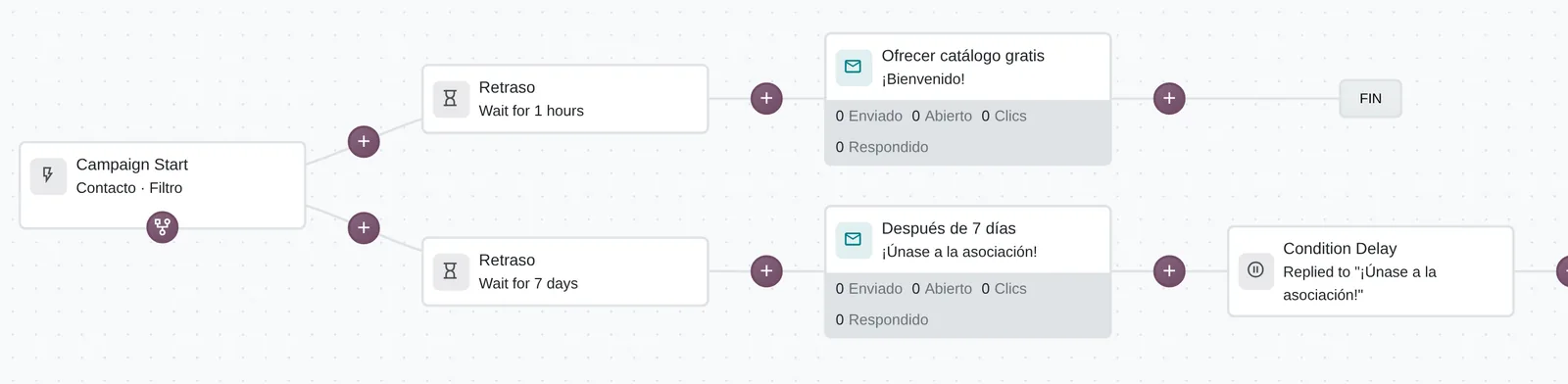
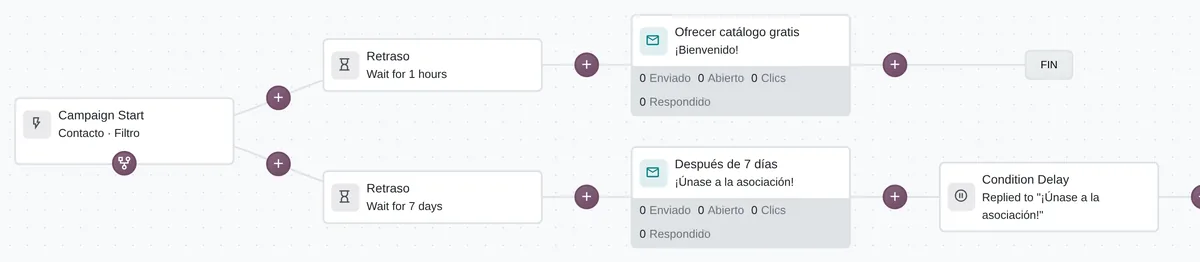
Campaign flow on the canvas
- TriggerWho enters: here, every contact that matches the filter.
- Email with its metricsSent, opened, clicks and replies of this step.
- Waits for a replyThe branch continues only if the contact replied to the previous email.
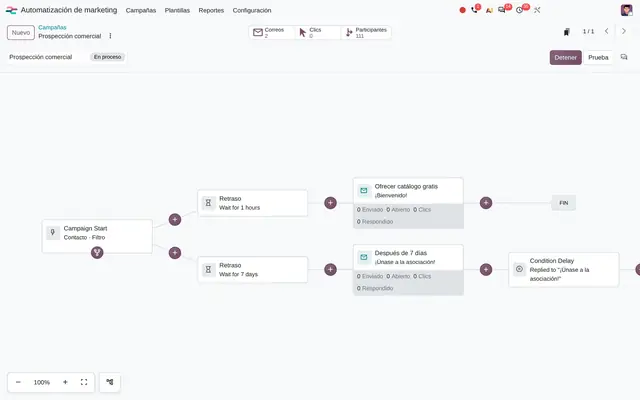 Example in Odoo 20
Identical mass emails for everyone and follow-ups that rely on memory
A mass mailing goes out once, to the whole list. The second email to those who did not open, the call to those who clicked or the reminder to those who left a product in the cart depend on someone reading reports. In Marketing Automation every contact follows its own journey: Odoo schedules each step, sends it on its date and records what happened.
- The trigger decides who enters: a filter, a list, a date, an anniversary, a manual enrollment or a signal from another system, such as an external form.
- Each step can wait for a reaction: opened, not opened, clicked, replied or bounced, by email, SMS or WhatsApp.
- Each contact's record shows on the same drawing which steps already happened, which are scheduled and on what date.
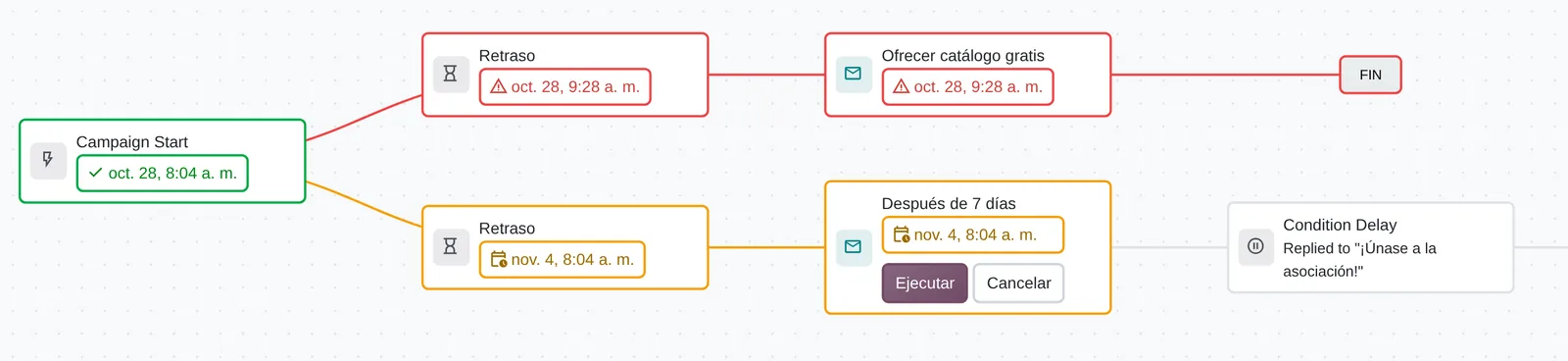
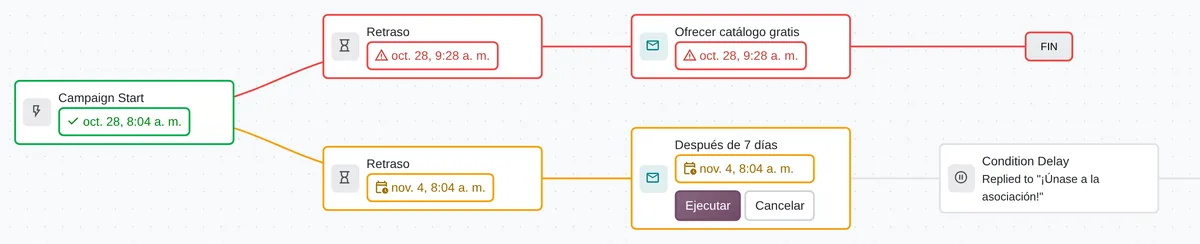
A participant journey
- Step doneIn green, with the date it happened.
- Scheduled stepPlanned date and buttons to run or cancel it now.
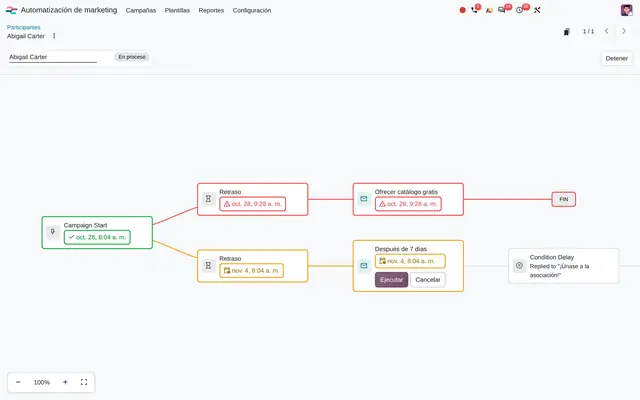 Example in Odoo 20
Who uses Marketing Automation in the company
Education with enrollment periods, e-commerce, real estate and B2B services with long sales cycles, and any company that already keeps its contacts in Odoo CRM or mailing lists.
Roles
- Marketing manager: designs the flow, picks the trigger and measures opens, clicks and replies per step.
- Sales manager: receives prioritized leads and activities created by the campaign when a contact reacts.
- E-commerce manager: runs flows on product in cart or product bought.
- System administrator: connects forms on other websites to the campaign and checks sends that did not go out.
When it is not the right fit
- If you only send the same monthly newsletter to everyone, Email Marketing and its lists are enough.
- If the contact base is duplicated or has no recorded consent, it is cleaned and consent is documented first; an automated flow multiplies the problem.
- Transactional notices about a document (invoice issued, order shipped) use the templates and automation rules of that module, not a campaign.
From the trigger to the trace of each step
A campaign is in draft, running or stopped. While it runs, Odoo checks at regular intervals who should enter and which steps are due.
Draft campaign
You choose whom the campaign follows (contacts, leads, orders or subscribers) and draw the flow from scratch, from a template or by asking the AI.
Enrolled contact
On start, every contact that matches the trigger enters the campaign. With «avoid duplicates» on, two records with the same email count once.
Scheduled step
Each step is scheduled with its date. The wait can count working days if the campaign uses the company working calendar.
Executed step
The email, SMS or WhatsApp goes out, or the note, the salesperson task or the record change is logged. The next steps wait for the reaction they require.
Journey completed
When no steps remain, the contact's journey ends. If the campaign allows it, the same person can enter again later.
What Marketing Automation looks like in Odoo 20
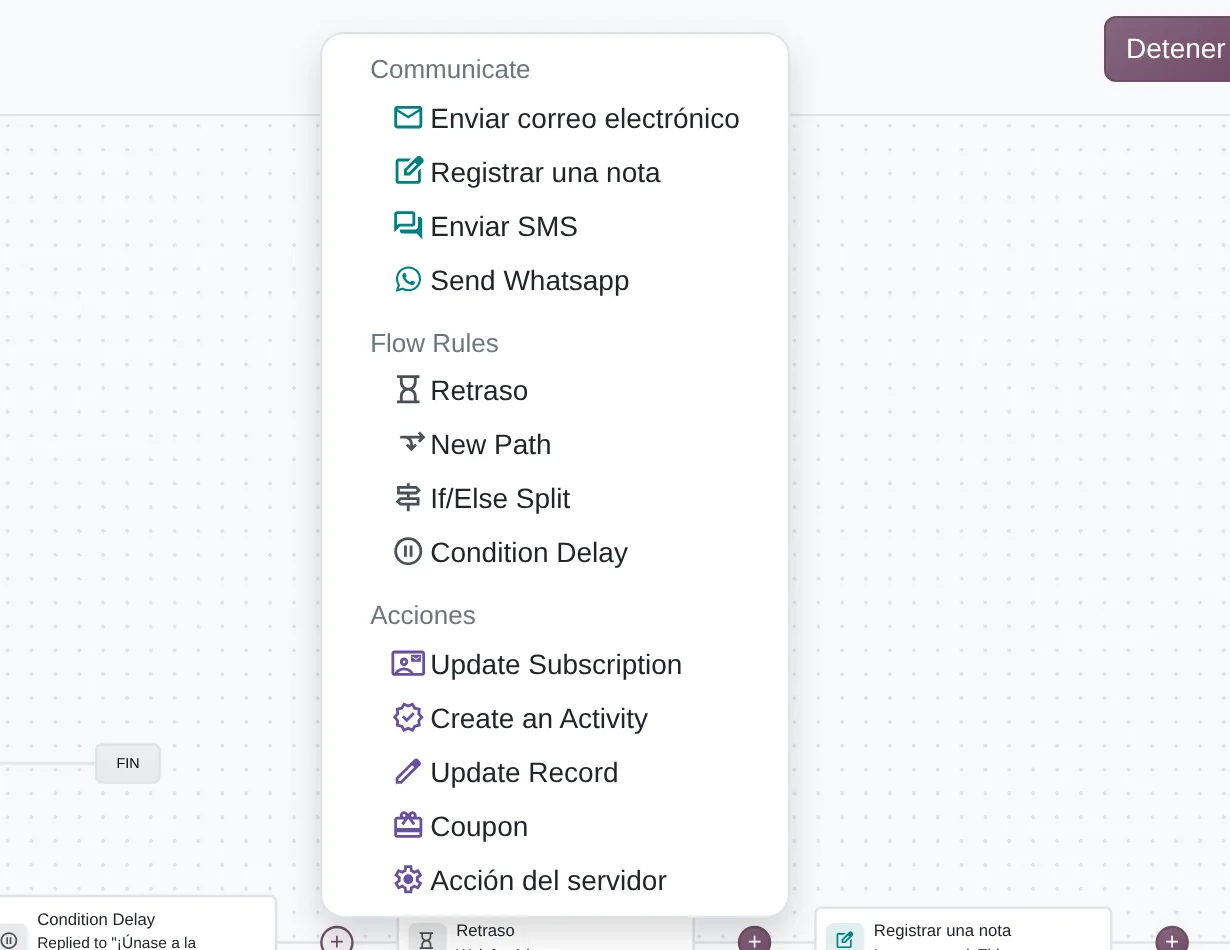
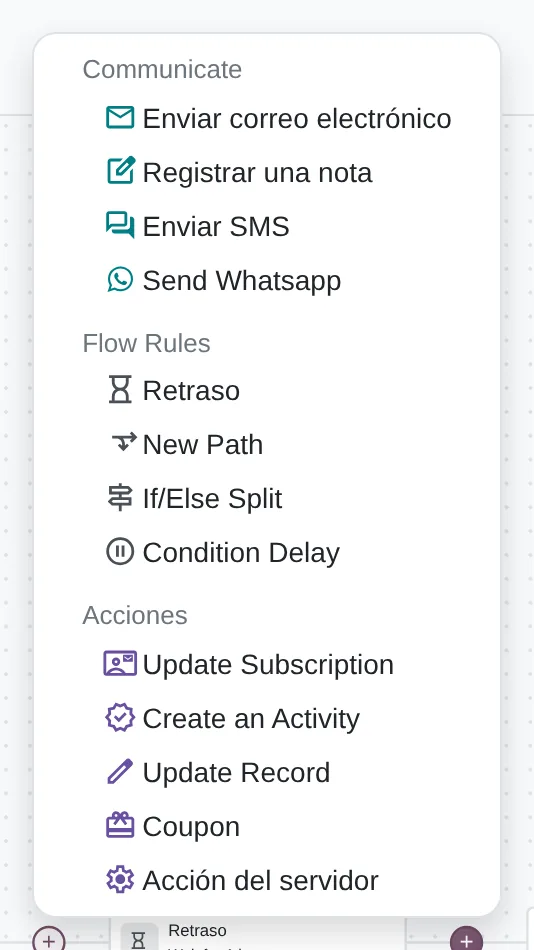
Steps you can add
- SMS and WhatsAppAdded next to email when those channels are on.
- Yes and no branchesSplits the flow on a condition about the record.
- Activity for the salespersonThe campaign schedules a call or task on the record.
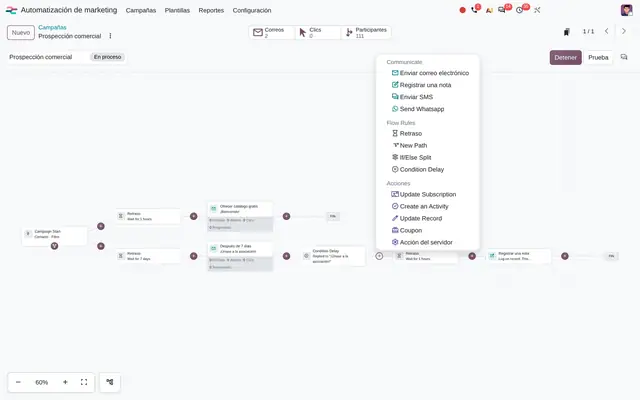 Example in Odoo 20
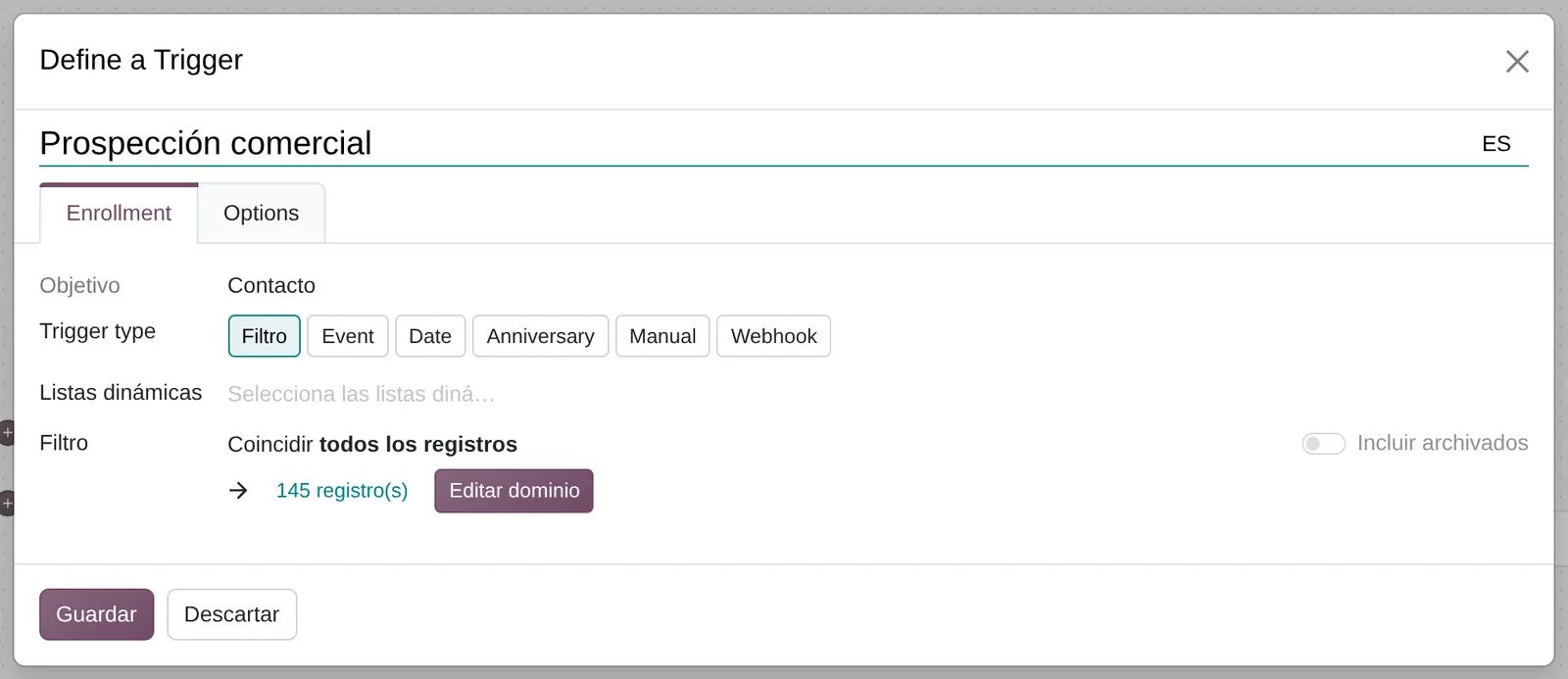
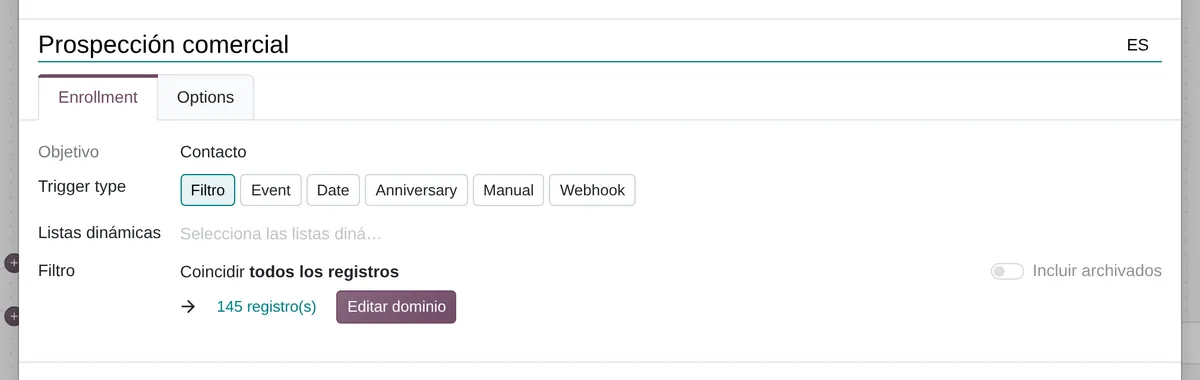
Trigger dialog
- Six triggersFilter, event, date, anniversary, manual or from another system.
- Saved filtersSaved filters reused across campaigns.
- How many would enterThe record counter is checked before starting.
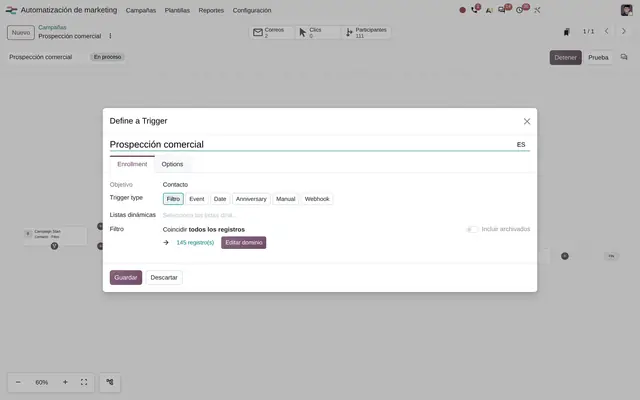 Example in Odoo 20
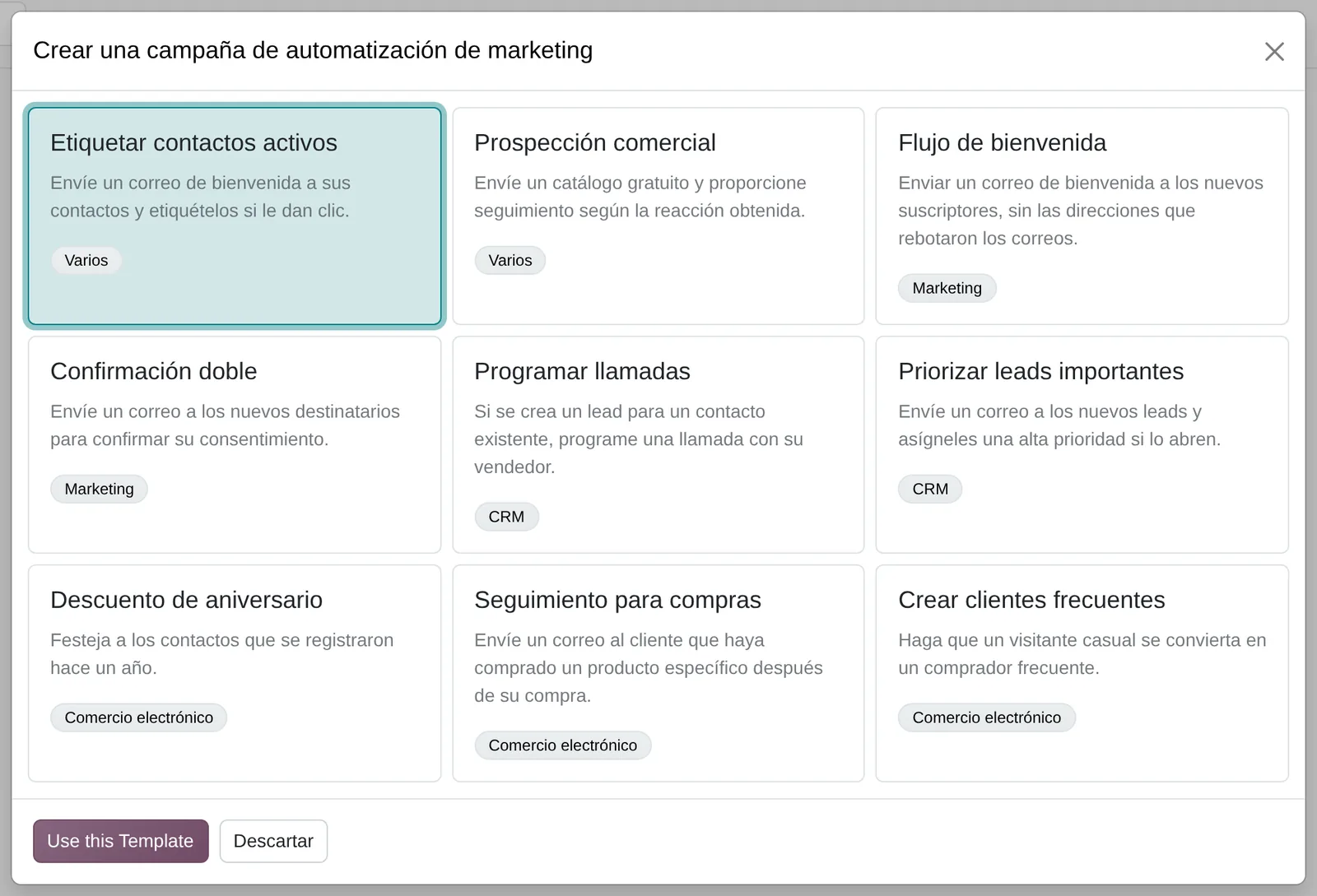
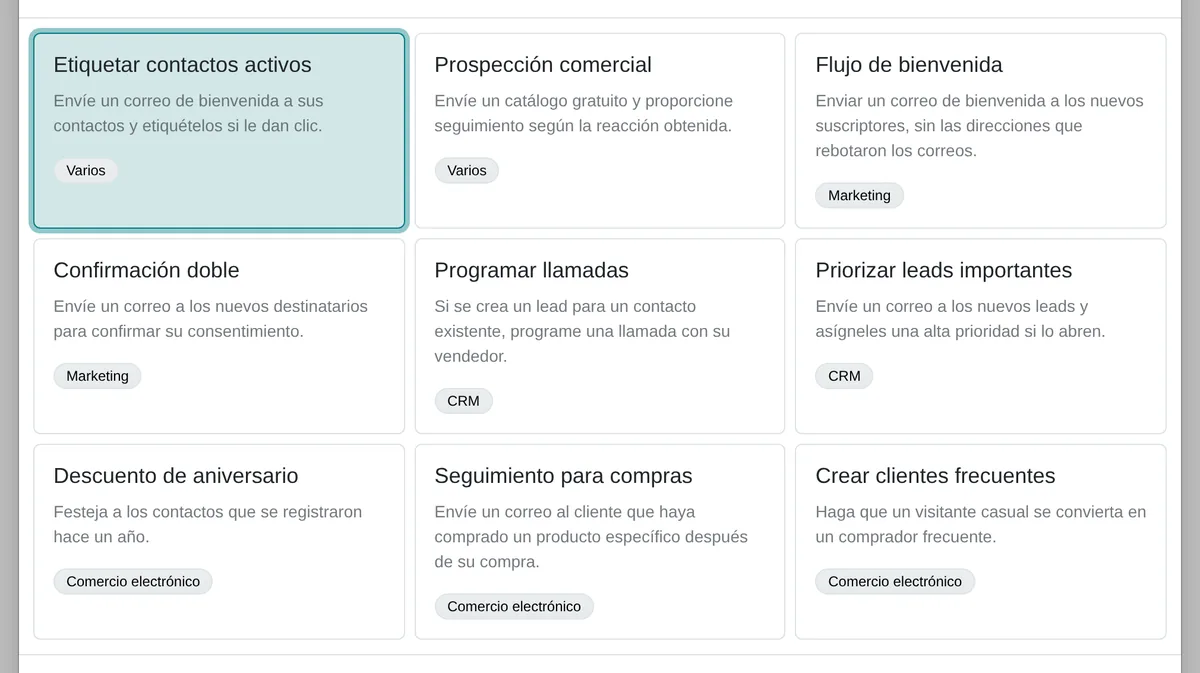
Campaign templates
- Ready templateCreates the campaign with its emails and steps already built.
- By areaMarketing, CRM and e-commerce.
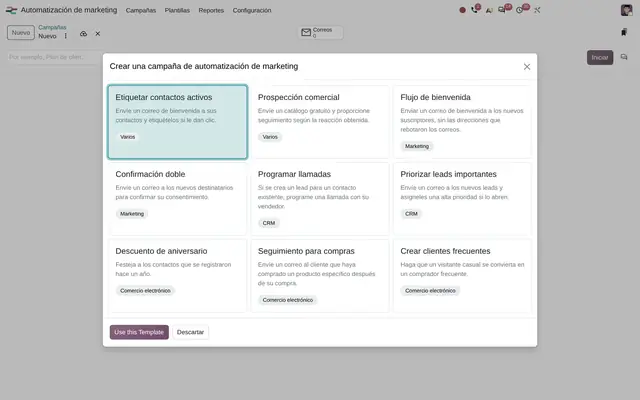 Example in Odoo 20
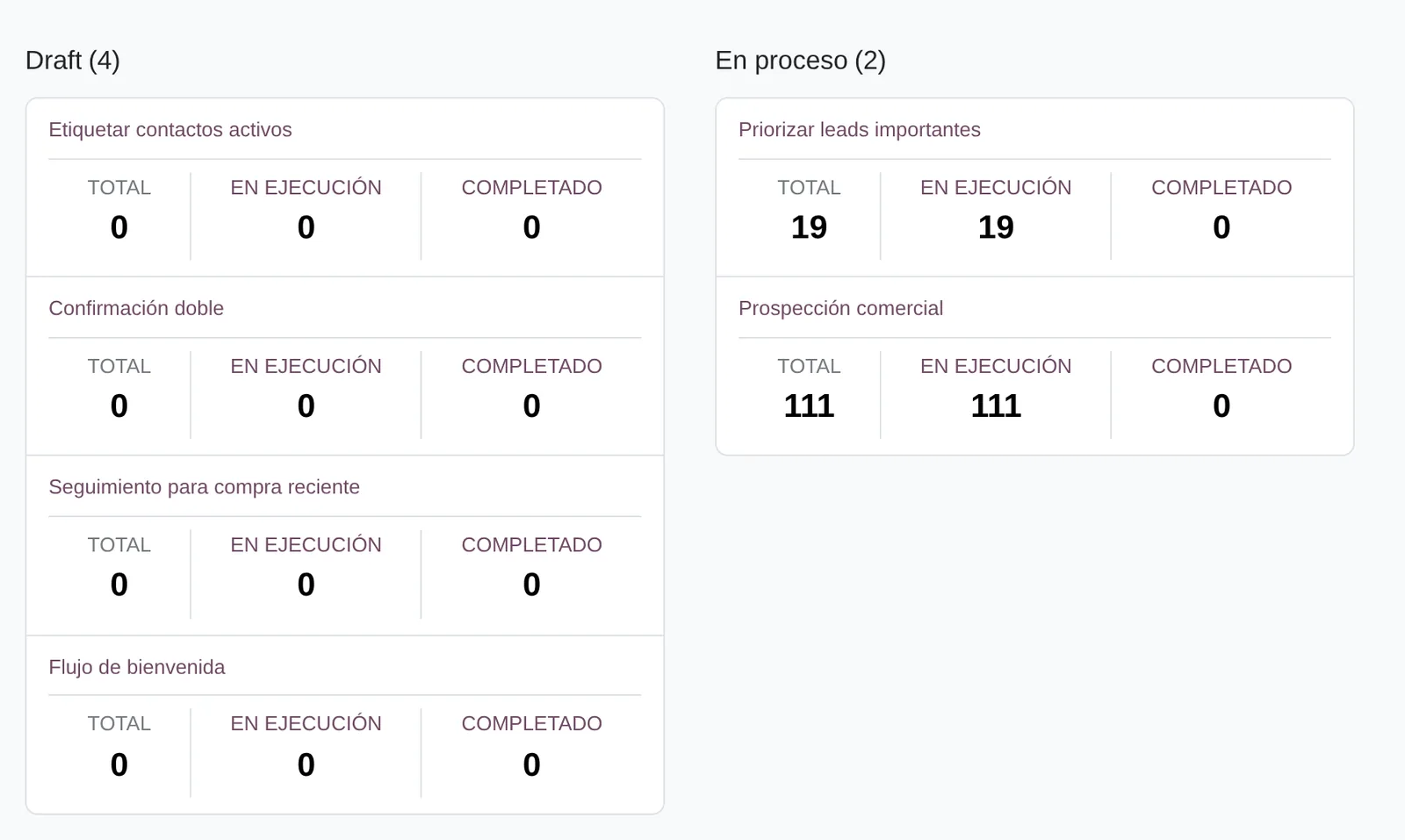
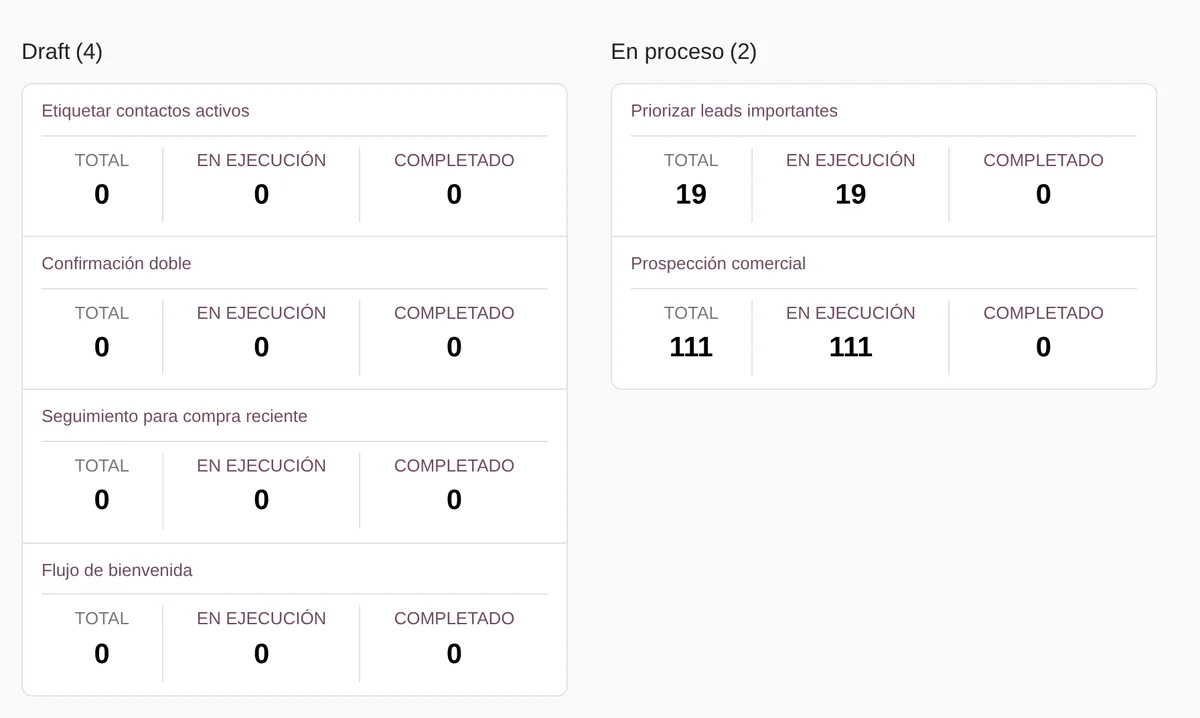
Campaigns by state
- Running campaignsDraft, running and stopped as columns.
- ContactsTotal, running and completed per campaign.
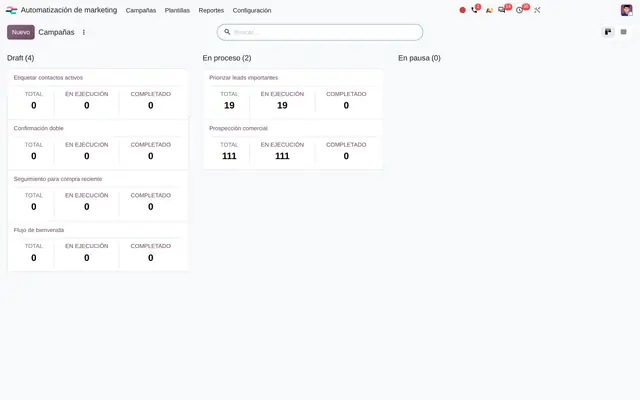 Example in Odoo 20
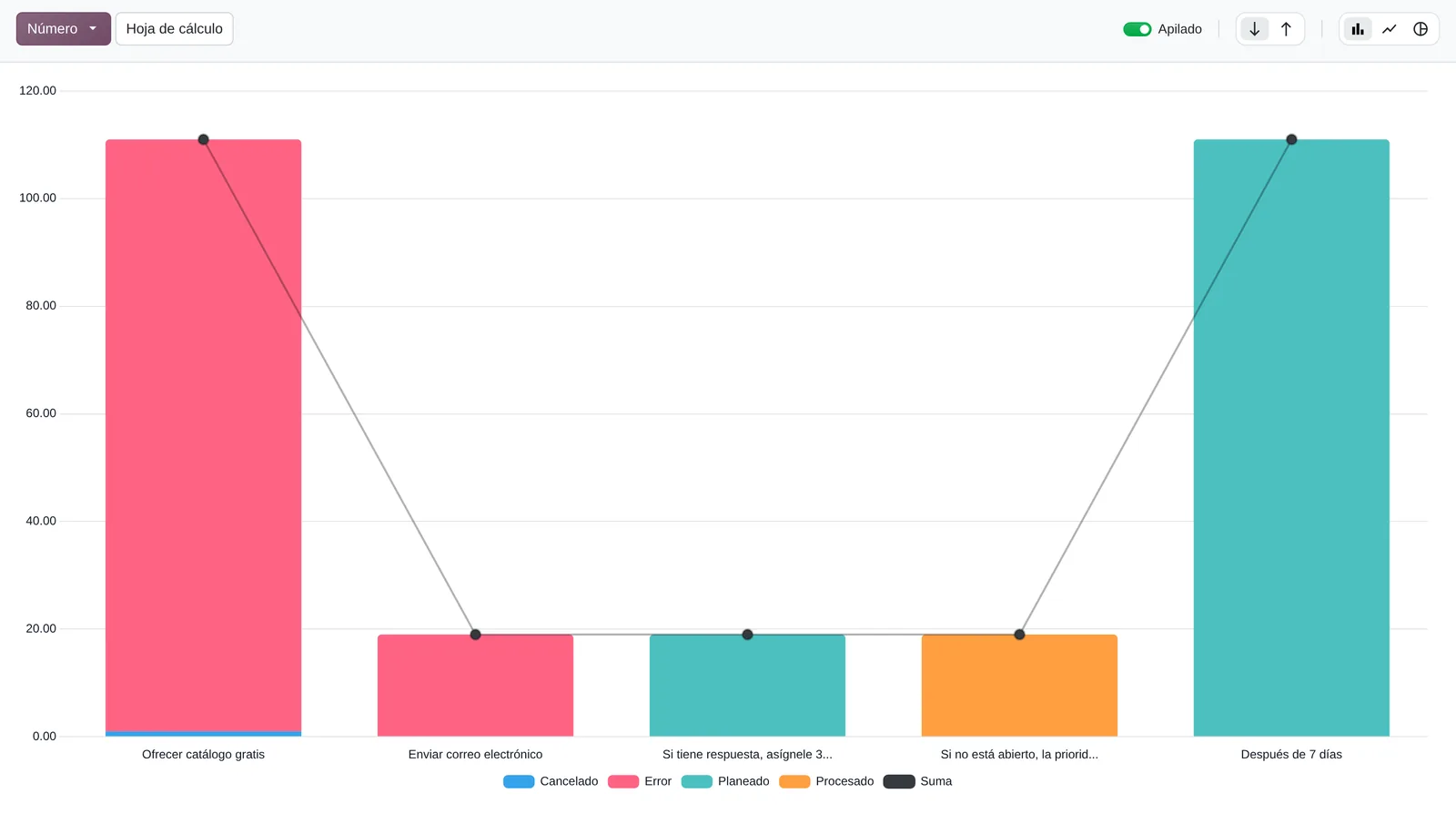
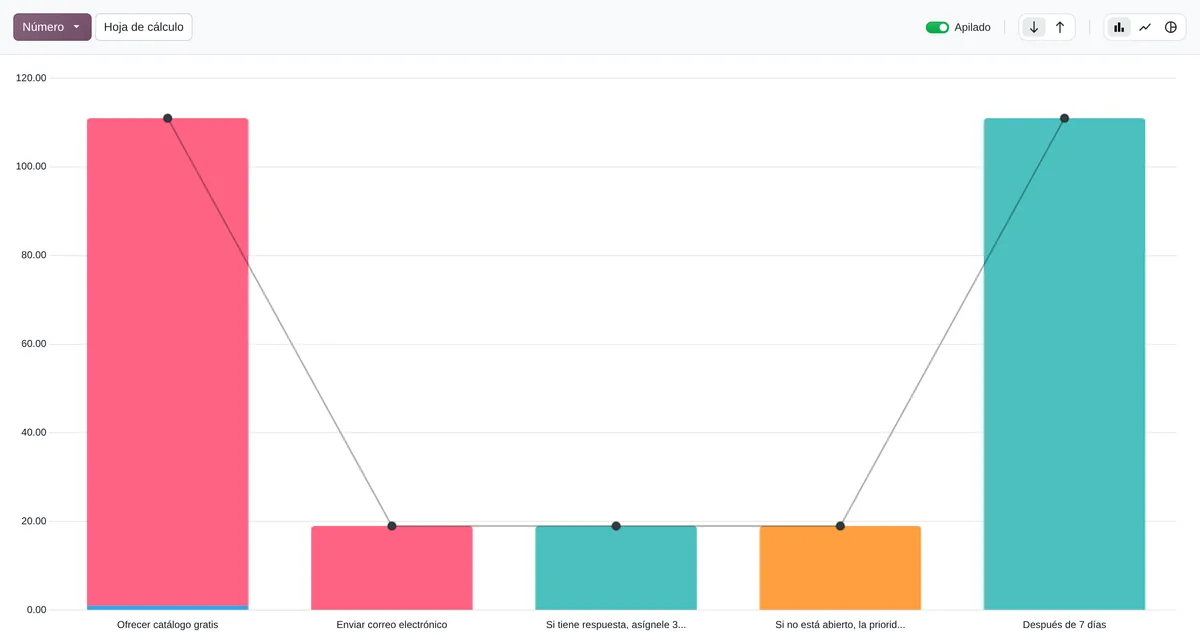
Send history per step
- History per stepHow many sends each step has and in which state.
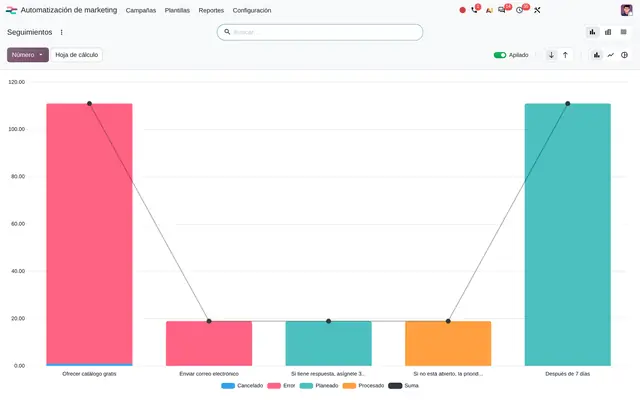 Example in Odoo 20
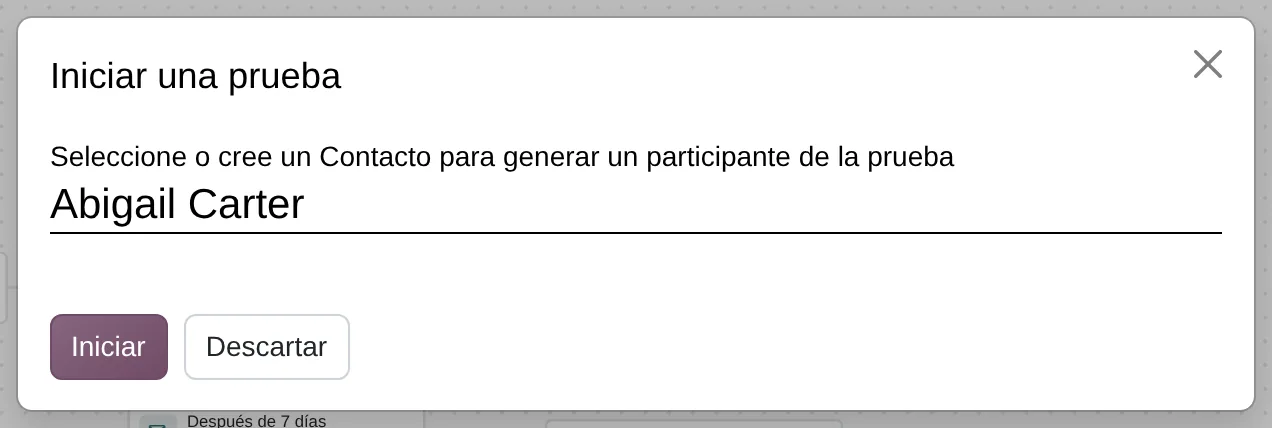
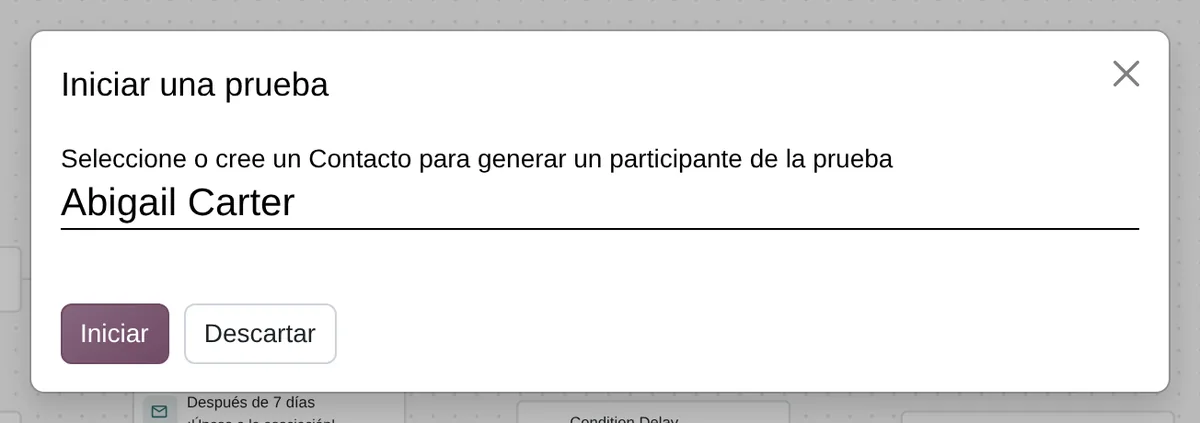
Test with a contact
- A real contactPick or create the person who will go through the campaign.
- Start the testEach step runs by hand, without waiting for the delays.
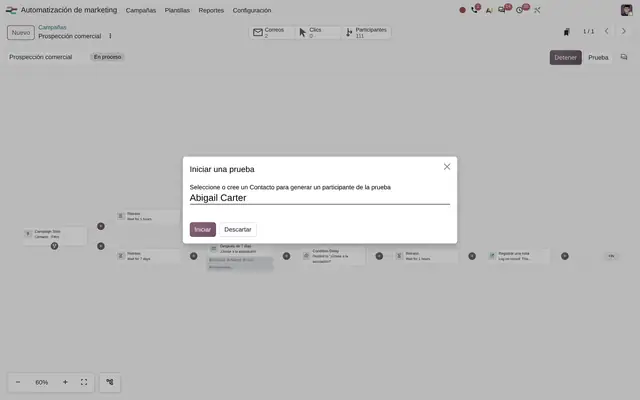 Example in Odoo 20
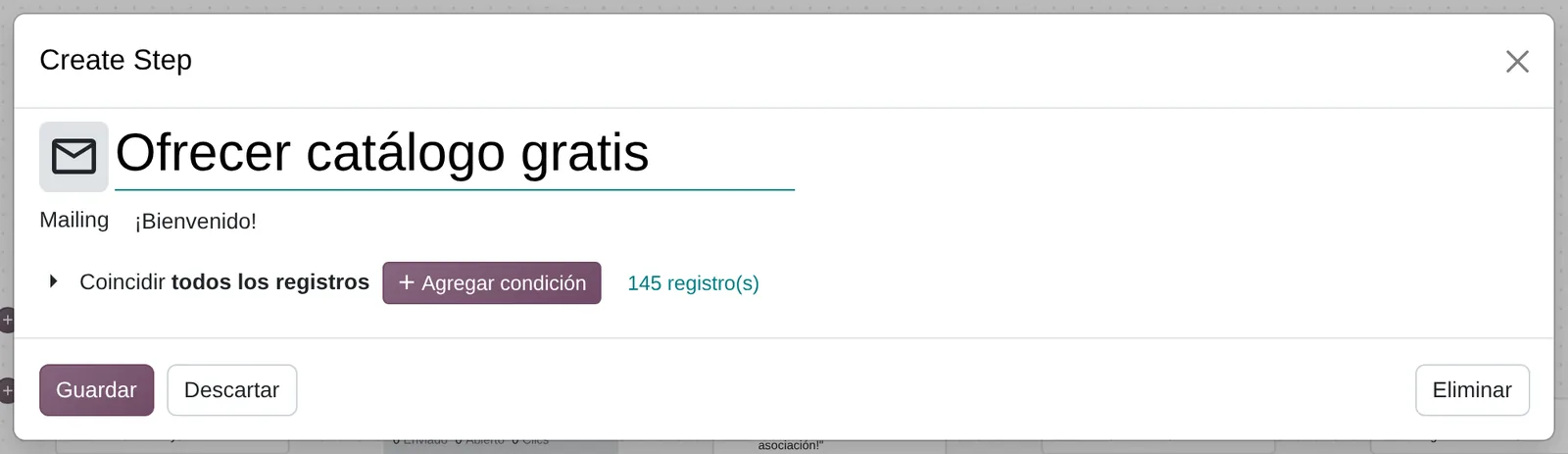

Condition of a step
- Email of the stepThe template sent at this point of the flow.
- Its own conditionOnly those who match receive it; the counter shows how many it reaches today.
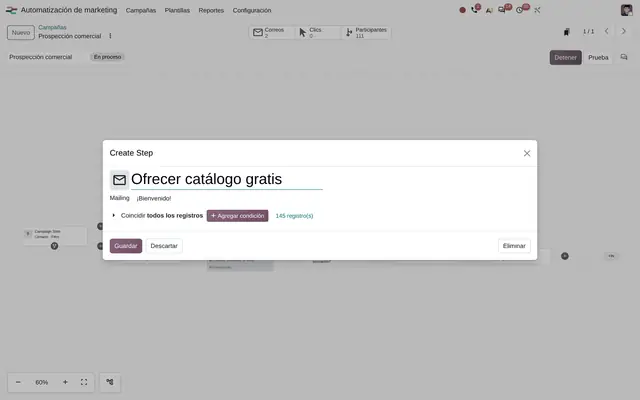 Example in Odoo 20
What the user sees and touches
Campaign, flow drawing
Shows who enters and each step as a box, with waits, yes and no branches, and the results of each email.
A contact's journey
The same flow with the state of each step for one person, with buttons to send it now or cancel it.
«Define a Trigger» dialog
Entry types as buttons: filter, event, date, anniversary, manual or from another system.
Campaign enrollment filter
You set who enters and save it as a filter for other campaigns.
«From another system» trigger
Copies in one click the address pasted into the other website's form.
Email or SMS step
Picks the email template and opens its editor without leaving the step.
Counters at the top of the campaign
Count emails, clicks and contacts, and open each list in one click.
«If/No» and «Wait for a condition» steps
Split the flow by a condition or hold it until the record meets it.
Test button and test counter
The button opens the window to pick the rehearsal person; the counter gathers the tests run on the campaign.
What Marketing Automation needs and what it delivers
What it needs before starting
- Contacts, leads or subscribers with a valid email and, for SMS or WhatsApp, a mobile number with country code.
- Mailing lists and saved filters that define the audience of each campaign.
- Email templates built in the Email Marketing editor; WhatsApp templates approved by Meta if that channel is used.
- A verified email domain so sends do not land in spam, or a separate server for marketing.
- Marketing Automation access for the people who design campaigns.
- A working calendar if delays must count working days.
What it produces
- Every contact in the campaign with its journey and state: running, completed, canceled or rejected.
- History per step with planned date, send date and result.
- Results of each step on the flow drawing itself: sent, opened, clicks, replies and bounces.
- Clicks per link, tied to the source promotion.
- Notes, tasks, tags or updated data on the contact's record, depending on the steps.
- Mailing list subscriptions and unsubscriptions made by the flow itself.
Marketing Automation features that already come included
They come with standard Odoo, with no custom development. Most companies do not turn them on or do not know they exist.
Rehearse the whole campaign with one person before launch
The Test button, top right of the campaign.
What you gain: Each email and branch is checked with an internal contact, without waiting the delays and without writing to customers.
Each email in the flow can have its own condition
«Add condition» and the number of matching contacts, inside each step.
What you gain: One campaign serves several audiences: the same flow sends a different offer to those who already bought, without duplicating campaigns.
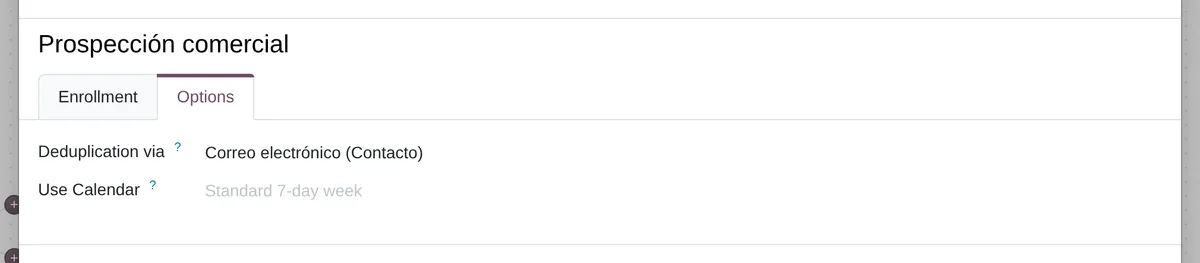
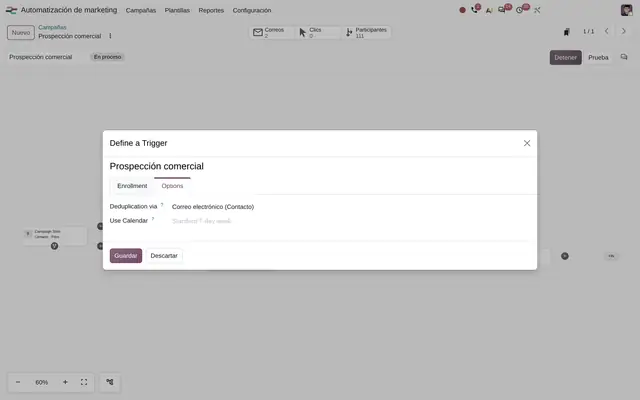
A person with two records receives the campaign only once
The options tab of the entry window: you pick the detail that identifies the person.
What you gain: For leads it counts once per email; for orders, once per customer: whoever buys three times gets a single follow-up.
Waits can count working days only
The planned date of each step on the contact's journey.
What you gain: A «call 2 days later» created on Friday lands on Tuesday, not Sunday, using the same working calendar as Employees.
Connect a form from another website without polluting the base
The last entry type button, the one that receives signals from another system.
What you gain: The link is tested in a rehearsal mode that answers what would have happened without creating contacts; the real one is turned on when the answer is right.
A purchase enrolls the customer even if the order does not come from the online store
The «Purchase follow-up» and «Repeat customer» templates.
What you gain: The after-sales follow-up goes out on order confirmation, also when the salesperson confirms it from Sales.
What changes how Marketing Automation behaves
Mailing Campaigns
Groups the emails, SMS and automated campaigns of one promotion and shows their results together.
Settings › Email Marketing › Mailing Campaigns
Dedicated Server
Sends marketing emails through a dedicated server, separate from the company operational mail.
Settings › Email Marketing › Dedicated Server
Blacklist Option when Unsubscribing
The unsubscribe page offers to block the address for all marketing sends, not just one list.
Settings › Email Marketing › Blacklist Option when Unsubscribing
24H Stat Mailing Reports
Sends the owner a statistics summary 24 hours after each send.
Settings › Email Marketing › 24H Stat Mailing Reports
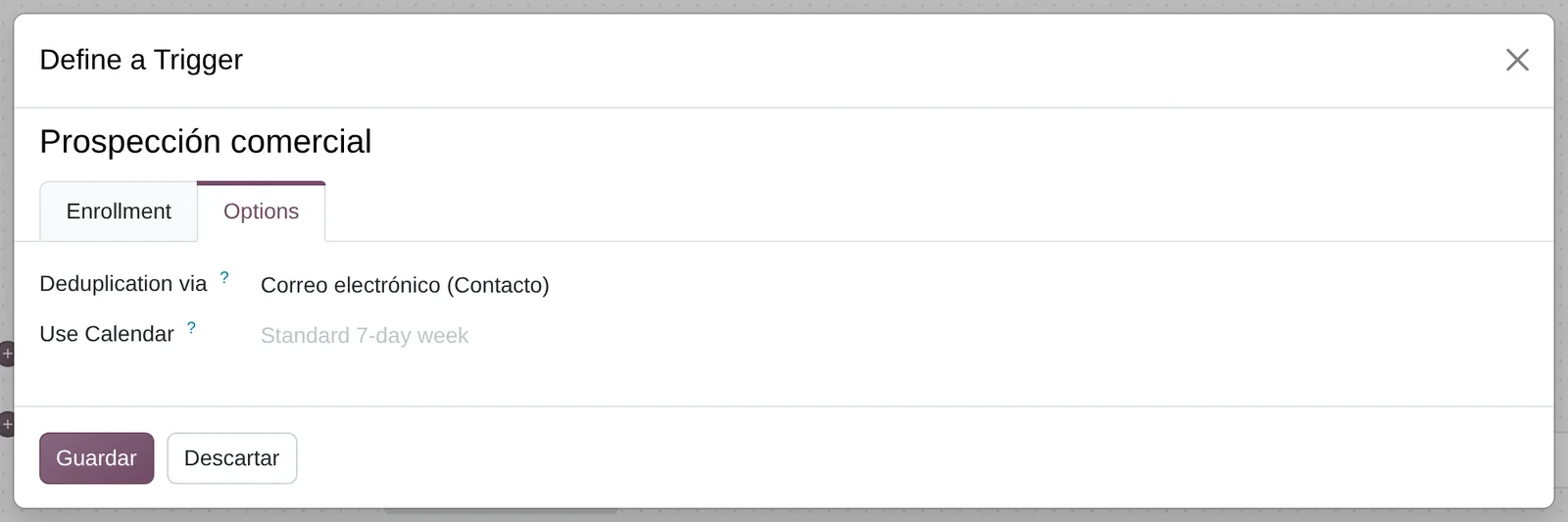
Enrollment options
- Avoid duplicatesOne entry per email, per customer or another detail.
- Working daysWith a calendar, delays skip weekends and holidays.
 Example in Odoo 20
What Marketing Automation connects with
Email Marketing
Receives: Email templates, mailing lists, saved filters and the block list.
Delivers: Emails sent per step with their opens, clicks and bounces.
SMS in automation
Receives: SMS texts and the contact's mobile number.
Delivers: «Send SMS» step and SMS triggers: clicked, not clicked and bounced.
WhatsApp in automation
Receives: WhatsApp templates approved by Meta and the WhatsApp Business account.
Delivers: «Send WhatsApp» step and seven triggers: opened, not opened, clicked, not clicked, replied, not replied and bounced.
Website automation
Receives: Website page visits and form submissions.
Delivers: «Page Visited» and «Form Submitted» event triggers.
E-commerce automation
Receives: Products added to the cart and confirmed orders.
Delivers: «Product in Cart» and «Product Bought» triggers and anniversary, purchase follow-up and repeat customer templates.
CRM
Receives: Leads and opportunities the campaign follows.
Delivers: Priority, tags and salesperson activities updated by the steps.
What it does not do and how it is solved
Enrollment on list subscription only works in campaigns on contacts.
For leads or subscribers, use the filter trigger on the creation date or on the list.
Steps go out in periodic runs, not to the second.
Notices that must go out instantly (payment confirmed, access code) use the document's own templates or Odoo automation rules.
Metrics are per step and per campaign; there is no per-contact revenue attribution across campaigns.
Each promotion ties its orders and leads to their source and is analyzed in Sales and CRM; a custom attribution model requires development.
Peruvian localisation
- Peru Law 29733 on personal data protection requires consent to send advertising; the double confirmation template records it before the first send.
- Peruvian mobile numbers must be stored with the +51 prefix for SMS and WhatsApp steps to arrive.
- The block list and the unsubscribe link in each email cover the data subject right to object.
Marketing Automation layer by layer, with a deliverable for each
The layers follow the answers to the configuration questionnaire.
Settings
Verified email domain, a separate server if volume requires it, grouped promotions, blocking option on unsubscribe and SMS and WhatsApp channels.
Verified sending domain and documented settings.
Master data
Clean contacts with consent, mailing lists, saved filters, email and WhatsApp templates, working calendar.
Imported base without duplicates and approved templates.
Roles
Who designs campaigns, who approves templates and which salespeople receive the tasks the campaign creates.
Users and permissions table.
Automations
The campaigns themselves: who enters, how duplicates are avoided, waits in working days, branches by reaction and conditions per step.
Flows designed with the sales team and loaded as drafts.
Reports
History per step and state, clicks per link and send analysis, with saved filters per campaign.
Saved views for the marketing manager.
Dashboard
Dashboard with contacts in progress, steps that did not go out and leads generated by each promotion.
Dashboard published for marketing and sales management.
Test
Each campaign is run with the Test button on an internal contact, branch by branch, and the link with external forms is tested without creating contacts before launch.
Test record with screenshots of each branch.
Typical risks and how they are avoided
A campaign starts with an empty filter and the whole contact base enters.
Before starting, check the recipients counter in the trigger dialog and test with one contact.
The email domain is not verified and emails land in spam.
The sending domain is verified with the email provider and a separate server is used for marketing.
A contact enters twice through duplicated records and receives everything twice.
«Avoid duplicates» is turned on in each campaign and the base is cleaned on import.
Frequently asked questions
About Marketing Automation in Odoo 20
Yes. Marketing Automation depends on Email Marketing: it uses its template editor, lists and blacklist. It is installed with it.
Yes. The campaign can follow leads, sales orders, subscribers, contacts or event attendees.
With the «from another system» trigger. The other website notifies Odoo each time someone fills in the form, and Odoo creates or finds the contact and enrolls it.
The campaign moves to «Stopped» and no step goes out. When resumed, the pending steps go out.
Yes. When steps are added or changed, the campaign flags the change and a button applies it to the contacts already inside.
Set up Marketing Automation in 3 minutes
Tell us how you work today. At the end you will see the Marketing Automation settings we would turn on and the data to load. Diego receives the specification and reviews it with you.
Assessing the whole system rather than this module? See the system assessment