Manuals and procedures inside Odoo, with per-article permissions
The Odoo Knowledge app gathers manuals, procedures, minutes and catalogues in a tree of pages. Each article sets who reads it and who edits it, and can show a live list from CRM, Project or any other app.
At the end of the questionnaire you will see the configuration we recommend.
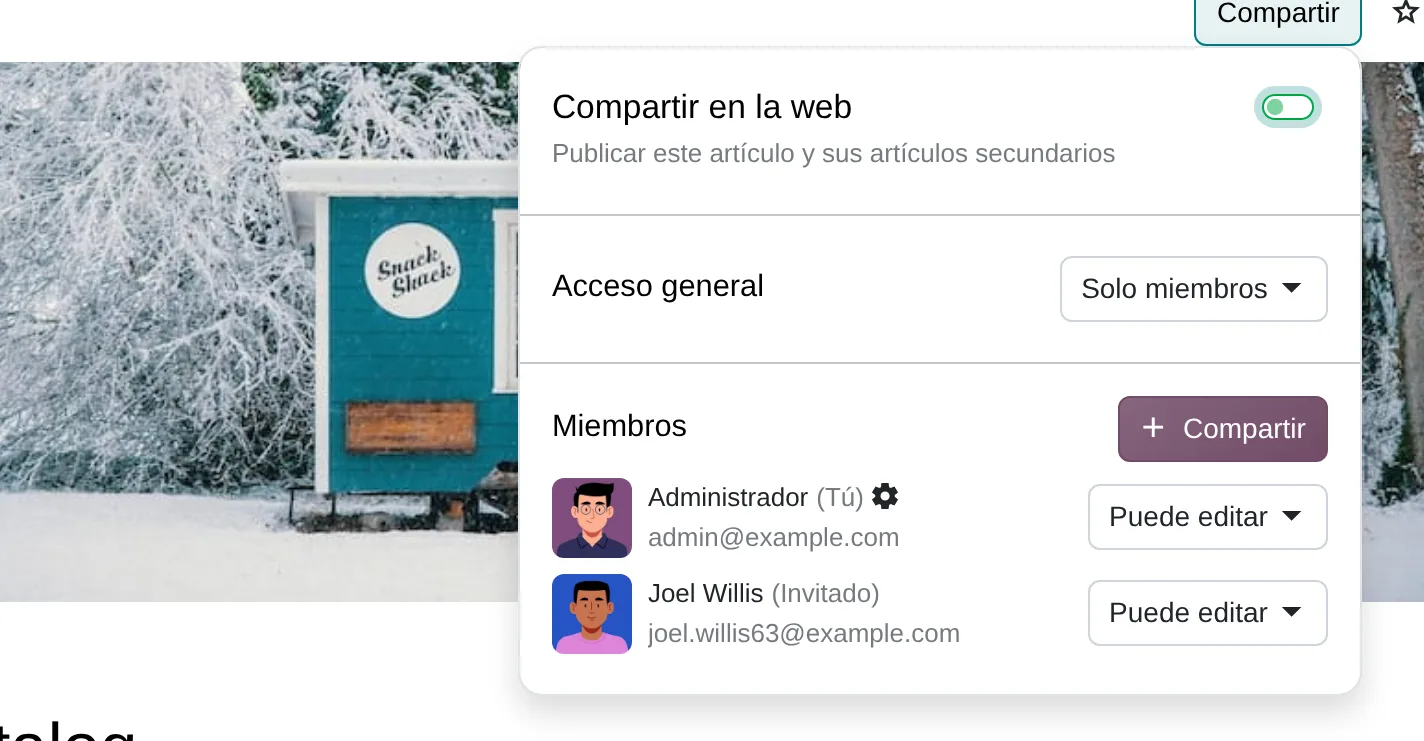
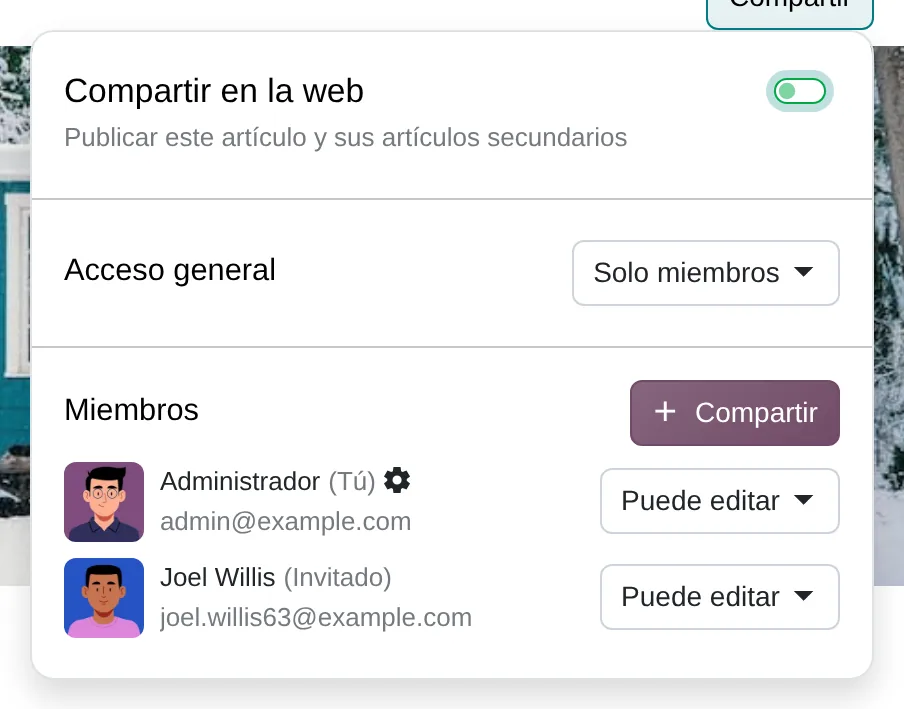
Share panel of an article
- Share to webPublishes the article and its children on the website.
- General accessCan edit, Can read or Members only.
- MembersPeople with their own permission; external ones appear as guests.
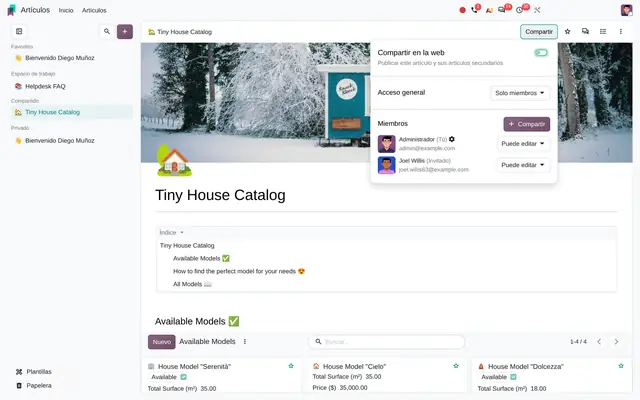 Example in Odoo 20
The procedure sits in a shared folder nobody can find
Manuals live in Word files with three versions, in folders whose permissions depend on whoever created them, and in chats. The new salesperson asks the same questions as the previous one and nobody knows which version is current. In Knowledge each document is a page with history, placed in one of three sections: Workspace, Shared or Private. The section comes from the article permissions, not from a folder.
- A child article inherits its parent permissions: set access on «Sales» once and it applies to everything below it.
- External people join as invited members of one specific article, without seeing the rest of the workspace.
- The article body keeps a version history and the last editor is recorded on the article.
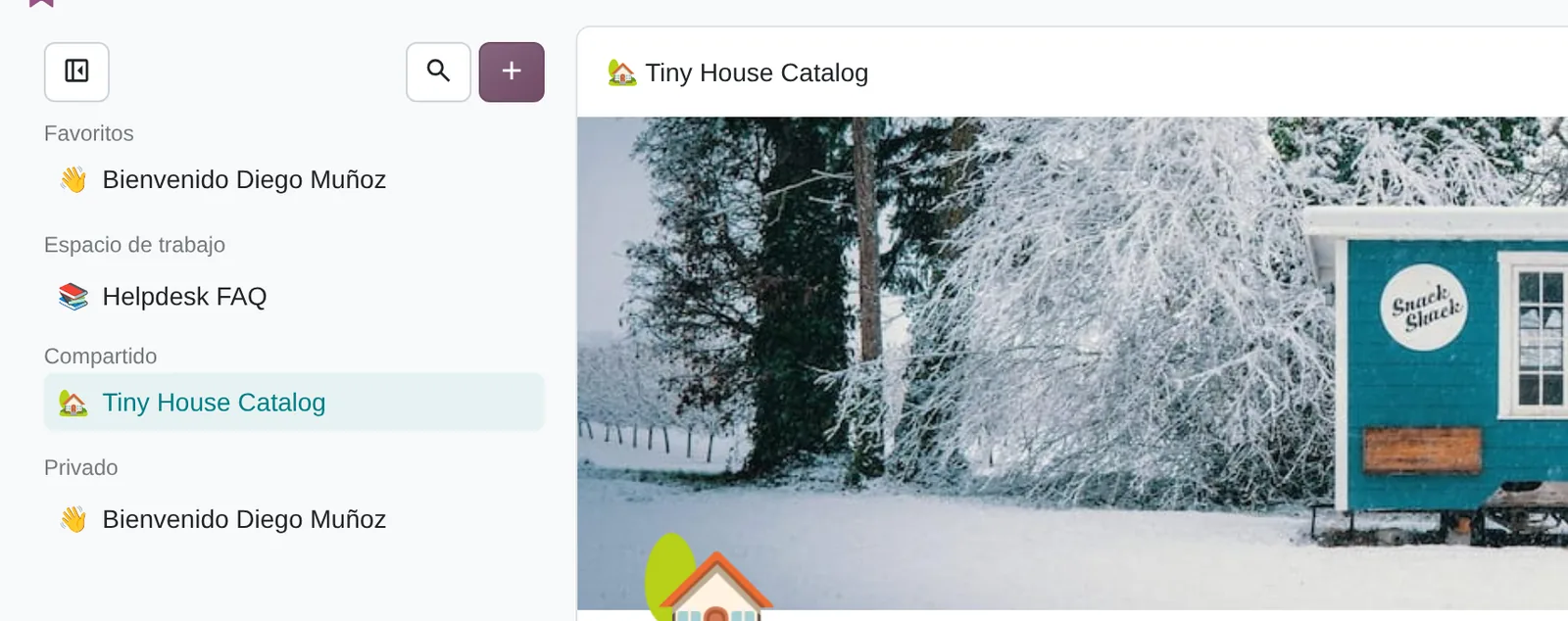
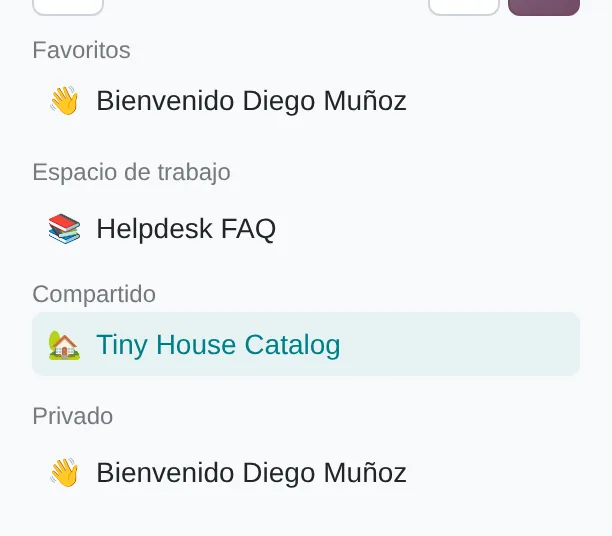
The three sections of the tree
- WorkspaceWhat the whole company reads or edits.
- SharedOnly for invited members.
- PrivateDrafts only their author sees.
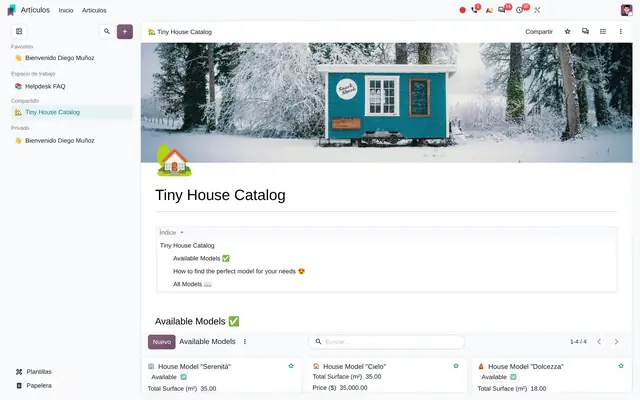 Example in Odoo 20
Who uses Knowledge in the company
Service, distribution, manufacturing and education companies already on Odoo that want their procedures next to the documents those procedures describe.
Roles
- Operations or quality management: publishes procedures and decides who may change them.
- Sales manager: keeps the sales manual, scripts and objection answers next to CRM.
- Human resources: builds onboarding and staff FAQs.
- Support: writes the answers the team and customers look up, and publishes them on the website.
When it is not the right fit
- If you need to store contracts, scanned bills or drawings with an approval flow, the right app is Documents, not Knowledge.
- If your team does not work in Odoo daily, a manual inside Odoo loses its main advantage: sitting next to the record it explains.
- If the standard requires document control with approval signatures per version (externally audited ISO), Knowledge is combined with Sign or with the Quality app.
An article changes section according to its permissions
The section is not chosen: Odoo decides it based on who has access to the article. Moving an article under another one also changes the permissions it inherits.
Private
The draft starts in Private: general access «Members only» and a single member, its author.
Shared
Inviting another person as a member, with read or edit permission, moves it to Shared.
Workspace
With general access «Can read» or «Can edit», every internal user sees it in Workspace.
Published on the website
The «Share to web» switch publishes the article and its sub-articles on the website, readable without a user account.
Trash
Sent to Trash it is archived and deleted automatically once the configured days have passed since its last change.
What Knowledge looks like in Odoo 20
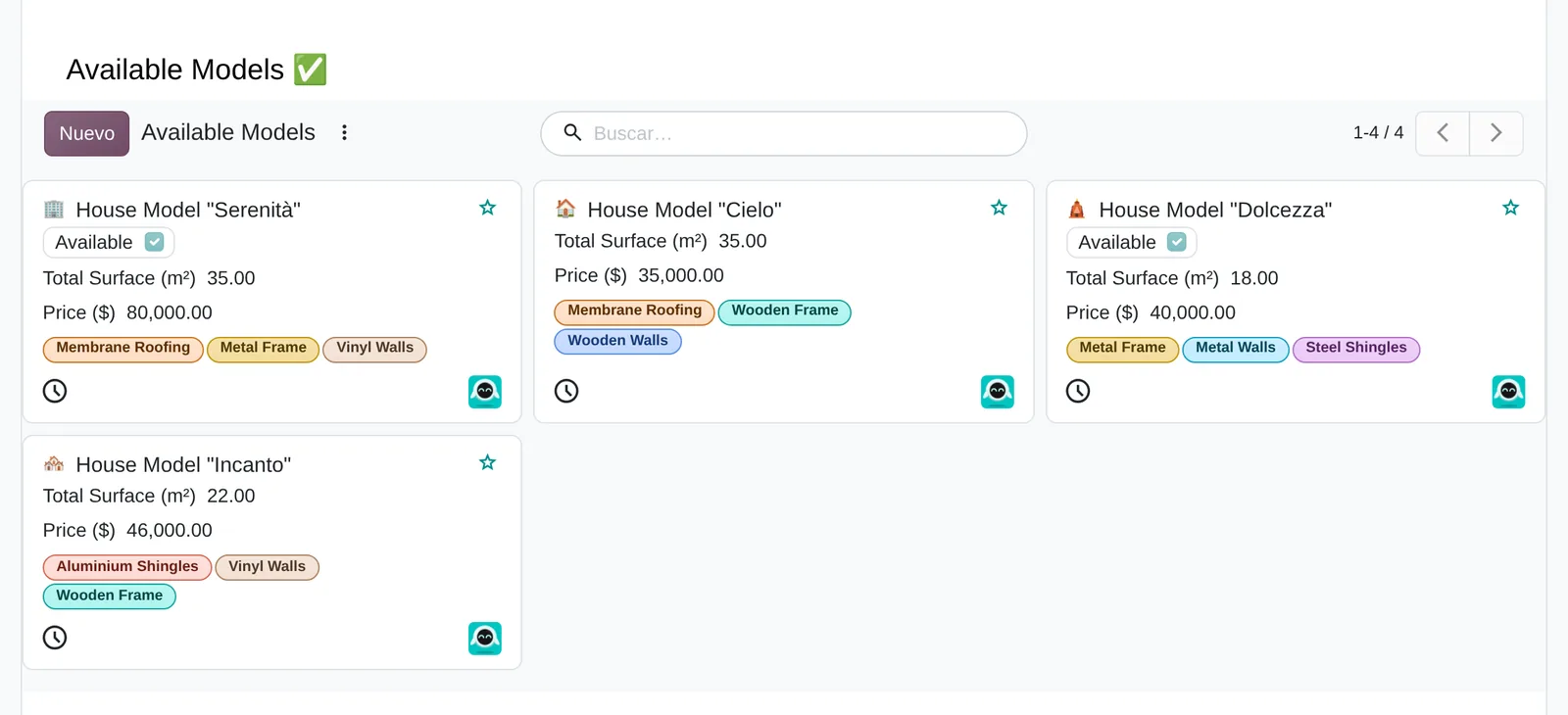
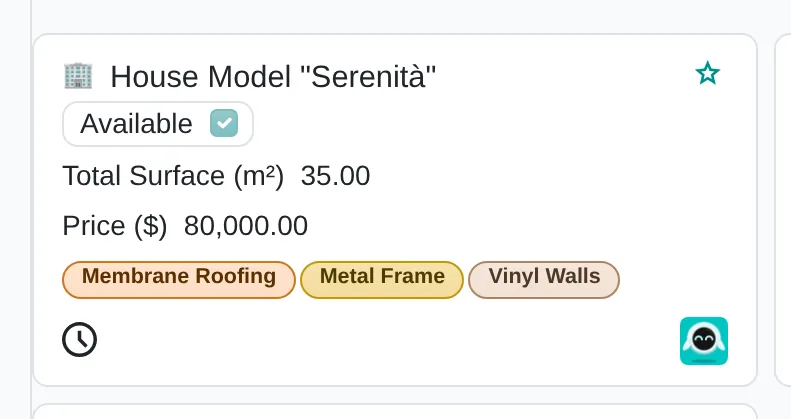
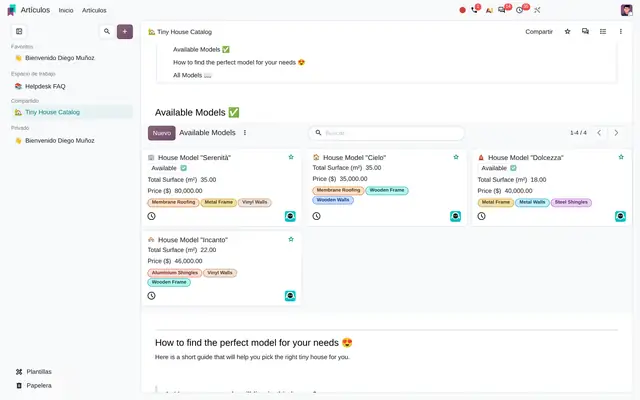
Article items with properties
- New itemEach card is a child article with its own page.
- PropertiesFields defined by the parent article: checkbox, surface, price.
- TagsMultiple tags property, filterable.
 Example in Odoo 20
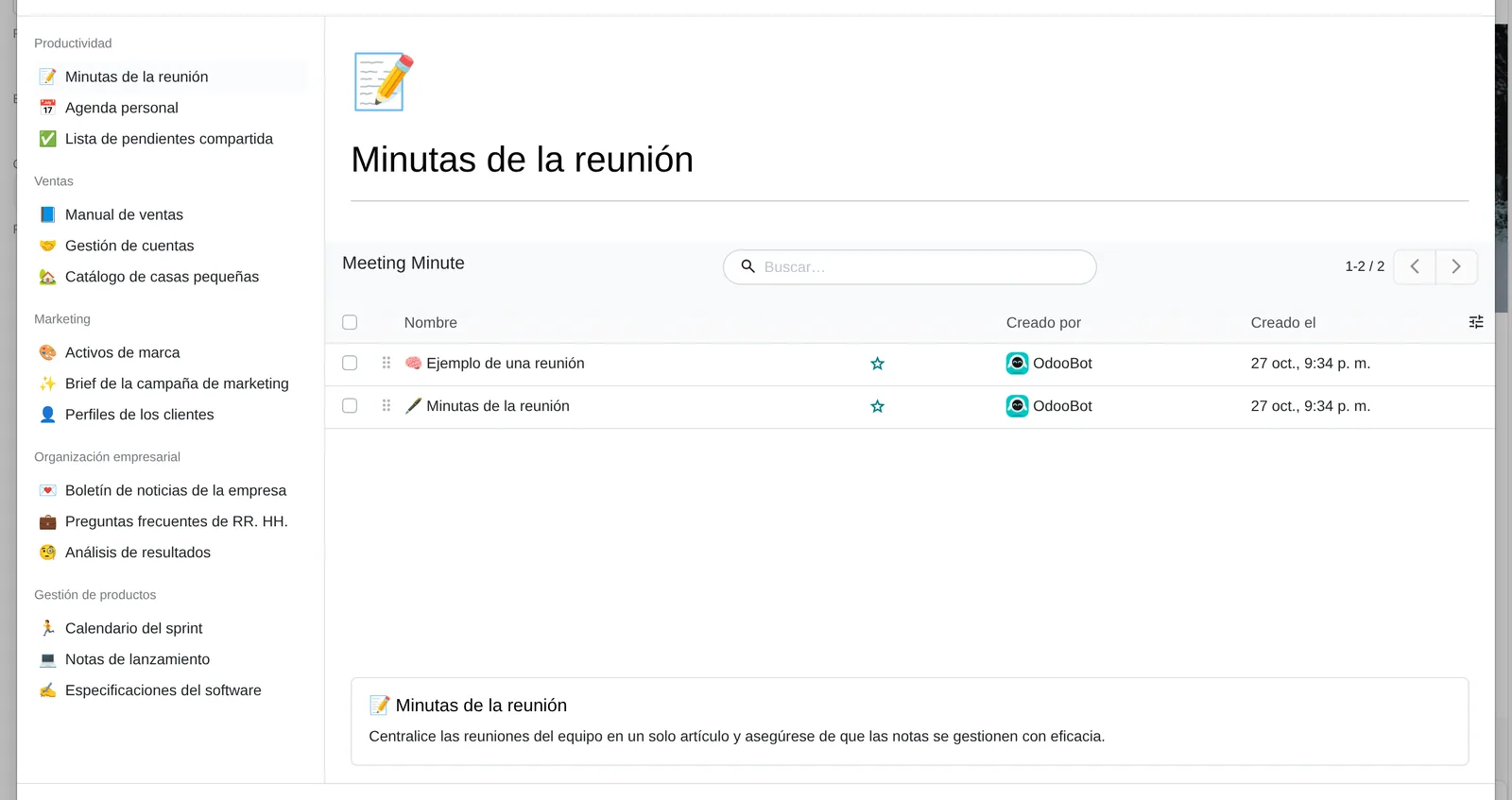
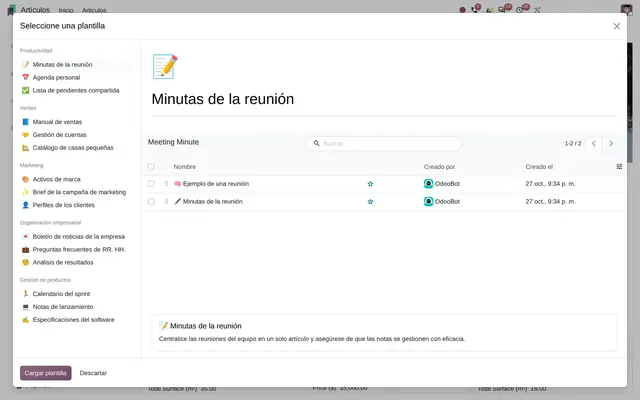
Template gallery
- Templates by categoryProductivity, Sales, Marketing and more, plus your own.
- PreviewThe template with its blocks and embedded views.
- Load templateCreates the article and, if the template has them, its sub-articles.
 Example in Odoo 20
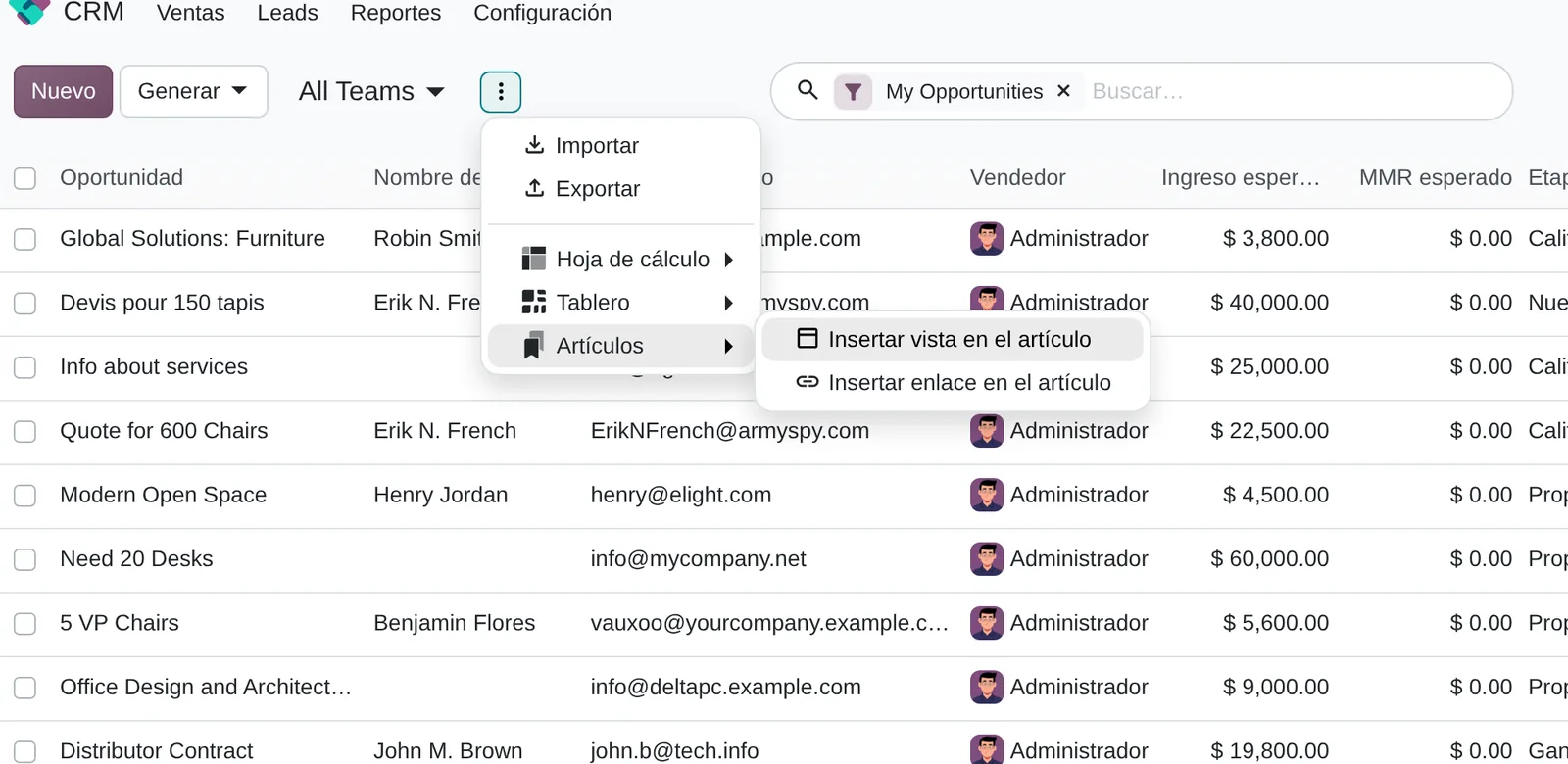
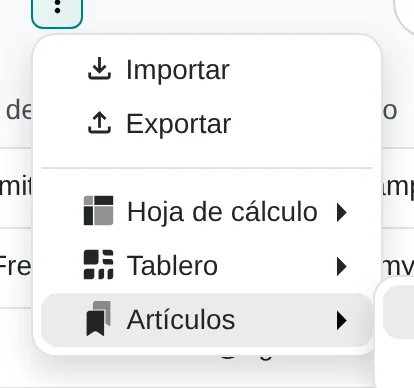
Embed a CRM list in an article
- Knowledge menuAppears in the actions menu of any list or cards.
- Insert viewThe list goes live into the article, with its filters.
- Insert linkOnly a shortcut to the view.
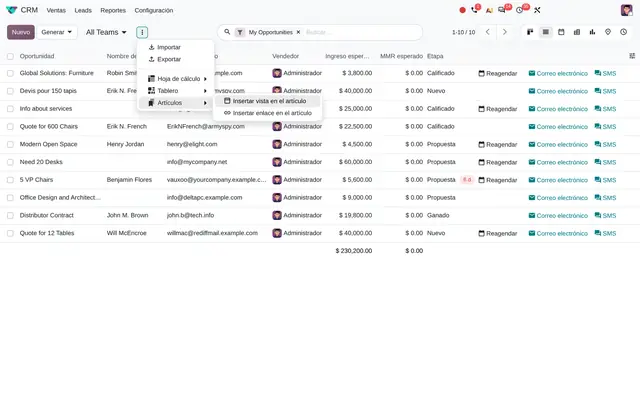 Example in Odoo 20
What the user sees and touches
Left column of the app
Article tree by section (Favorites, Workspace, Shared, Private) with drag and drop to move and reorder.
Article top bar
Share button with the permissions panel, favourite, comments, outline and the options menu (lock, full width, move, history).
Article item cards
Shows on each card the properties defined by the parent article: checkbox, number, tags.
Title of the article and of each item
Article icon shown in the tree, on cards and in links.
Article header
Cover image with adjustable vertical position; the gallery provides covers and searches Unsplash.
Article body
Editor with «/» commands: outline, embedded views, clipboard, file, link to another article and foldable sections.
Article lists and cards
Avatar of the creator or last editor, with their contact card on hover.
Hierarchy view of Knowledge › Articles
Org chart of the article tree to review the whole structure and move branches.
What Knowledge needs and what it delivers
What it needs before starting
- The index of manuals and procedures that exist today, with their owner and current location.
- The access rule by area: what the whole company reads, what only one team reads and what only its author reads.
- Internal users created in Odoo and, if there will be external readers, their contacts to invite them as portal users.
- The source documents in Word, Google Docs or PDF to be migrated as articles.
- The list of recurring documents (minutes, data sheets, checklists) worth turning into templates.
What it produces
- A tree of articles by area in Workspace, with permissions inherited from each root article.
- Version history of each article body, with the date and author of the last edit.
- Article item boards (cards, list or calendar) with stages and properties specific to each board.
- Your own templates in the gallery, next to the ones Odoo provides by category.
- Public website pages for the articles marked «Share to web».
- Comments and mentions in the article text, with a notification to the person mentioned.
Knowledge features that already come included
They come with standard Odoo, with no custom development. Most companies do not turn them on or do not know they exist.
Custom fields without Studio on each board
What you gain: A service catalogue, an issue log or an approved vendor list is built inside one article, with its own columns, without creating models or asking for development. Each board also has its own stages, without creating a project per list.
Any Odoo list can be embedded live in an article
What you gain: The sales manual shows the team open opportunities and the support procedure shows urgent tickets, without copying data that goes stale.
A template can create its sub-articles
What you gain: Each project, customer or new hire starts with the same page structure, not a blank document.
Read-only users can still comment
What you gain: Procedures are published with «Can read» for the whole company and corrections arrive as comments to the owner, without opening editing to everyone.
The most favourited content comes first
What you gain: Ask the team to star what they use daily and search returns the current content first.
What changes how Knowledge behaves
General access
General access of the article: «Can edit», «Can read» or «Members only». Children inherit it.
Article › Share › General access
Restrict Access
«Restrict Access» breaks inheritance: the child article stops following the parent permissions and keeps its own.
Child article › Share › Restrict Access
Share to web
Publishes the article and its children on the website. It comes included when the Website app is activated.
Article › Share › Share to web
Lock Content
«Lock Content» prevents changes to the title and body, even for users with edit permission.
Article › options menu › Lock Content
Odoo advanced configuration (Diego sets it during the implementation)
Days an article stays in Trash before automatic deletion. Odoo creates it with 30.
Odoo advanced configuration (Diego sets it during the implementation)
What Knowledge connects with
Website
Receives: Nothing: it only publishes.
Delivers: Public articles on the website, with their side tree, for customers and visitors.
Helpdesk
Receives: The helpdesk team that uses the article as its help centre.
Delivers: The help centre root article and the latest articles on the team page.
CRM
Receives: Opportunity views embedded with their filters.
Delivers: Scripts and answers sent as messages from the opportunity.
Project
Receives: Task lists embedded in the project article.
Delivers: Specifications and minutes linked from tasks.
AI
Receives: Drafting instructions.
Delivers: Text drafts inside the article editor, which the author reviews before saving.
Accounting
Receives: Figures from accounting reports.
Delivers: Annual report template in Knowledge, in the template gallery.
What it does not do and how it is solved
There is no approval flow per version: history keeps changes, but nobody «approves» a version.
Lock the content so only its owner unlocks it; if the standard requires a signature, the procedure PDF goes through Sign.
An article is not a file: it does not replace a document manager for contracts or drawings.
Files go in Documents and the article links them with the File block.
Permissions are per article and per person, not per user group.
Design one root article per area with its members; children inherit and only special cases are restricted.
Peruvian localisation
- Knowledge has no SUNAT rules. It is used to document localisation procedures: e-invoicing, SPOT detracciones or the PLE closing.
Knowledge layer by layer, with a deliverable for each
The layers follow the answers to the configuration questionnaire.
Settings
General access of each root article, locking of current procedures, Trash days and website publishing, according to the questionnaire.
Access matrix by area and root article.
Structure
Article tree by area, custom templates and item boards with their stages and properties.
Tree created in Odoo and documents migrated.
Roles
Owner per root article with edit permission, internal readers and invited external members.
Members loaded and reviewed with each owner.
Automations
Embedded CRM, Project or Helpdesk views in the articles that need them, and clipboard blocks for standard answers.
List of embedded views with their filter.
Review
Article list by last edit and author to spot the ones nobody updates.
Saved filter «Not edited» by area.
Home
Home article per area with outline, links to procedures and the embedded view of pending work.
One home article per area.
Test
Each owner logs in with a user from their area and an external test user, and checks what they see and can edit.
Signed access test record.
Typical risks and how they are avoided
Everything ends up «Can edit» for the whole company and anyone changes a current procedure.
Root articles go live with «Can read» and one owner with edit rights; current ones are locked.
The whole folder is migrated and the tree repeats the original mess.
First agree the index by area; only content with an owner is migrated.
A restricted child article becomes invisible to someone who should read it.
The access test runs with real users from each area before go-live.
Frequently asked questions
About Knowledge in Odoo 20
Yes, in two ways. As an invited member they log in through the portal and only see the articles they were invited to. With «Share to web» the article is public on the website, without a user account.
The text is pasted into the editor and keeps headings, lists, tables and images. For many documents a batch load of the HTML body is prepared.
From the article options menu you open the body version history, compare and restore the chosen version.
Documents stores files (PDFs, images, spreadsheets) in folders with tags and workflows. Knowledge stores pages written and read inside Odoo. They work together: the procedure in Knowledge, the signed form in Documents.
Yes. The tree and articles open in the Odoo mobile app and the browser; editing tables and embedded views is easier on desktop.
Set up Knowledge in 3 minutes
Tell us how you work today. At the end you will see the Knowledge settings we would turn on and the data to load. Diego receives the specification and reviews it with you.
Assessing the whole system rather than this module? See the system assessment