Every internal request with its approver, evidence and trail
Approvals replaces the «can you approve this?» email with a request that has a type, defined approvers and a visible status. Approved purchases turn into requests for quotation on their own.
At the end of the questionnaire you will see the configuration we recommend.
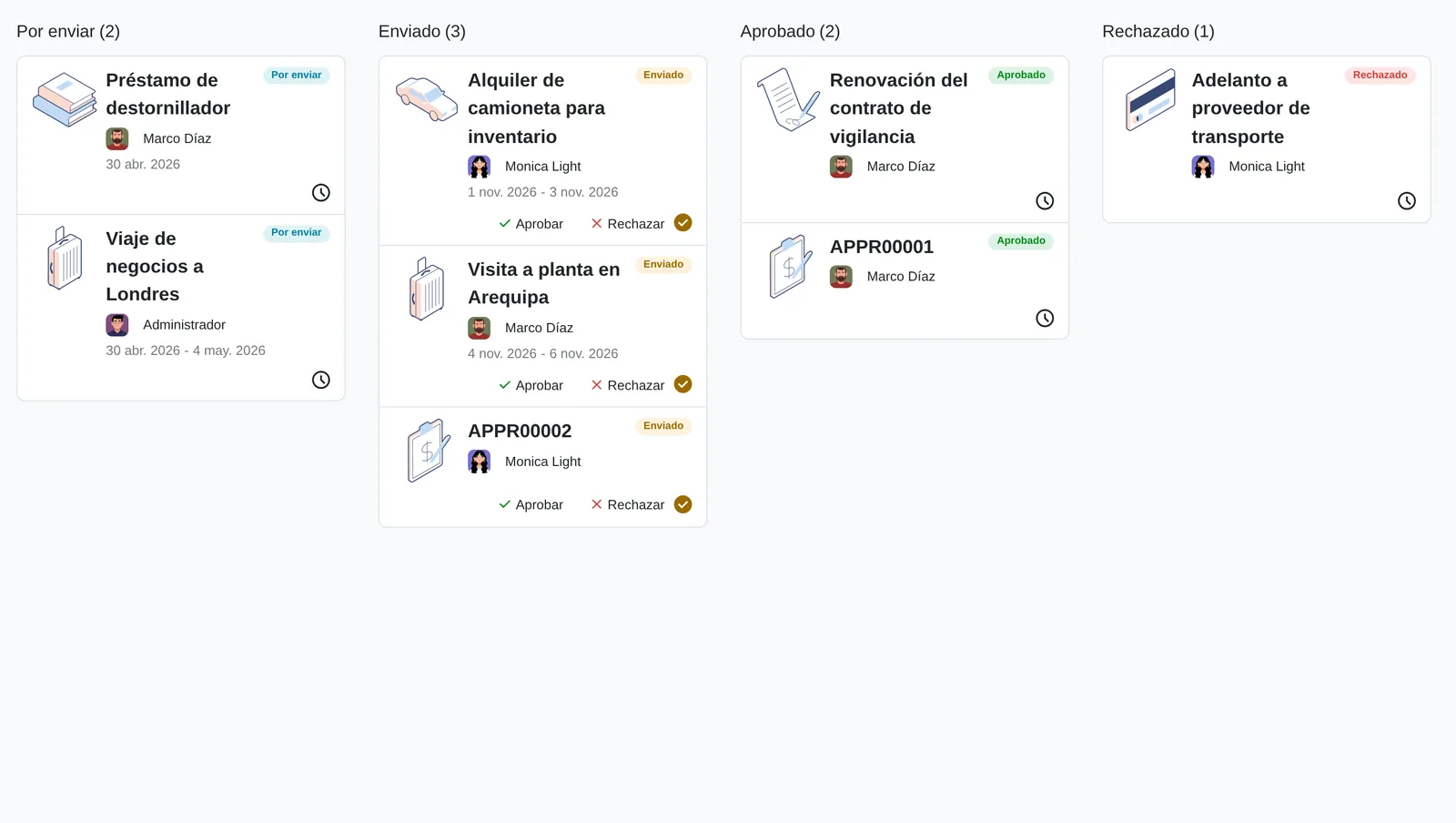
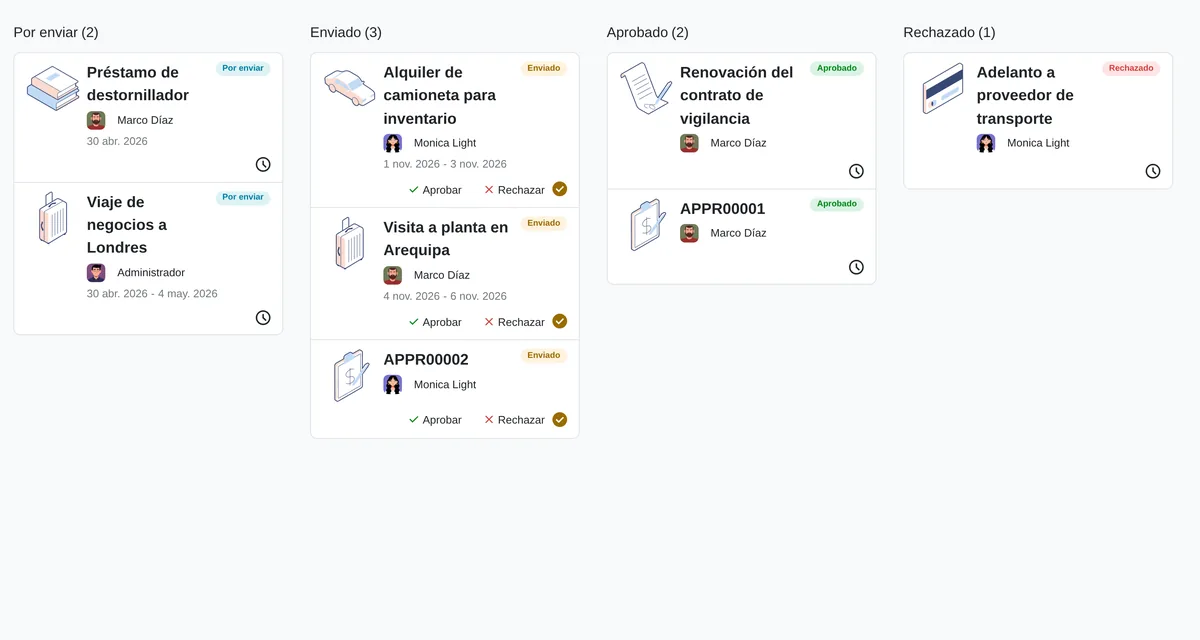
Requests grouped by status
- SubmittedRequests waiting for sign-offs.
- Approve on the cardShown only to whoever must sign.
- RefusedA single refusal closes the request.
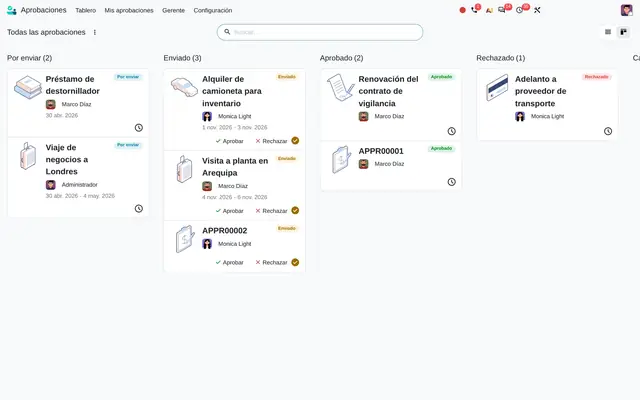 Example in Odoo 20
Sign-offs lost in email and spending nobody approved
Trips, advances, contracts and small purchases are often approved over WhatsApp or email. The requester does not know where the request stands, the approver lacks the evidence and audit cannot find who authorised what. In Approvals each request is a record with a type, approvers set by rule and a history of every status change.
- A dashboard with one request type per card: trip, payment, contract, purchase, equipment loan.
- Fixed approvers per type, the employee's manager and a minimum number of sign-offs before the request counts as approved.
- With Purchase installed, the approved request generates the request for quotation to each product's usual vendor.
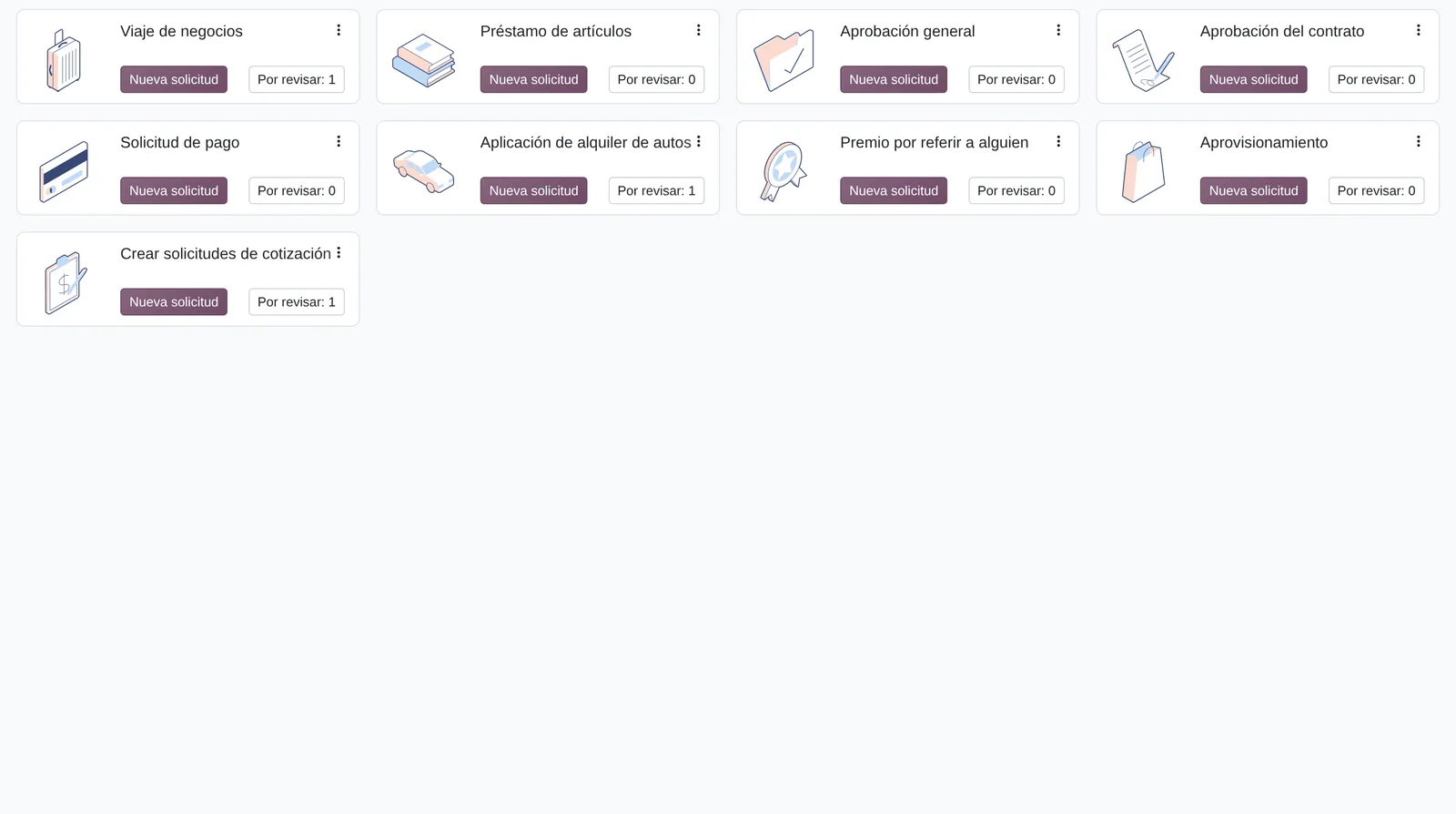
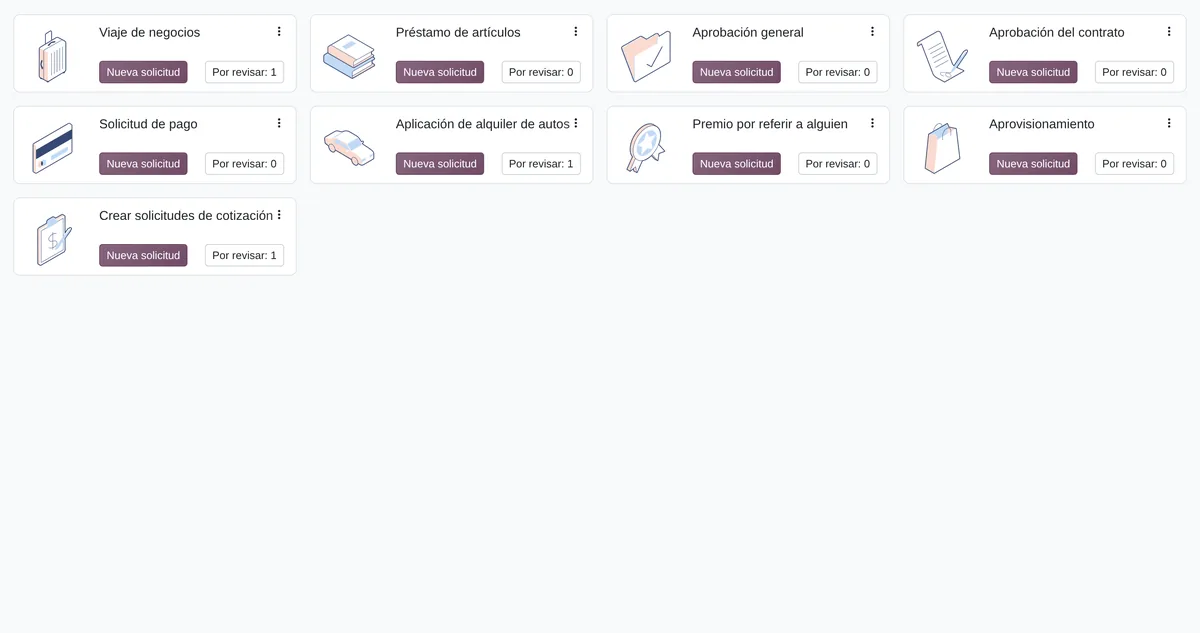
One request type per card
- New requestOpens the form with that type's fields.
- To reviewRequests of that type awaiting your sign-off.
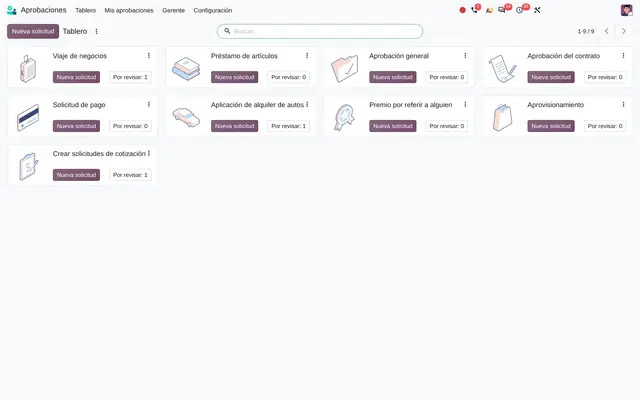 Example in Odoo 20
Who uses Approvals in the company
Companies where several departments request spending, trips, purchases or contracts from central management: services, distribution, construction, education and healthcare.
Roles
- Employee making the request: picks the request type, attaches the evidence and follows the status without asking.
- Department head or manager: approves or refuses from the card, the form or the activity, also on a phone.
- Administration or internal control: defines the types, the required approvers and the minimum sign-offs.
- Purchasing: receives the approved request already turned into a request for quotation, with no re-keying.
When it is not the right fit
- If every approval is by purchase order amount, the Purchase approval setting is enough.
- If you need levels in sequence (manager first, then executive), Approvals asks everyone at once; the sequence is built with two types or with Studio.
- Expenses with receipts to reimburse fit the Expenses app better, which posts the journal entry.
A request whose status follows the sign-offs
The request status changes by itself with each approver answer. Each change is logged in the history with user and date.
To Submit
The requester fills in the fields the type asks for and attaches evidence. Approvers are already filled in.
Submitted
On submit, each approver gets an activity with Approve and Refuse buttons. All at once, in no order.
Approved
It becomes approved once the minimum sign-offs are reached and every required approver has signed. The requester is notified.
Refused
A single refusal closes the request. The other approvers' pending activities are cancelled.
Cancelled
The requester cancels it and can return it to draft to correct it. If it had already created draft quotations, their lines are removed.
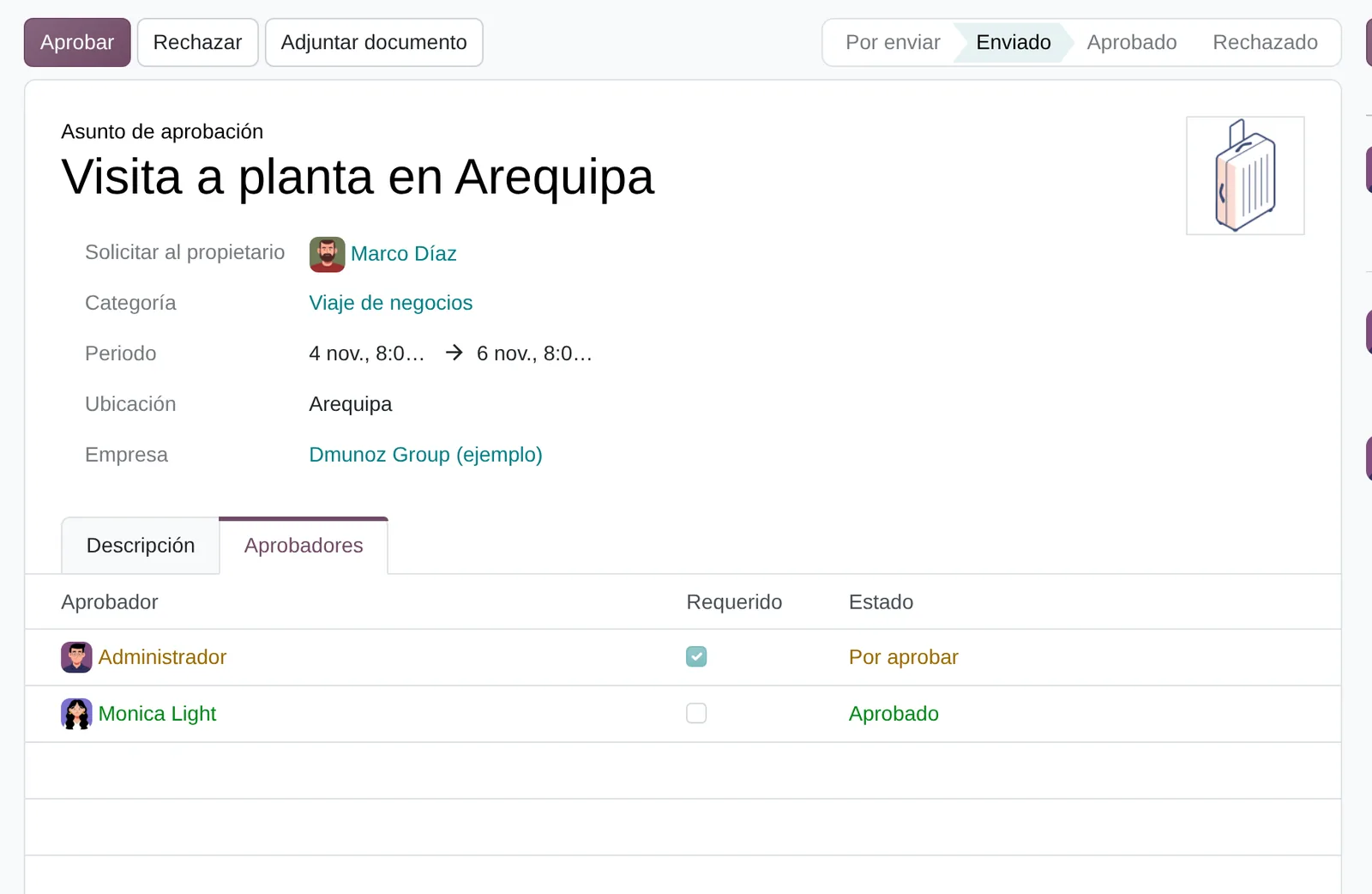
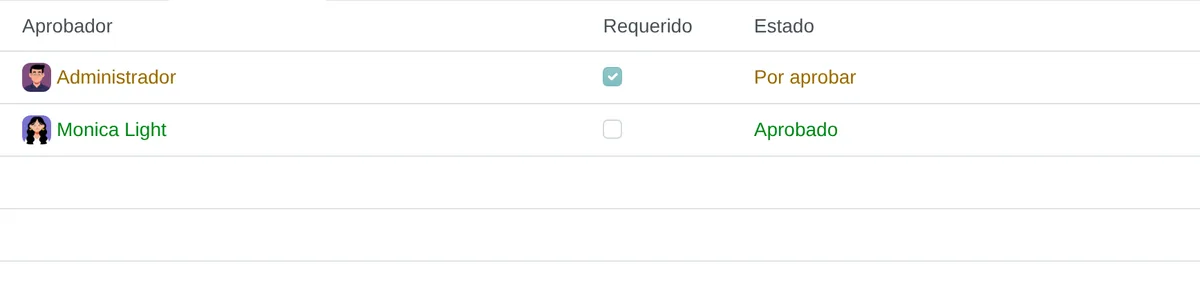
One sign-off in, the required one is missing
- SubmittedThe status is computed from sign-offs.
- Required approverWithout their sign-off it is not approved.
- Already approvedTheir sign-off counts toward the minimum.
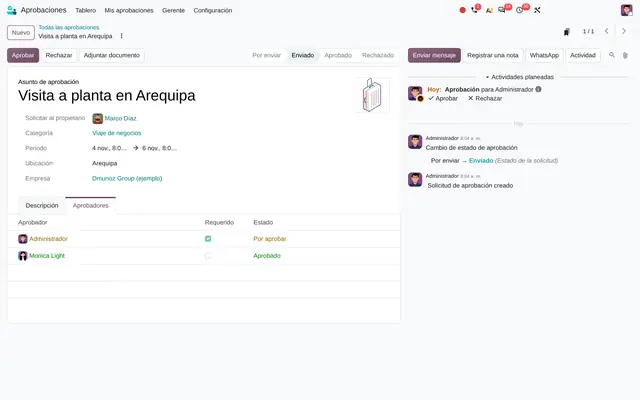 Example in Odoo 20
What Approvals looks like in Odoo 20


Approve from the activity
- ApproveSigns off without leaving the history.
- RefuseCloses the request and notifies the requester.
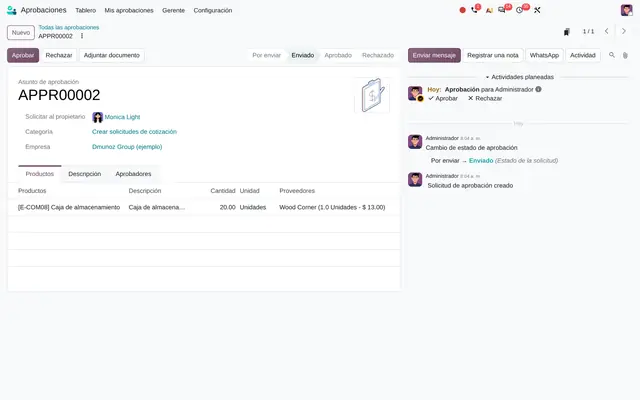 Example in Odoo 20
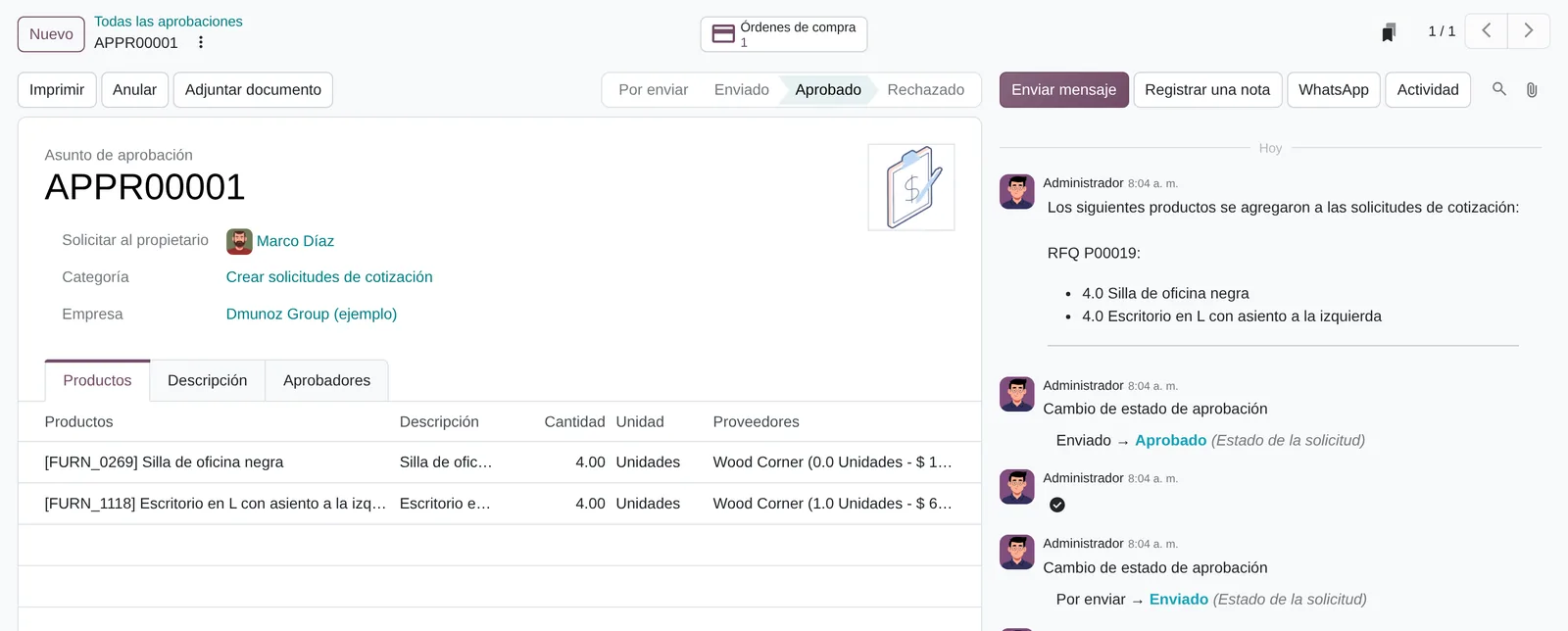
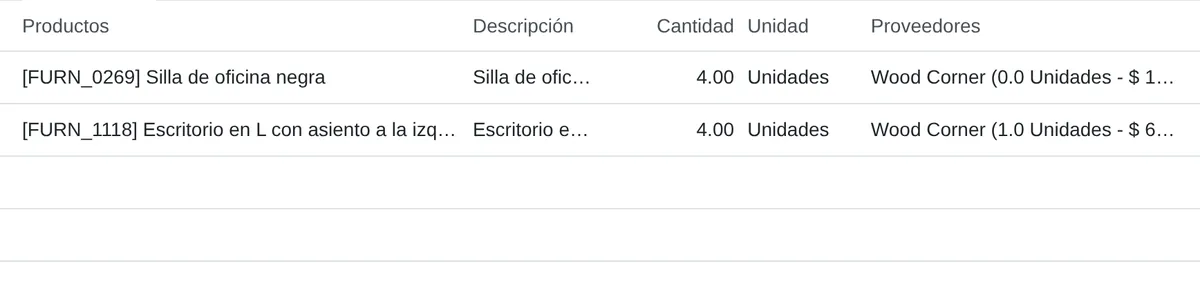
The approved purchase already has its quotation
- Purchase ordersThe quotation the approval created.
- ApprovedOnly once approved can the quotation be created.
- Product and vendorThe vendor comes from the product record.
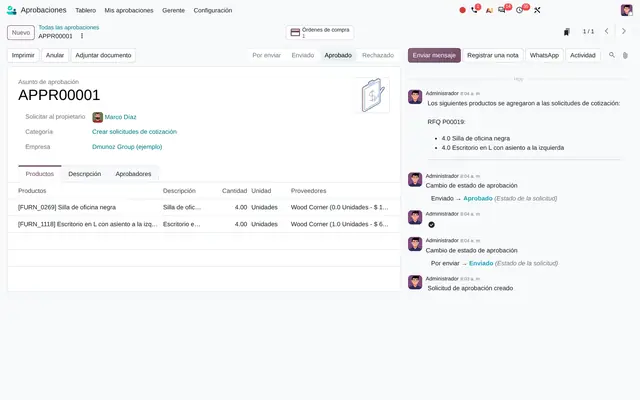 Example in Odoo 20
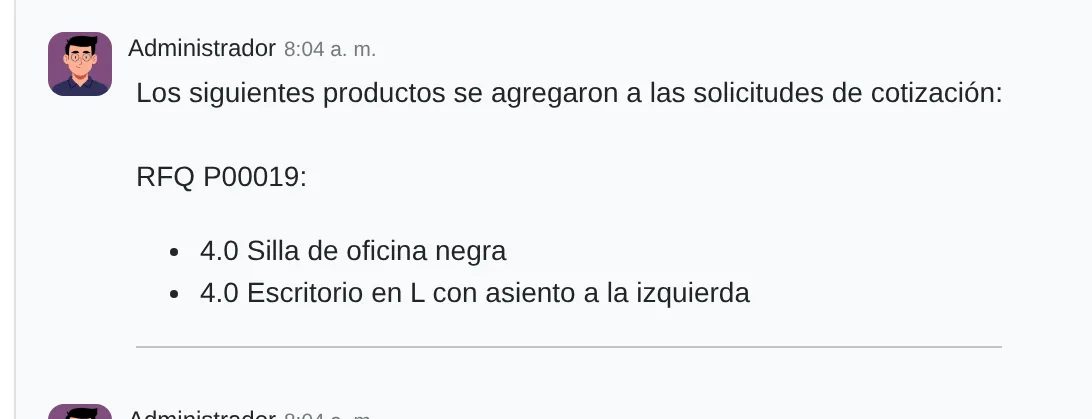
The history shows which quotation each product went to
- Products addedWhich quotation got each product.
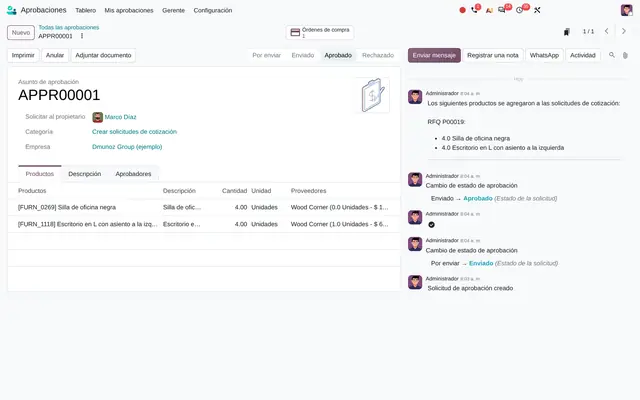 Example in Odoo 20
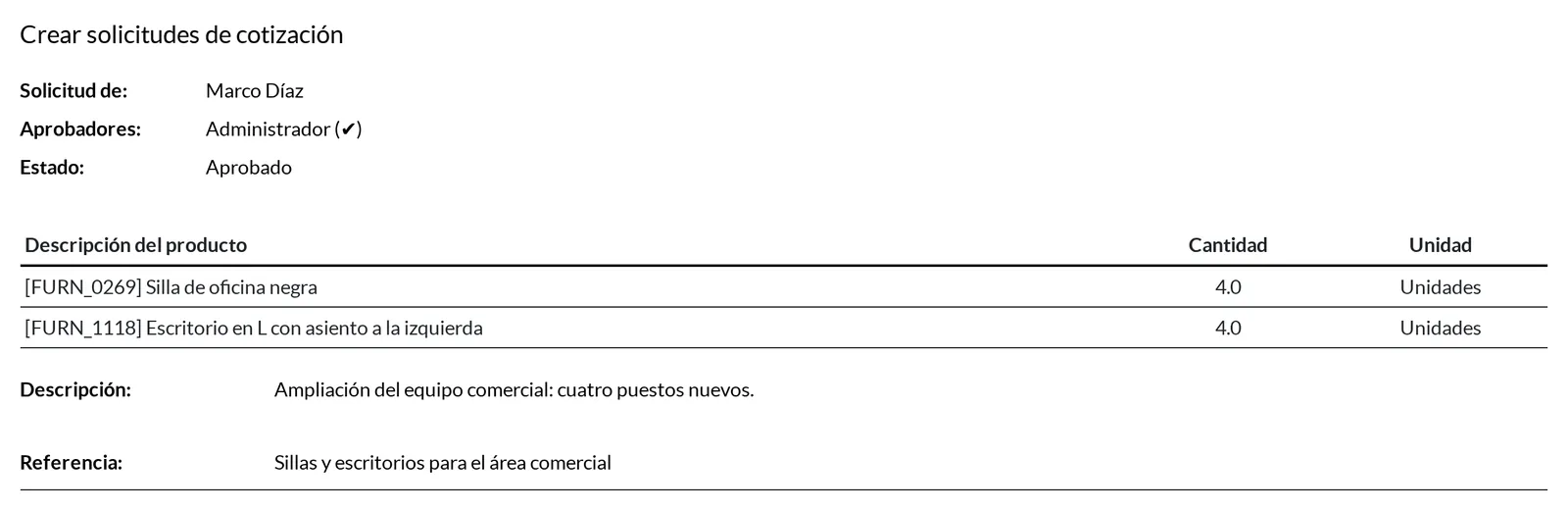

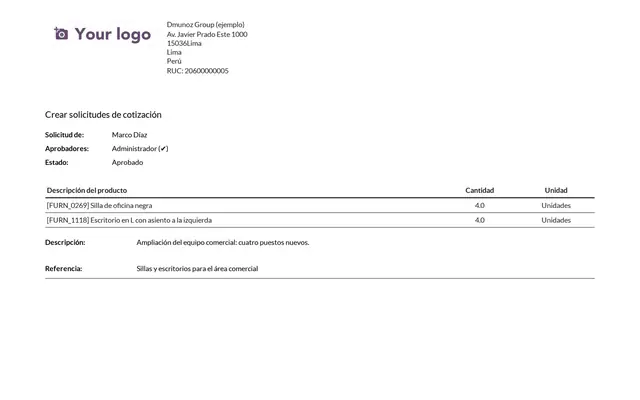
The approved request PDF
- ApproversEach sign-off is ticked on the PDF.
- Approved productsWhat was authorised, with quantity and unit.
 Example in Odoo 20
What the user sees and touches
Approvals dashboard, one card per type
One card per request type, with the New Request button and the count of what you have to review.
Request cards
Colour-coded status: to submit, submitted, approved or refused.
Request form header
Shows the request stage; the stage is computed from sign-offs, not picked by hand.
Documents and Purchase Orders buttons on the form
Counts attachments and generated orders, and opens each list in one click.
Request type options
Each request field is set to Required, Optional or None; that is how the form is designed without Studio.
Requester and approvers
User photo and name, with access to their contact card.
Attach Document button in the header
Uploads the evidence to the history; it is highlighted while the request has no attachments.
Request period (trips, rentals, leave)
One picker for start and end date.
Footer of each request card
Activity clock of the request; for approval activities it shows Approve and Refuse.
What Approvals needs and what it delivers
What it needs before starting
- Request types with the fields each one requires: date, period, amount, contact, products, location, reference and document.
- Approver users per type, flagged as required when their sign-off cannot be skipped.
- Employees with their manager and user, if the manager must approve.
- Purchasable products with their vendor on the Purchase tab, for types that create quotations.
What it produces
- Requests with status, approvers, submission date and the attached evidence.
- The PDF of the approved request, with approvers ticked and the products.
- Requests for quotation in Purchase with the approval reference in the Source field.
- Lists by type, status and requester to review what was approved and refused in a period.
Approvals features that already come included
They come with standard Odoo, with no custom development. Most companies do not turn them on or do not know they exist.
Every approver receives the request at once
What you gain: Parallel approval shortens lead times. If control requires a sequence, split it into two request types or use the required flag for the sign-off that cannot be skipped.
Minimum sign-offs plus required approvers
What you gain: With three approvers, minimum 2 and the finance manager required you get «two out of three, always including finance» without development.
The manager is taken from Employees
What you gain: One type serves the whole company: each request reaches the right manager. That is why the Employees org chart is loaded before turning this option on.
Nobody approves their own request
What you gain: Segregation of duties comes built in. During rollout we check that business users do not hold the technical administrator role.
Approve without opening the request
What you gain: The manager approves from the activities clock in the top bar, on any Odoo screen. It is the habit that speeds up adoption the most.
A sequence of its own per request type
What you gain: Prefixes such as TRV, PAY or PUR give numbering that audit can request per type.
Several approvals, one quotation per vendor
What you gain: Purchasing keeps quotations in draft until the daily cut-off and sends one per vendor with every department's needs.
Cancelling the approval cleans up the quotation
What you gain: The buyer does not buy what the department no longer needs and sees in their activities the orders to review by hand.
What changes how Approvals behaves
Employee's Manager
The requester's manager (from Employees) is added as a required approver.
Approvals › Configuration › Approval Categories › Approvers › Employee's Manager
Minimum Approval
Number of sign-offs needed to approve; required approvers always count.
Approval category › Options › Minimum Approval
Document
Set to «Required», the request cannot be submitted without at least one attachment.
Approval category › Options › Document
Automated Sequence and Prefix Code
The subject is replaced by a sequence number with the type's prefix.
Approval category › Automated Sequence and Prefix Code
Create RFQ's
With Purchase installed, the type requires products and quantities and, once approved, creates the requests for quotation.
Approval category › Create RFQ's
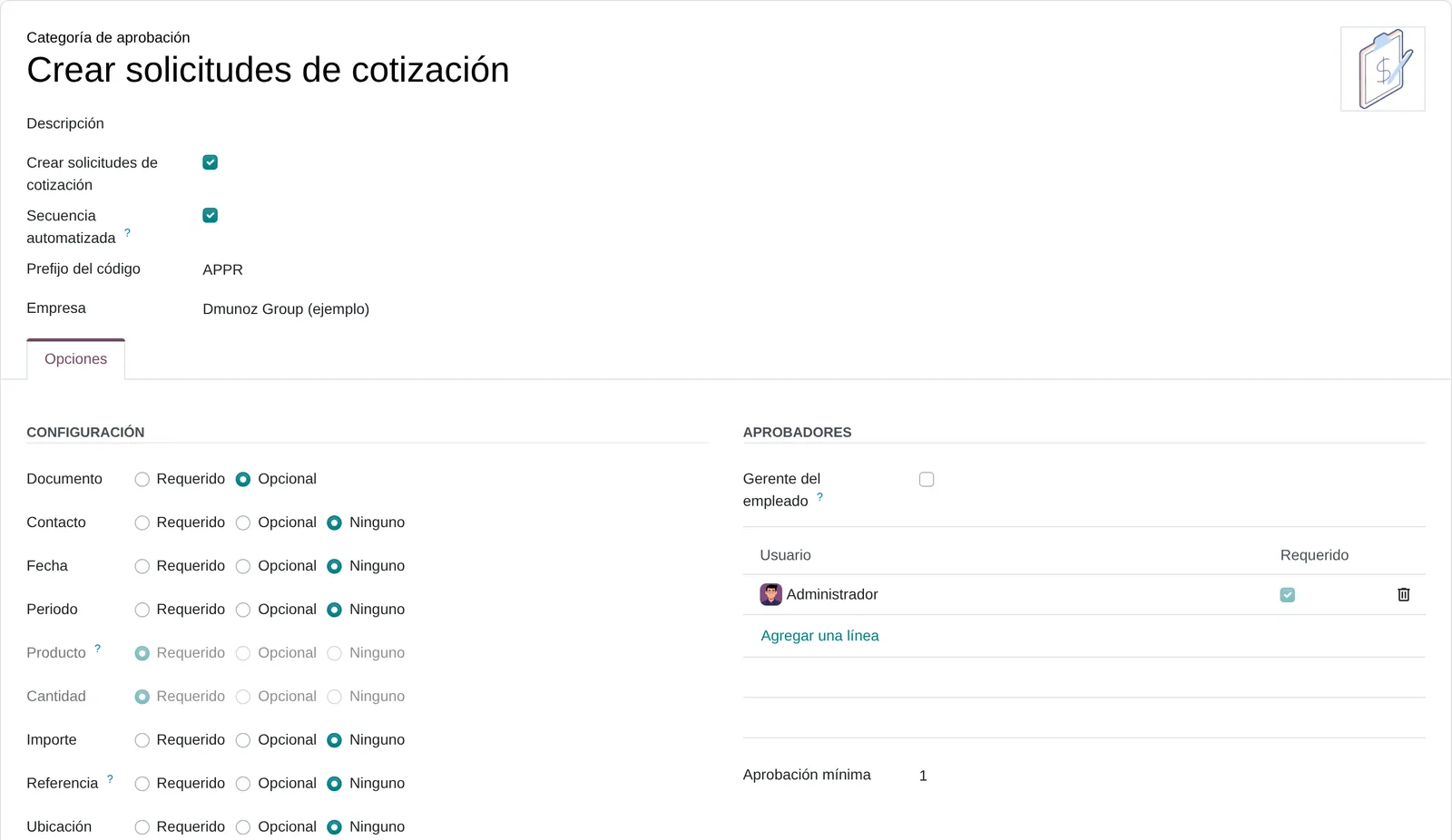
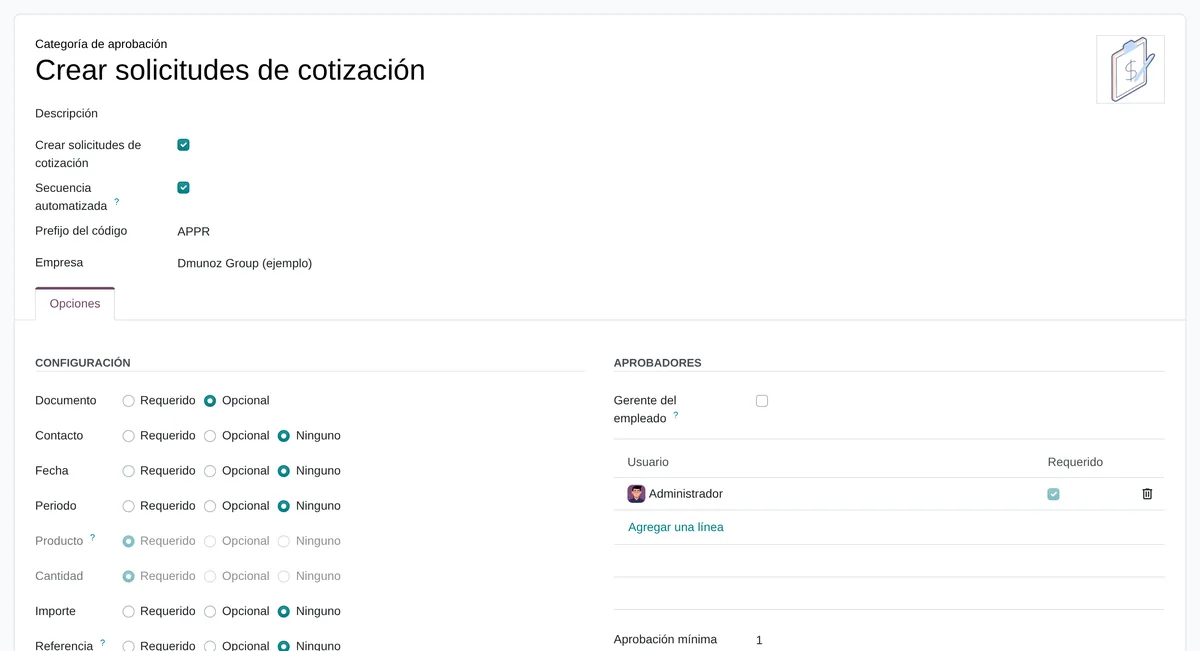
The request type defines the form and the sign-offs
- Create quotationsSets products and quantities as required.
- Form fieldsRequired, optional or none.
- Minimum approvalSign-offs needed to approve.
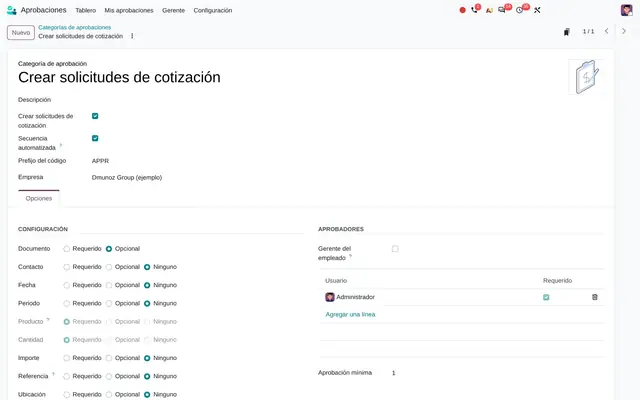 Example in Odoo 20
What Approvals connects with
Purchase
Receives: The number of generated orders and their link on the request.
Delivers: Requests for quotation grouped by vendor and currency, with the approval noted as their source. Adds the «Create RFQs» request type.
Inventory
Receives: The warehouse of each product line, the company's first one by default.
Delivers: Quotations split by the warehouse receipt type, so each one arrives where it was requested.
Employees
Receives: Nothing: it only reads.
Delivers: The manager and their user, for the employee's manager approval.
Discuss and activities
Receives: Approval activities per approver and notices to the requester.
Delivers: The history of each status change, who made it and when.
What it does not do and how it is solved
There are no sequential levels: every approver receives the request at once.
Two chained types, or a Studio rule that creates the second request when the first is approved.
Approvers do not change with the request amount.
One type per amount band (for example, small and large payments) with its own approvers.
An approved request does not post a journal entry or a payment.
For purchases, the Purchase bridge; for reimbursements, the Expenses app; for payments, Invoicing with its own flow.
Peruvian localisation
- Approvals does not depend on the Peruvian localisation. Amounts are recorded in the company currency and evidence is kept as attachments.
Approvals layer by layer, with a deliverable for each
The layers follow the answers to the configuration questionnaire.
Settings
Approvals has no settings screen: everything lives in each request type. We define the fields it asks for, whether a document is required, the sequence and whether it creates quotations, based on the questionnaire answers.
Request type matrix with their fields and rationale.
Master data
Employees org chart with manager and user, purchasable products with vendor, and warehouses if there are purchases.
Reviewed and loaded import templates.
Roles
Users who only request, approvers per type with the required flag, officers who see everything and administrators who configure.
Roles table per person and request type.
Automations
Approval activities with deadlines, reminders to whoever does not respond and, if needed, a rule that chains a second approval type.
Documented and tested rules.
Reports
Saved views by status, type and requester, and the approved request PDF for the file.
Favourite filters shared with management and internal control.
Dashboard
Dashboard of pending requests by approver and age, so nothing stalls unnoticed.
Dashboard published for management.
Test
A walkthrough of each type with real users: submit without evidence, refuse, approve with the minimum, cancel a purchase whose quotation is still a draft.
Test record signed by each department lead.
Typical risks and how they are avoided
The manager has no user or is missing from the org chart and the request cannot be submitted.
Before go-live the org chart is matched against active users.
A minimum of sign-offs above the number of approvers leaves requests that are never approved.
Odoo already warns on the type; in testing one request of each type is pushed through to approval.
Products without a vendor block quotation creation.
The purchasable product load includes vendor and price from the start.
Frequently asked questions
About Approvals in Odoo 20
Yes. The approval activity reaches the approver with Approve and Refuse buttons in the mobile app and the browser.
Yes. Each type has properties: fields defined on the type that appear only on its requests, without Studio or development.
While the request is to submit, the approver can be changed. Once submitted, an Approvals officer can force approval and it is logged in the history.
They complement each other. Approvals controls the internal request before quoting; Purchase approval controls the order before it goes to the vendor.
Set up Approvals in 3 minutes
Tell us how you work today. At the end you will see the Approvals settings we would turn on and the data to load. Diego receives the specification and reviews it with you.
Assessing the whole system rather than this module? See the system assessment