All your clients' Odoo databases in one list
Databases turns each client's Odoo database into a project. Once a day it pulls its users, draft entries per journal, the status of tax returns and the documents waiting in the inbox.
At the end of the questionnaire you will see the configuration we recommend.
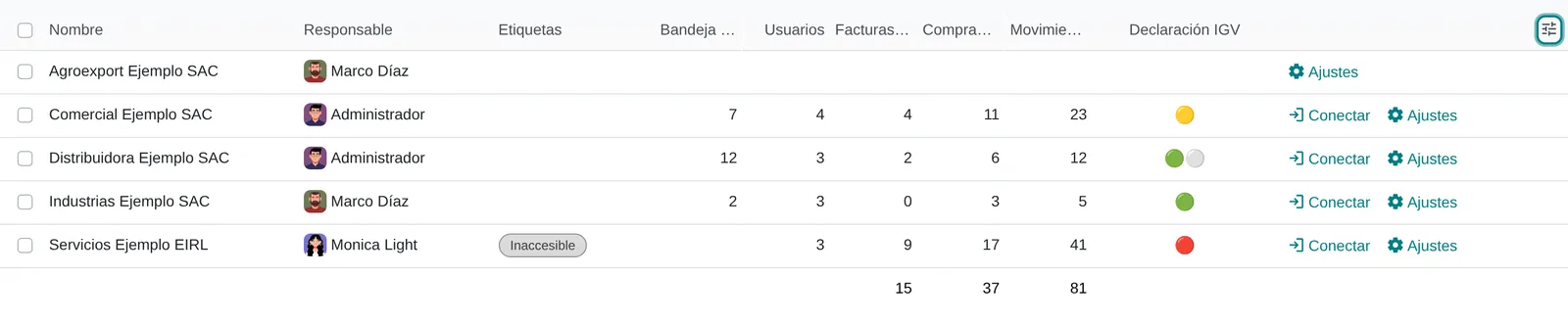
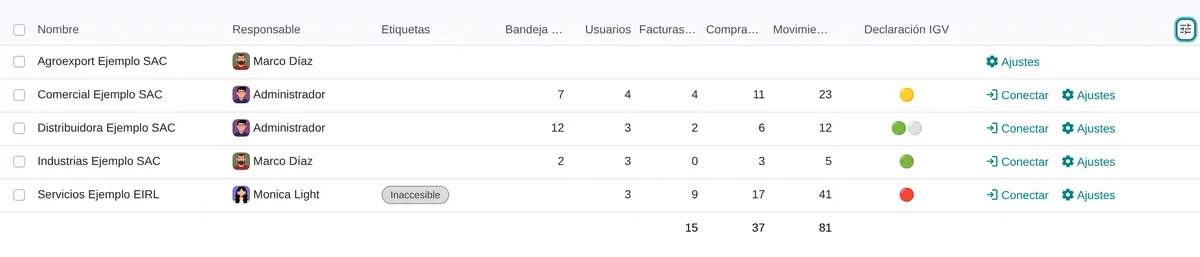
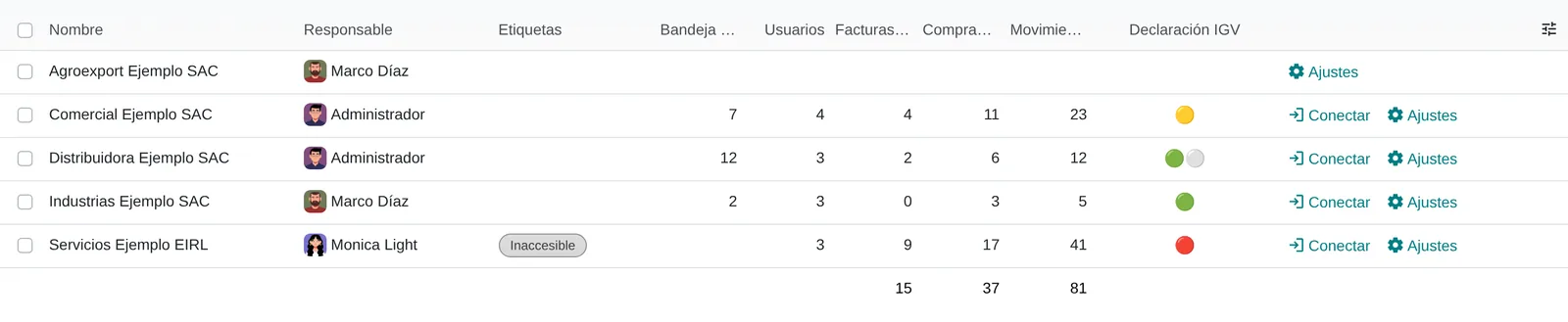
Database portfolio with its KPIs
- OwnerWho handles the client database.
- Tags«Inaccessible» is set by the sync.
- KPIsOne column per chosen KPI.
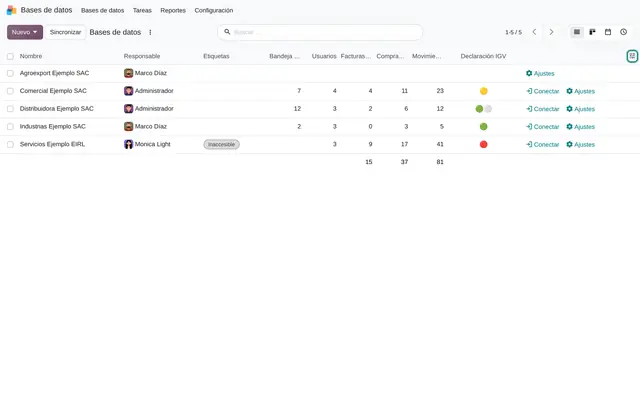 Example in Odoo 20
One browser tab per client
An accounting firm or partner serving several Odoo databases logs into each one to see what is pending. Access is handed out by email and nobody knows which user is still active in which database.
- Draft entries and late returns that only show up by logging into each database.
- User additions and removals done by hand, one database at a time.
- No shared record of each client's version and hosting.
Database portfolio with its KPIs
- OwnerWho handles the client database.
- Tags«Inaccessible» is set by the sync.
- KPIsOne column per chosen KPI.
Example in Odoo 20Who uses Databases in the company
Accounting firms, bookkeeping outsourcers and Odoo partners with clients on Odoo Online, Odoo.sh or their own servers.
Roles
- Partner or portfolio lead: checks in one list which clients have drafts, returns or documents pending.
- Assigned accountant: opens the client database with the «Connect» button and works the project tasks.
- Administrator: stores the access keys and invites or removes users across several databases at once.
When it is not the right fit
- If the company runs a single Odoo database, the module adds nothing.
- If clients do not use Odoo, only the record and the link remain: there is no synchronisation.
- If the goal is server monitoring (CPU, outages), an observability tool is needed.
From registered database to portfolio board
Each client is a project with an extra tab for its Odoo database and KPIs.
Database
It is created with hosting, address, name, login and access key. The address is completed with https.
Synchronisation
The daily automatic update or the «Synchronize» button reads users, version and metrics from the remote database.
New KPIs
KPIs that appear for the first time are offered in a dialog to add them as columns.
Users
The administrator invites or removes users in several databases from the list.
Connection
The accountant opens the client database; on Odoo Online they can sign in with their Odoo.com account.
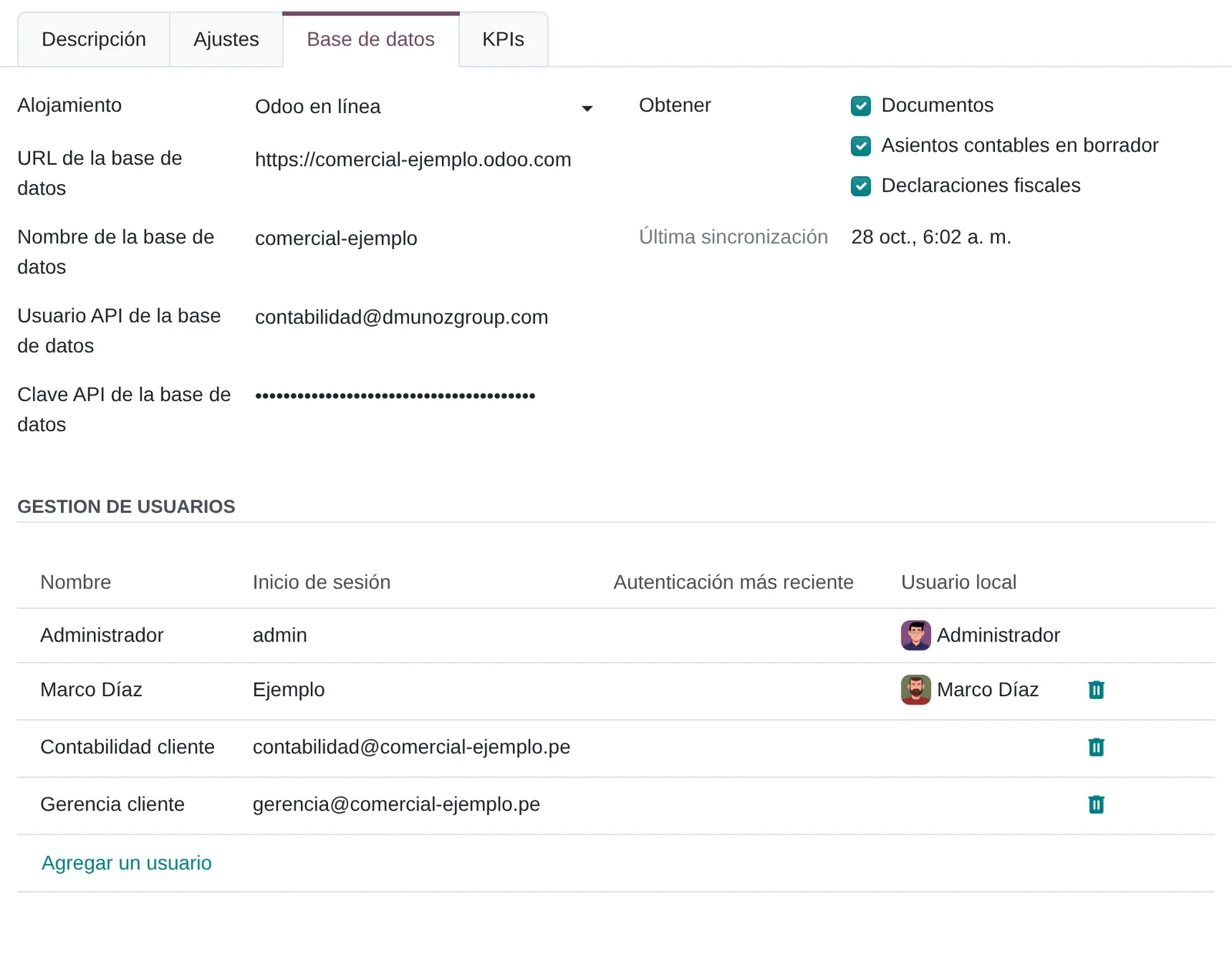
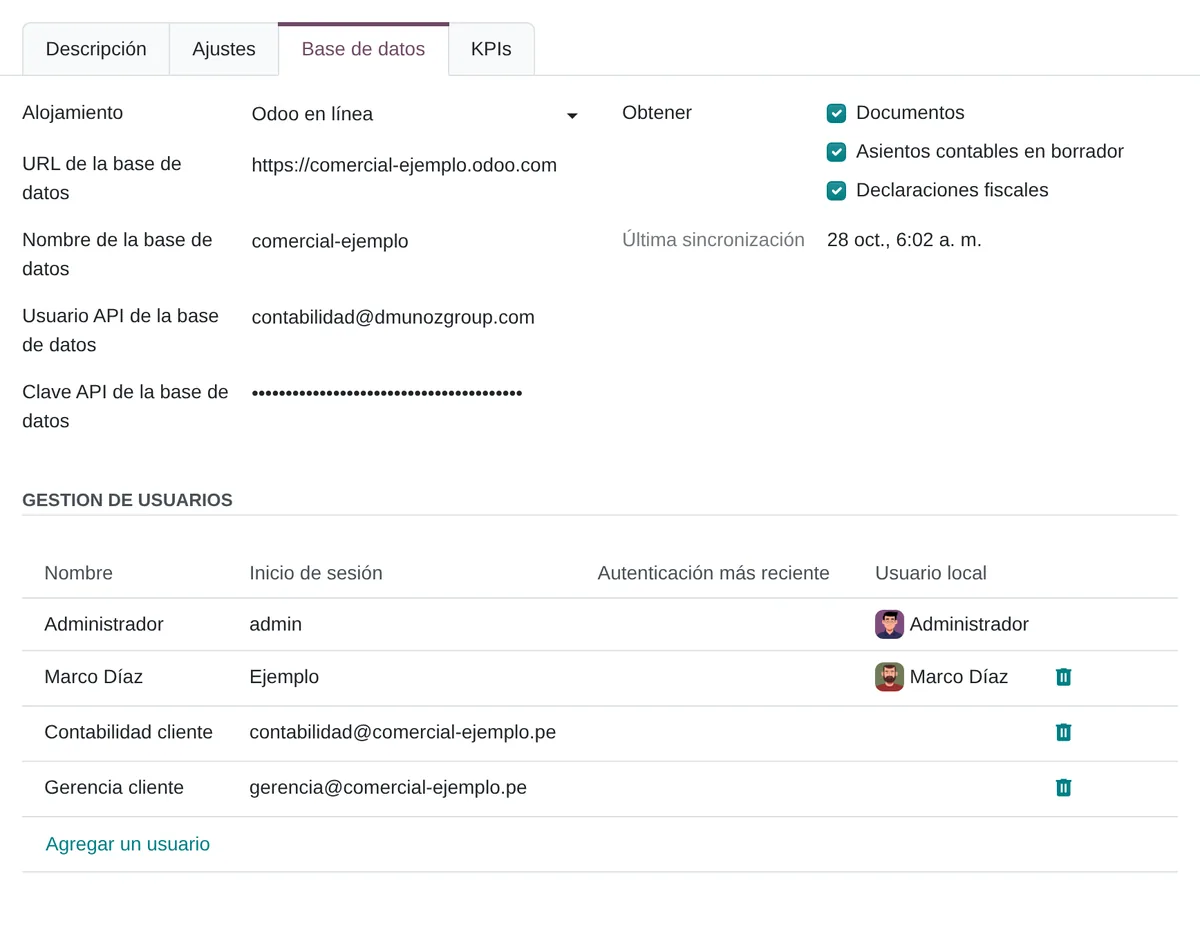
A client database form
- HostingOdoo Online, Odoo.sh, on premise or outside Odoo.
- What to fetchDocuments, drafts and tax returns.
- Access keyStored and never shown again.
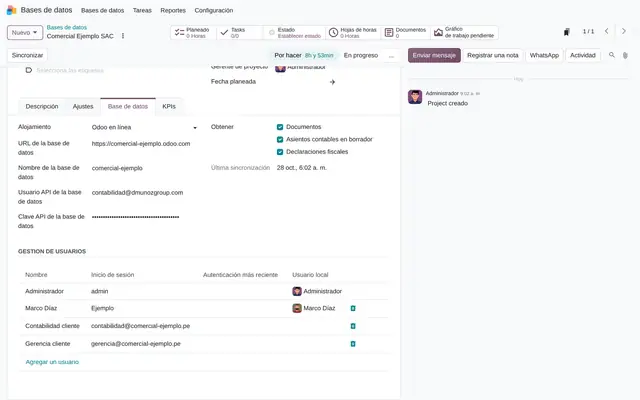 Example in Odoo 20
What Databases looks like in Odoo 20
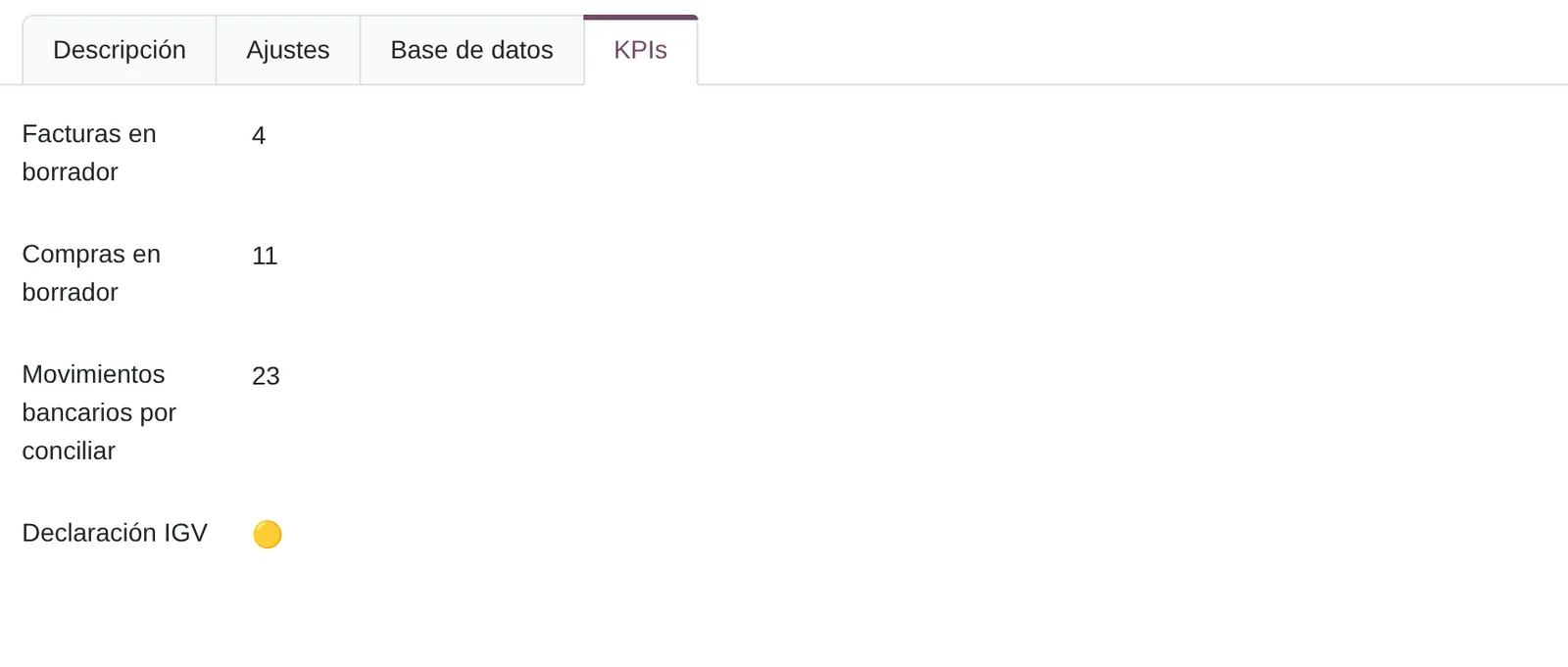
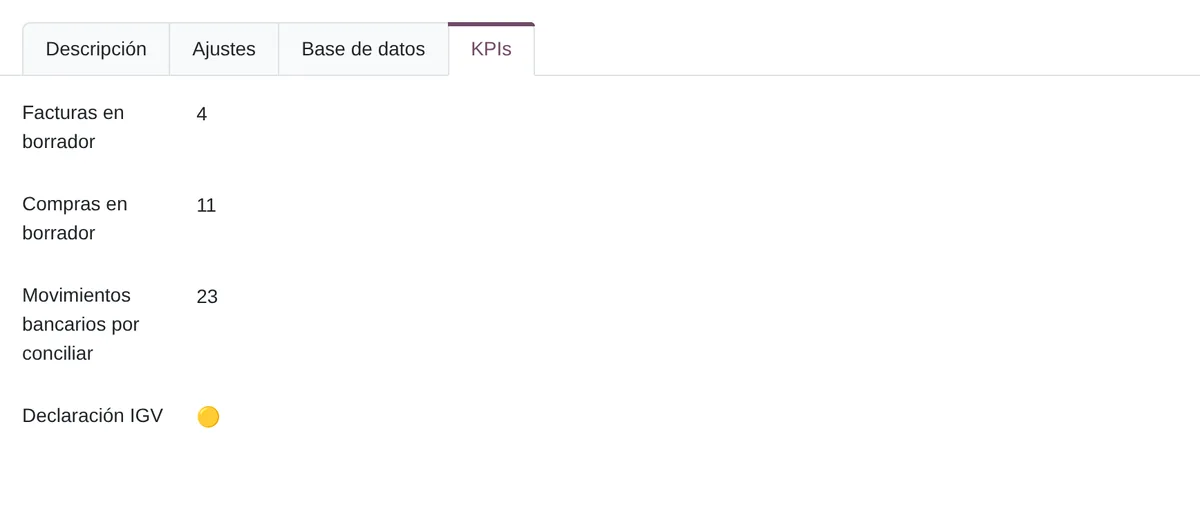
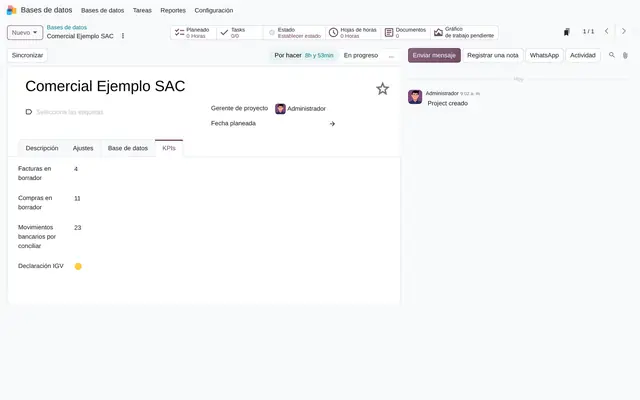
A client’s KPIs
- DraftsUnposted invoices and bills in the client database.
- Tax returnTraffic light: red late, yellow to do, green filed.
 Example in Odoo 20
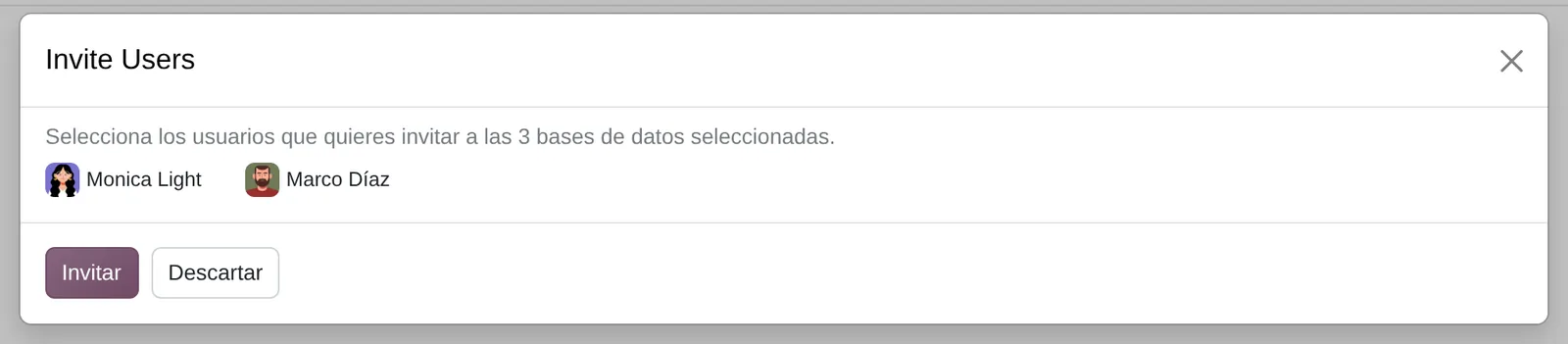
Invite users to several databases
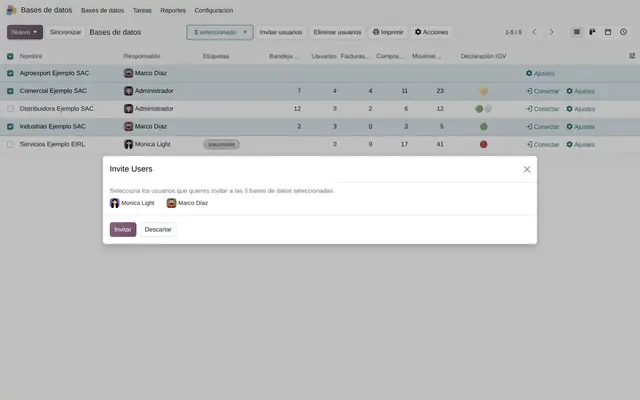
- UsersCreated in every selected database.
 Example in Odoo 20
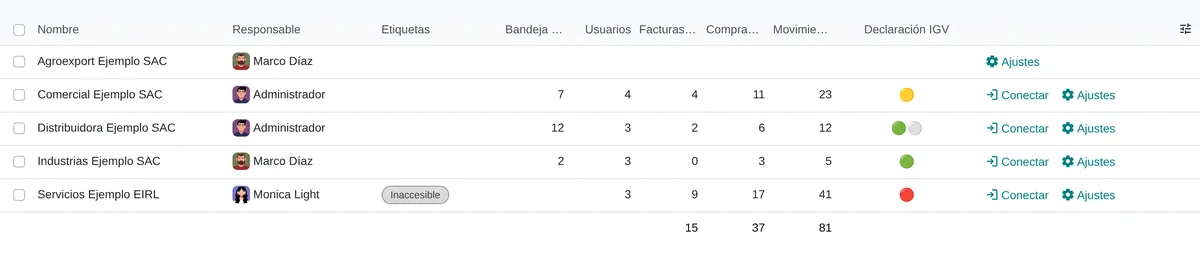
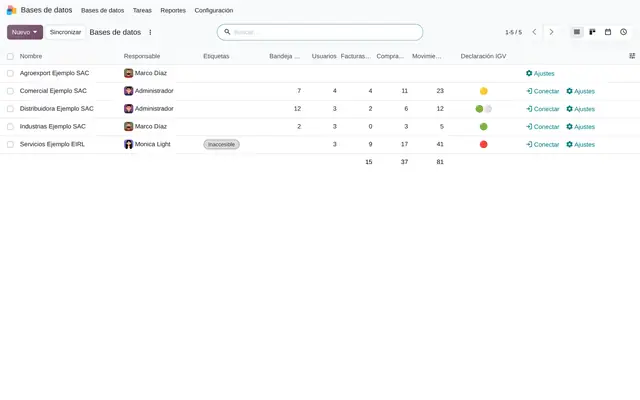
Open each client from the list
- ConnectOpens the client database in a new tab.
- SettingsHosting, access and KPIs of the database.
 Example in Odoo 20
What the user sees and touches
Client list
One row per client with owner, documents to review, users and a column per KPI. The tax return traffic light reads at a glance.
Client record, «Database» tab
Hosting, address, access user and key, what each update fetches and the list of people with an account in that database.
«Invite Users» dialog
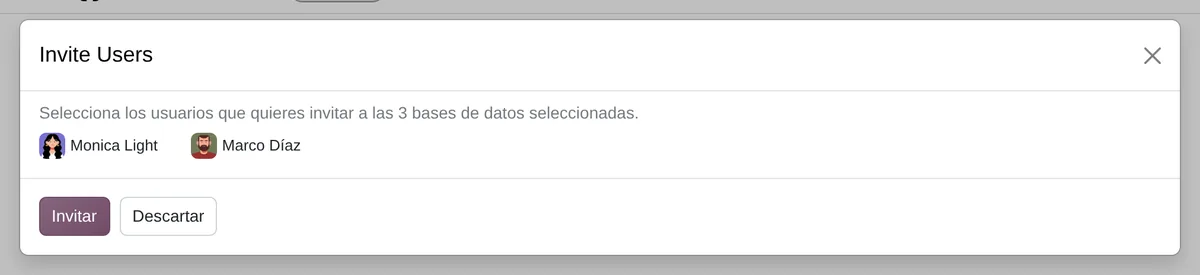
Shows how many clients it applies to and lets you pick people by photo and name.
Buttons on each row
«Connect» opens the client database in a new tab; «Settings» opens its record.
What Databases needs and what it delivers
What it needs before starting
- Address, name and hosting of each client’s Odoo database.
- A connection user and key in each database, or the Odoo.com access key for Odoo Online databases.
- The project template with the firm's work stages.
- Internal users with the Databases User or Administrator role.
What it produces
- List of databases with owner, tags, user count and one column per KPI.
- «Inaccessible» tag and a message in the history when a database does not respond.
- Users of each remote database, linked to the local user by login.
- Tasks per database, with the standard Project reporting.
Databases features that already come included
They come with standard Odoo, with no custom development. Most companies do not turn them on or do not know they exist.
Each client’s access key is never shown again
The database record only shows dots instead of the key.
What you gain: Nobody on the team can copy the key from the screen. If the field is left empty, that database uses the general Odoo.com key stored in Settings.
A client that does not respond is flagged and stops being retried automatically
The «Inaccessible» tag appears next to the client name in the list.
What you gain: After five failures in a row, the daily update skips that database and does not slow down the rest of the portfolio. Once the address or key is fixed, the «Synchronize» button brings it back.
Each client shows only the KPIs you choose to track
The client’s KPI tab with draft invoices and bills, items to reconcile and the tax return traffic light.
What you gain: Three boxes per client decide whether documents, accounting drafts or tax returns are fetched. A client you only handle payroll for does not fill the list with empty accounting columns.
One user addition reaches several clients in a single step
Select the clients in the list, click «Invite Users» and pick the people.
What you gain: When an accountant joins or leaves, their access is created or removed in all their databases at once. The same list then shows who has an account at each client.
«Connect» opens the client at the right address for its version
A «Connect» button on each row of the list.
What you gain: The accountant opens the client database without looking for the link. On Odoo Online it goes through the Odoo.com account; older versions use the classic entry page. Recording the real version avoids broken links.
What changes how Databases behaves
API credentials to Odoo.com
Key Odoo uses to list Odoo Online databases and as a fallback when a database has no key of its own.
Settings › Databases › API credentials to Odoo.com
Project Template
Project copied when each database pulled from Odoo.com is created: stages, tasks and followers.
Settings › Databases › Project Template
SaaS SSO Auto-login
The «Connect» button signs into Odoo Online databases with the Odoo.com account, with no password.
Settings › Databases › SaaS SSO Auto-login


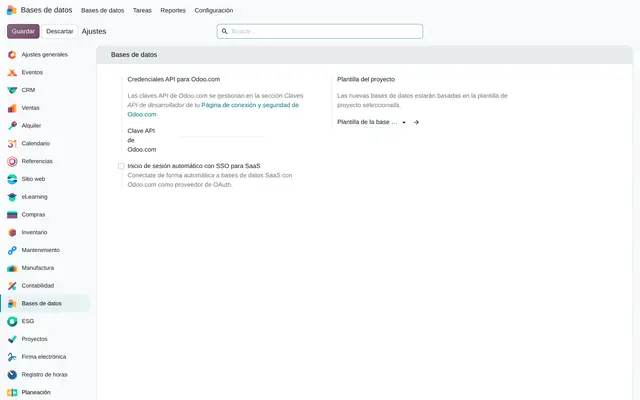
Databases settings
- Odoo.com keyLists Odoo Online databases and acts as fallback.
- TemplateProject copied per database.
- Odoo.com sign-inPasswordless sign-in to Odoo Online.
 Example in Odoo 20
What Databases connects with
Odoo Online auto sign-in
Receives: The user’s Odoo.com account, validated by Odoo.com.
Delivers: Direct access with the Odoo.com account to Odoo Online databases, with no per-database password.
Project
Receives: Each database as a project, with stages, tasks and followers.
Delivers: Project's standard template, tasks and reporting.
What it does not do and how it is solved
It only reads Odoo databases: those marked «Outside of Odoo» are not synchronised.
They are kept as a link and handled with tasks.
Each database needs a connection user with read access in the client database.
A service user and key are agreed with the client during implementation.
Synchronisation is daily, not real time.
The «Synchronize» button refreshes one database or a selection when needed.
Peruvian localisation
- Tax return indicators come from each database’s accounting; in Peru they depend on how the client’s Peruvian localisation is set up.
- Draft entries are counted per journal, so each client's document series appears as its own column.
Databases layer by layer, with a deliverable for each
The layers follow the answers to the configuration questionnaire.
Settings
Odoo.com access key, project template and Odoo.com sign-in based on the questionnaire answers.
Settings sheet stating where each credential is kept.
Master data
Each database registered with hosting, address, version, connection user and owner; project template with the firm's stages.
Database load template, imported.
Roles
User for accountants and Administrator for whoever stores keys and manages remote users.
User and access matrix.
Automations
Review of the two automatic daily syncs and the immediate sync cap.
Full sync run with no errors on every database.
Reports
Task report per database and owner, with Project's standard analysis.
Saved analysis view for the partner.
Dashboard
Choice of the KPIs shown as columns and saved views per owner.
Portfolio list with the agreed columns.
Test
Registration, sync, invitation and removal of a user on a real firm database.
Test record with screenshots.
Typical risks and how they are avoided
access keys with more rights than needed.
One service user per database with minimum rights, and the Administrator role only for whoever stores them.
Databases that stop syncing without anyone noticing.
Saved view on the «Inaccessible» tag and on sync errors.
Users still active in client databases after leaving the firm.
«Remove from all databases» on the user, as a step of the offboarding procedure.
Frequently asked questions
About Databases in Odoo 20
Yes. Hosting accepts Odoo Online, Odoo.sh and own servers; all three sync with a connection user and key.
Users, version and counts: drafts per journal, return status, inbox documents and activities. Entries and documents are not copied.
Not by default: new databases are visible to their followers.
Yes, with «Remove from all databases» on the user form or «Remove Users» on a selection.
Set up Databases in 3 minutes
Tell us how you work today. At the end you will see the Databases settings we would turn on and the data to load. Diego receives the specification and reviews it with you.
Assessing the whole system rather than this module? See the system assessment